What Is Tubebuddy's Bulk End Screens Feature
We already talked about how TubeBuddy allows you to create End screen templates and how you can apply such a template to a specific video.
TubeBuddy's Bulk End Screens feature makes it possible to automate this process of copying, updating, and deleting End Screens across all of your videos, saving you hours of time.
How to Copy an End Screen Template With Tubebuddy
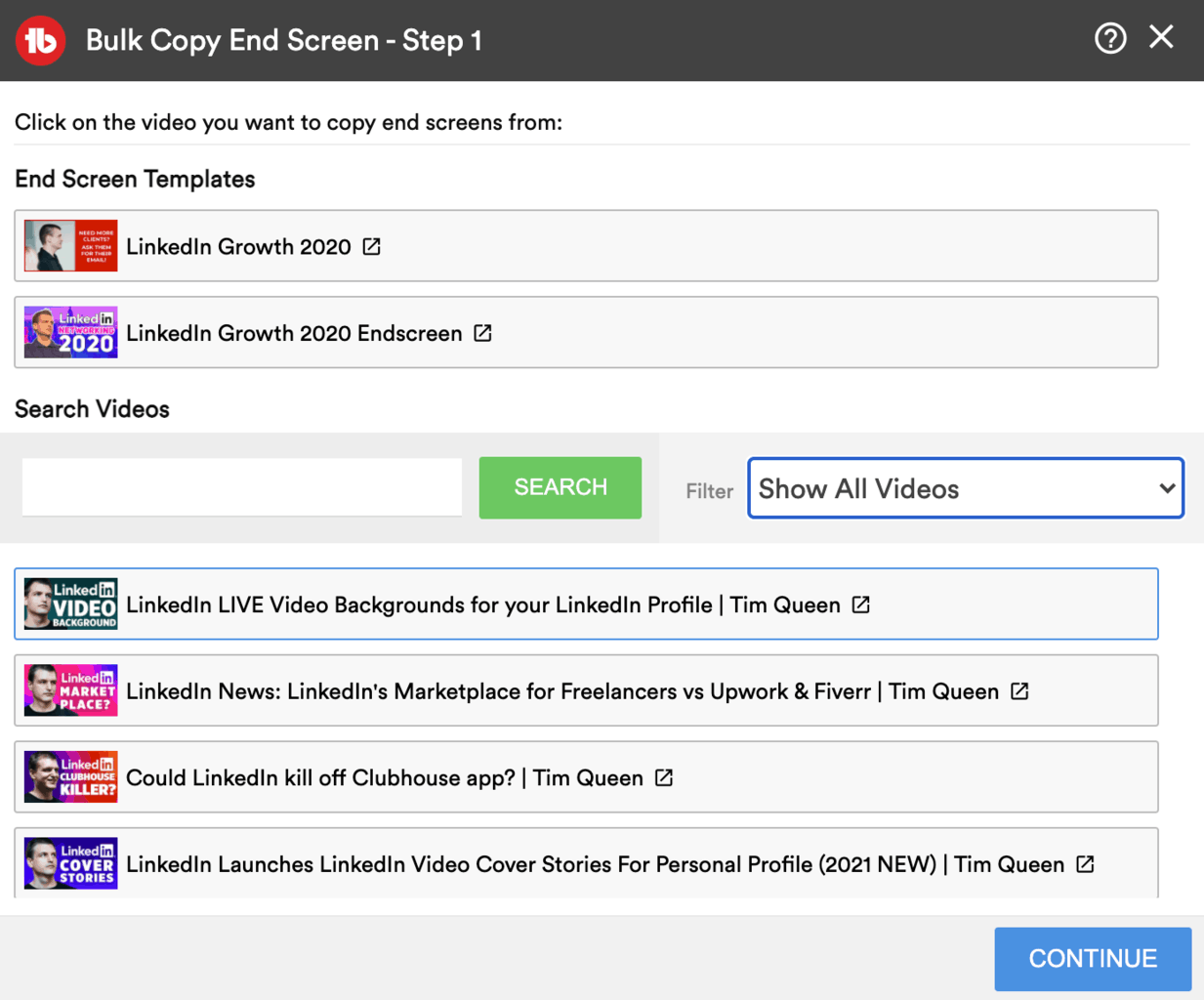
If you want to copy and apply End Screens across multiple videos, start by opening TubeBuddy's Bulk Copy End Screens tool from the Content tab in YouTube Studio.
Select either an existing End Screen template, or pick a video you want to copy from.
Then adjust your template, and select your target videos to start the bulk process.
Done!
How to Update End Screens in Bulk With Tubebuddy
Updating End Screens in bulk works very similar.
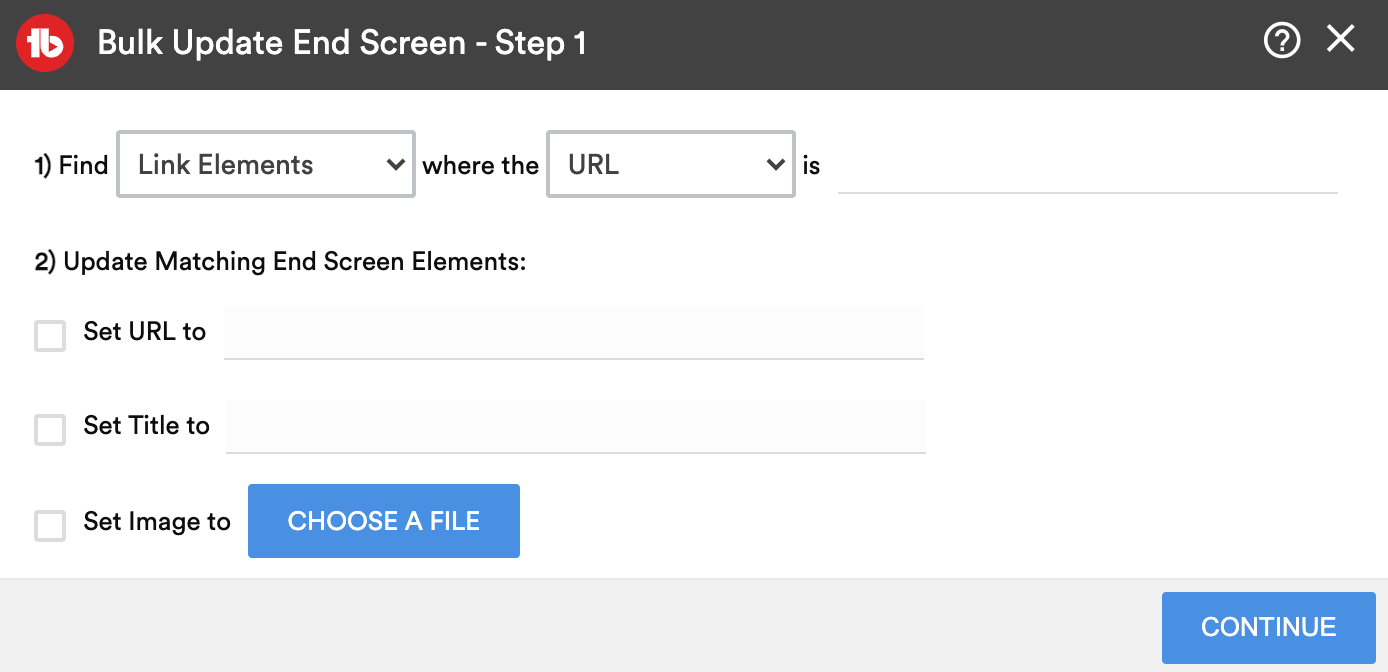
To update End Screens in bulk, first, open TubeBuddy's Bulk Update End Screens tool from the Content section in YouTube Studio.
Select what element type you would like to update, then specify your search criteria of how you would like to update your matching videos.
You can overwrite either the URL, title, and image of any matching End Screen.
Once you're happy, click Continue.
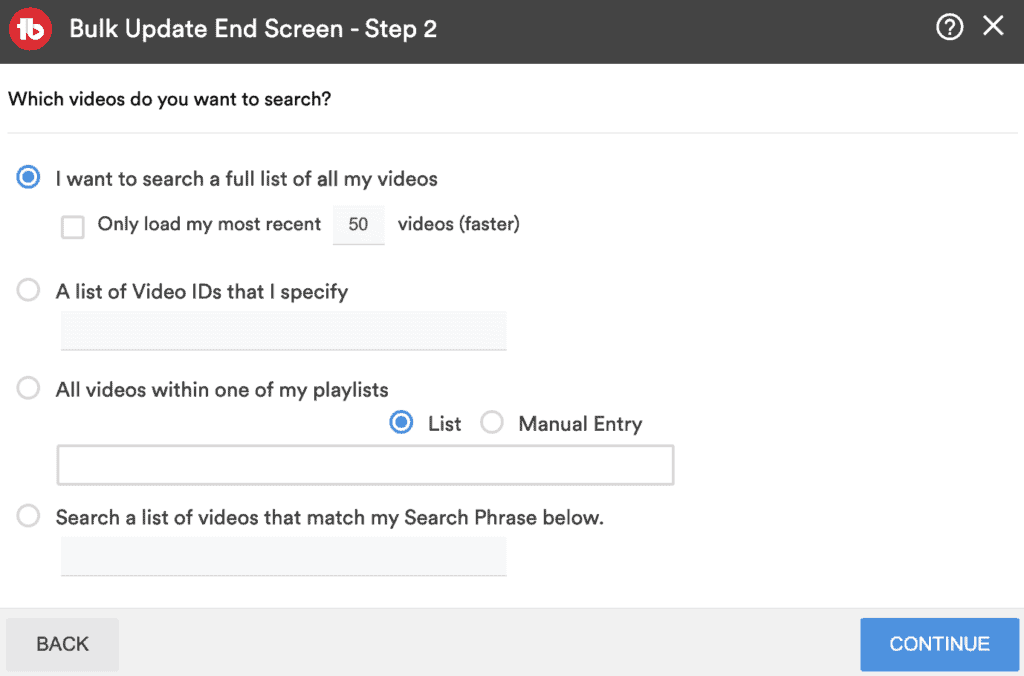
On the next screen filter and select your target videos that you wish to update and click on Continue to start the process.
How to Delete End Screens in Bulk With Tubebuddy
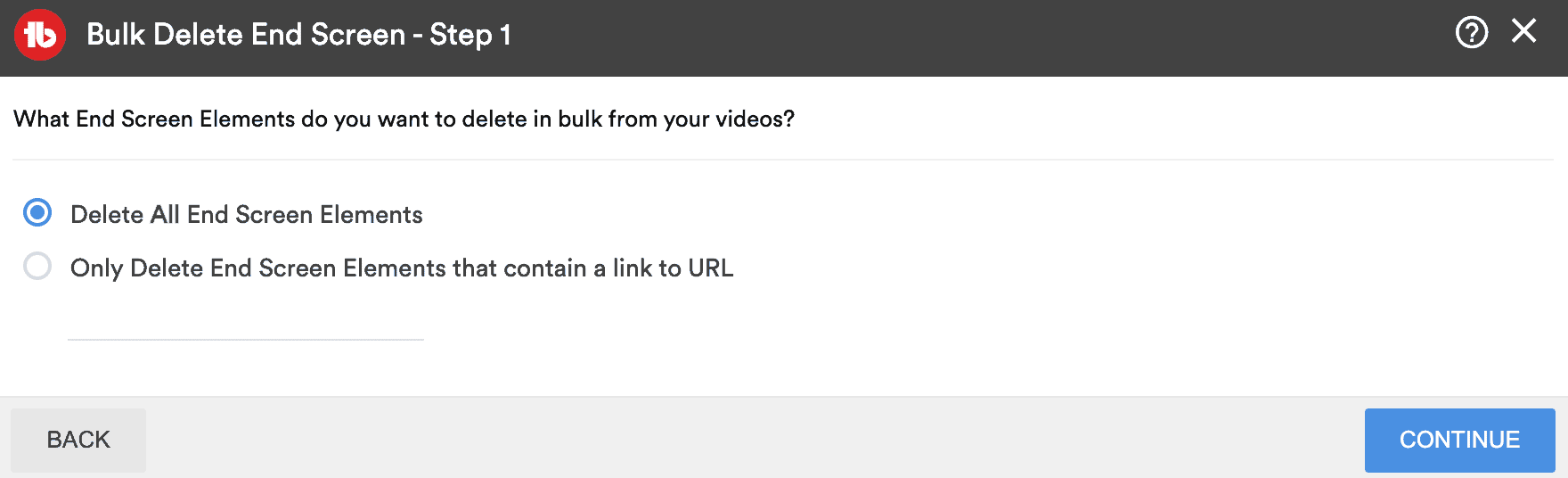
First, open TubeBuddy's Bulk Delete End Screen tool.
Choose between deleting all End Screen Elements or only those that contain a link to a URL.
Click Continue.
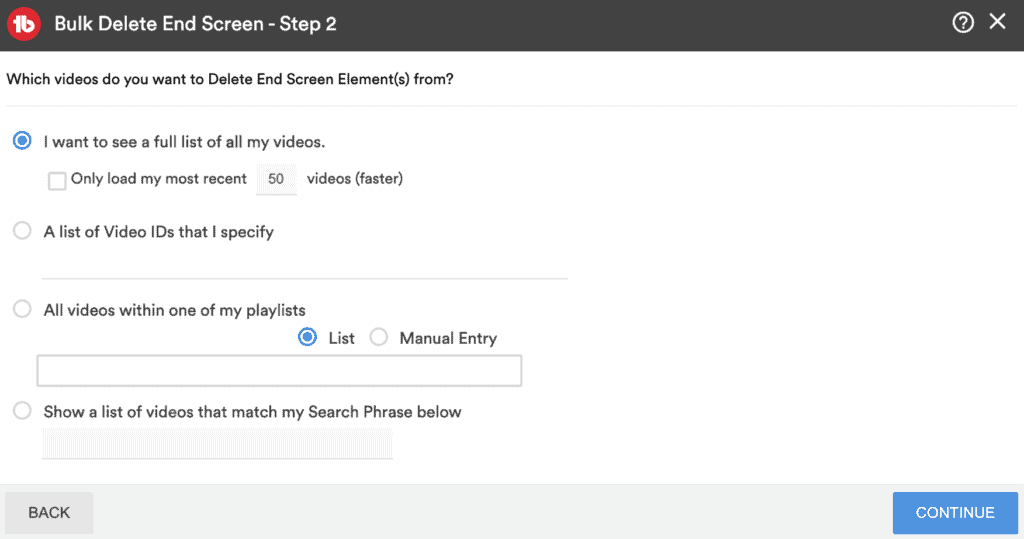
In step 2, set an initial search criteria for which video End Screens you wish to delete. Click on Continue to narrow down your list further.
Next Steps
This is an incredibly useful TubeBuddy feature that can save you hours of time, so make sure to check it out.
Want to learn more if TubeBuddy is the right tool for you? Then read my TubeBuddy review here.