What Are the Tubebuddy Bulk Video Processing Tools
The TubeBuddy Bulk Find / Replace / Append tool is one of my personal favorites.
It allows you to:
- Find videos that contain a specific text in their title or description.
- Replace the found text with something else.
- Insert text before or after the found text.
- Delete text.
- Add text at the beginning or end of the description.
- Or even replace the entire description altogether.
How I Use the Bulk Search and Replace Tool
I frequently use the video description to promote some of my other videos and articles on my blog, as well as affiliate offers and my training courses.
The search and replace tool allows me to make changes to each one of my videos in minutes, for example, if I want to promote my newest video at the top of the description and later replace it with a different video.
Search results can be case-sensitive or insensitive. You also have the option to include partial word matches, instead of only whole words.
How to Access the Bulk Find / Replace / Append Tool
Head over to YouTube Studio, and open the Content tab.
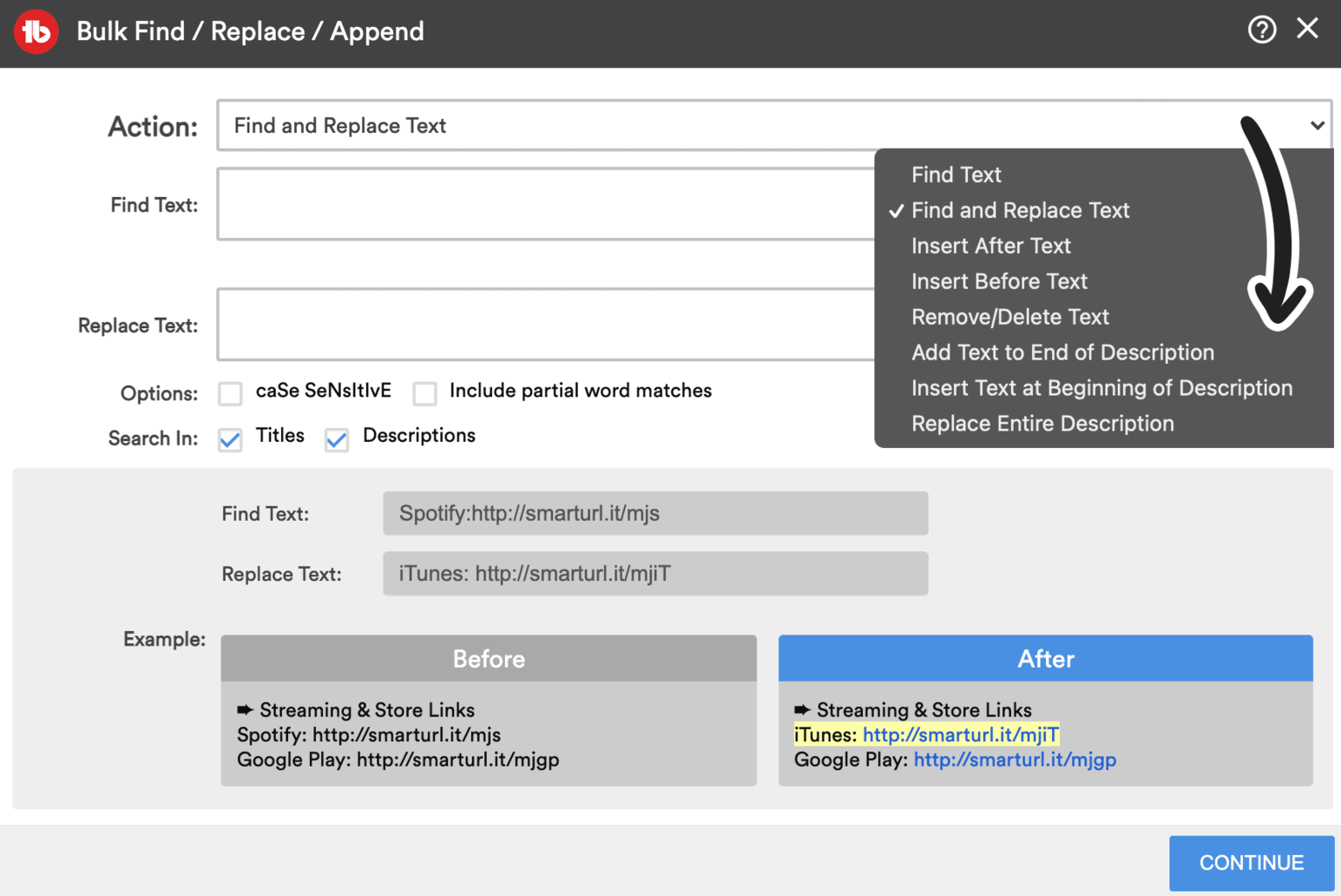
Click on TubeBuddy's Bulk & Misc tools menu and select Find & Replace Text under Bulk Video Processing.
A popup will open.
In the Action dropdown, select how you would like to change your videos.
The form will change depending on your Action and ask you for further details.
Click Continue to select your target videos and apply your changes.
Next Steps
This is one of the best TubeBuddy tools, and easily worth the entire TubeBuddy subscription fee, if TubeBuddy only had one feature.
I use it at least once per week to make changes to all of my videos.
You can check out my full TubeBuddy review to learn how I used it to grow from 0 to 3000 subscribers.