Building Community by Replying to Comments
I still remember how excited I was about my first comment on one of my YouTube videos.
Answering comments from your subscribers is a great approach to build a thriving community around your YouTube channel and can help you to expedite your channel growth dramatically.
When your channel starts to grow faster and faster, you will get a ton of new comments on each of your videos. Many viewers will ask the same questions over and over again.
Replying to each repetitive question can sometimes feel as if you're stuck in a loop.
Lucky for you, TubeBuddy has your back.
What Are Canned Responses in Tubebuddy
TubeBuddy's Canned Responses feature makes this super convenient.
Instead of typing out the same answers over and over again, just create a canned response template for it and then use it every time someone asks the same question in the comments.
You can even personalize each template with a placeholder for someone's username.
Another great thing about TubeBuddy's Canned Responses feature is, that you can share them with your comment moderation team.
How to Create Canned Responses in Tubebuddy
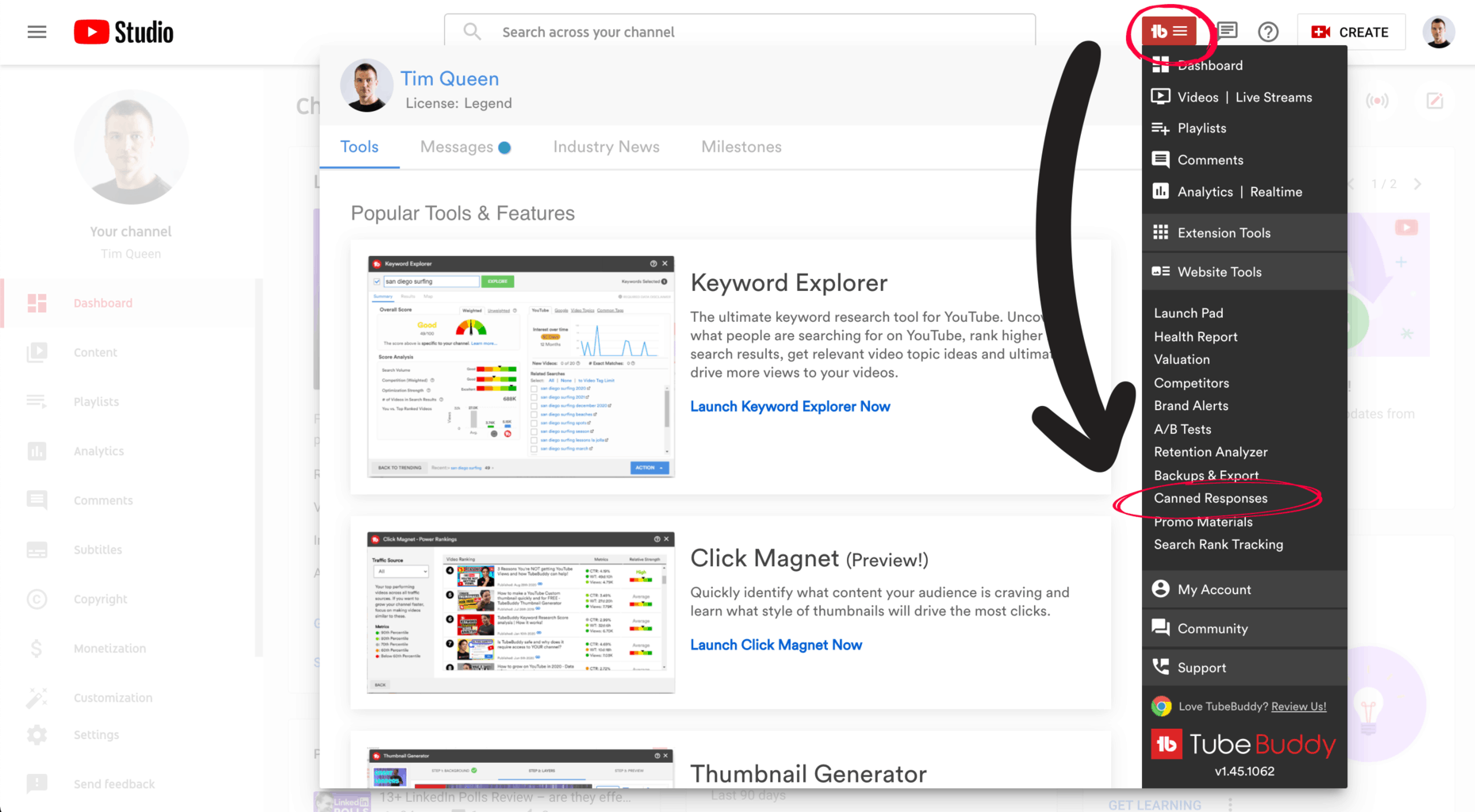
Visit YouTube Studio and locate the TubeBuddy menu at the top.
Open it and select Canned Responses from the Website Tools section.
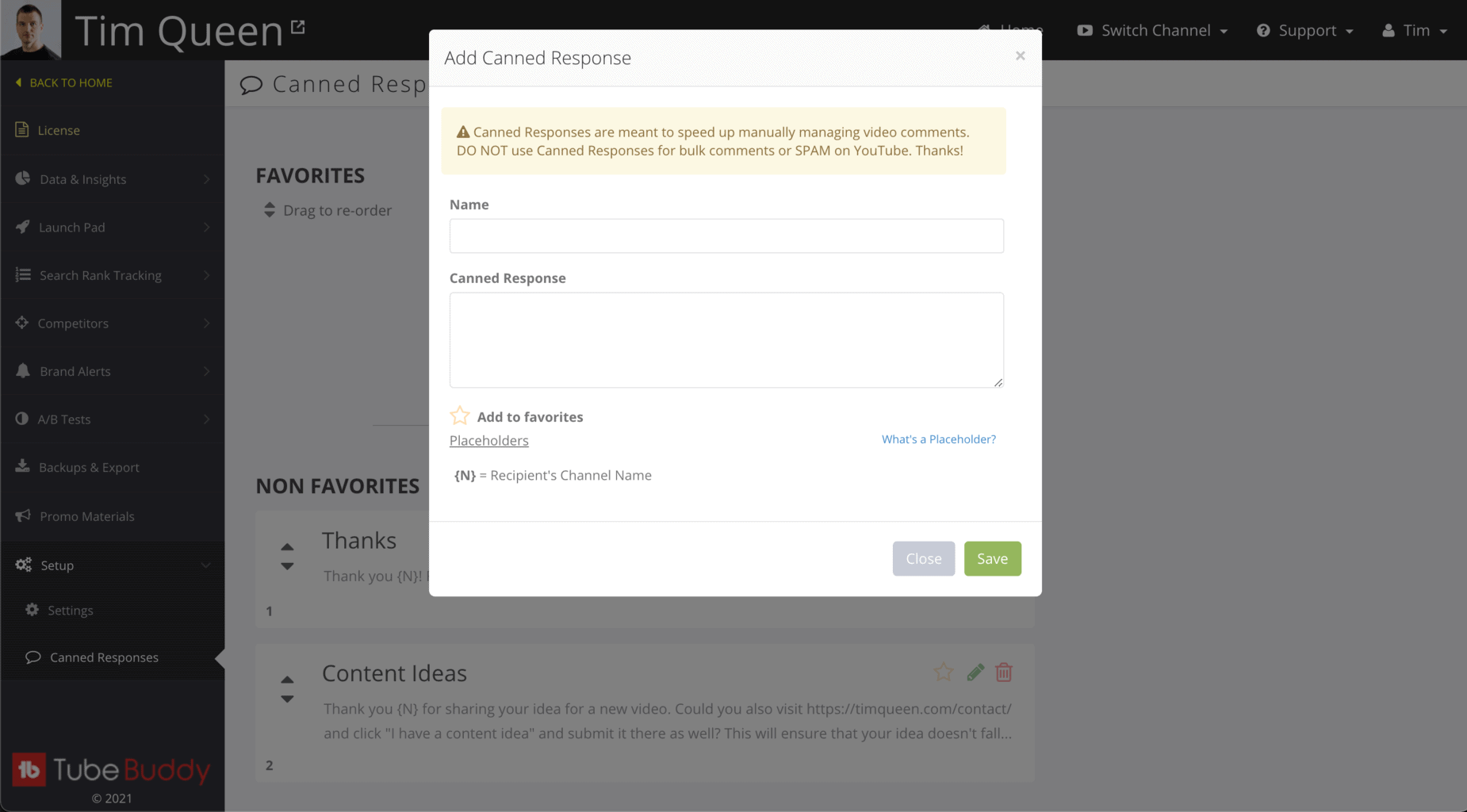
You will be redirected to the TubeBuddy dashboard, where you can see a list of all already existing Canned Responses.
If that's your first time using it the list will be empty.
Click the green Add Canned Response button at the top right to create your first Canned Responses.
Type in a recognizable title for your template in the Name field, so you can find the right response later.
In the Canned Response field, write out your comment template. You can use the placeholder {N} if you want to use someone's channel name in your reply.
Here is an example of how you could thank someone who shared a content idea for a future video:
"Thank you {N} for sharing your ideas for new videos. We will add them to our list of potential future topics".
Once you created your first comment template in TubeBuddy, let's head back to YouTube so I can show you how to use your Canned Response to reply to comments.
How to Use Canned Response in the YouTube Comments Section
You can either go to YouTube Studio and open the Comments tab on the left, or you can open up any of your videos and scroll down to the comment section.
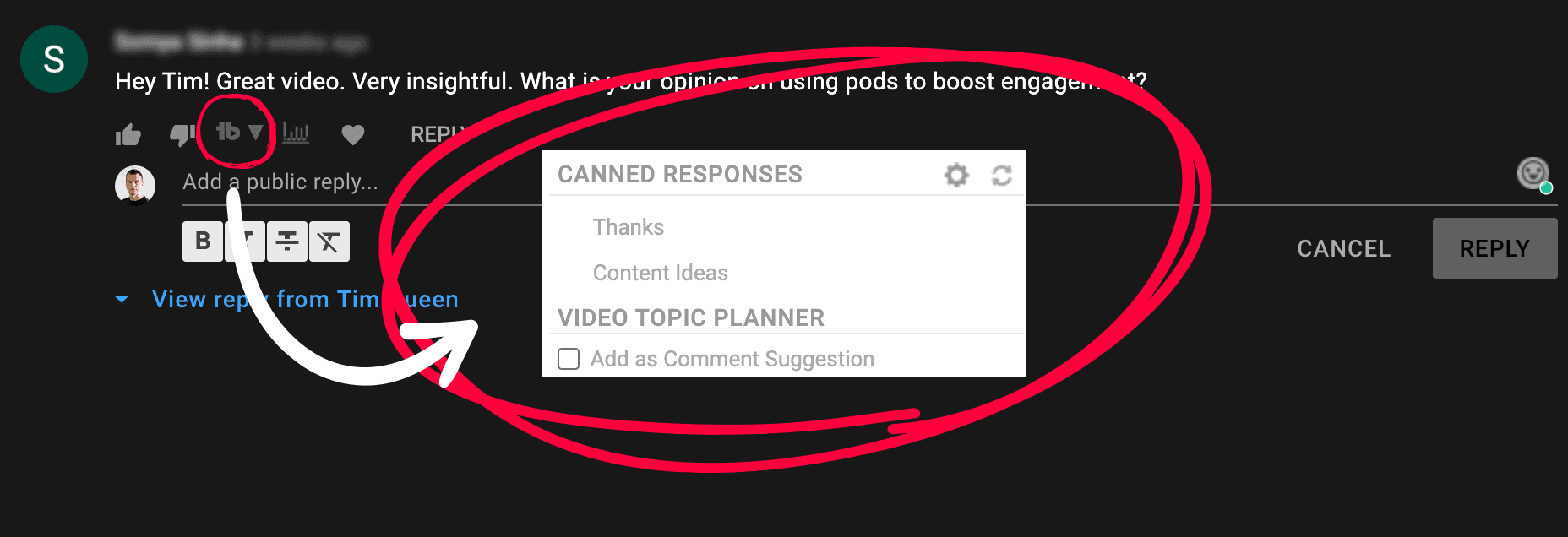
Next to each comment, you will notice a tiny TubeBuddy icon.
Click on it to open your list of Canned Responses.
As you can see, you will only be able to see the Name of your Canned Response, but not the content. That's why it's so important to give each template a descriptive name, so you don't have to think about which to select.
Once you click on any template reply, the text will be inserted in the reply field, where you can make adjustments before submitting it.
If you're happy, just click on Reply.
And just like that, you saved yourself a ton of time with just one reply.
Imagine how much time you can save if you were answering hundreds of comments...
Next Steps
Engaging with your audience in the comments is a powerful way to build a strong community and to increase the overall engagement with your videos.
As your channel grows and attracts more and more subscribers, this task becomes more and more difficult. Often times you have to answer the same question over and over again. But thanks to TubeBuddy's Canned Responses tool this doesn't have to be a tedious task.
To learn more about how TubeBuddy can help you to grow your channel and save you even more time, check out my full TubeBuddy review here.