What Is Tubebuddy's Channel Backup Tool
The Channel Backup feature in TubeBuddy allows you to compile a list of your channel's metadata and download it as a CSV file to conduct further analysis in Excel or Google Sheets later.
The following metadata of each of your videos is included in the CSV backup file:
- video ID
- channel ID
- title
- tags
- description
- privacy
- category
- date published
How to Create a Backup of Your YouTube Channel
Visit YouTube Studio and open the TubeBuddy menu at the top.
From the Website Tools tab, click on Backup & Export.
This will open the Channel Backup page on TubeBuddy.
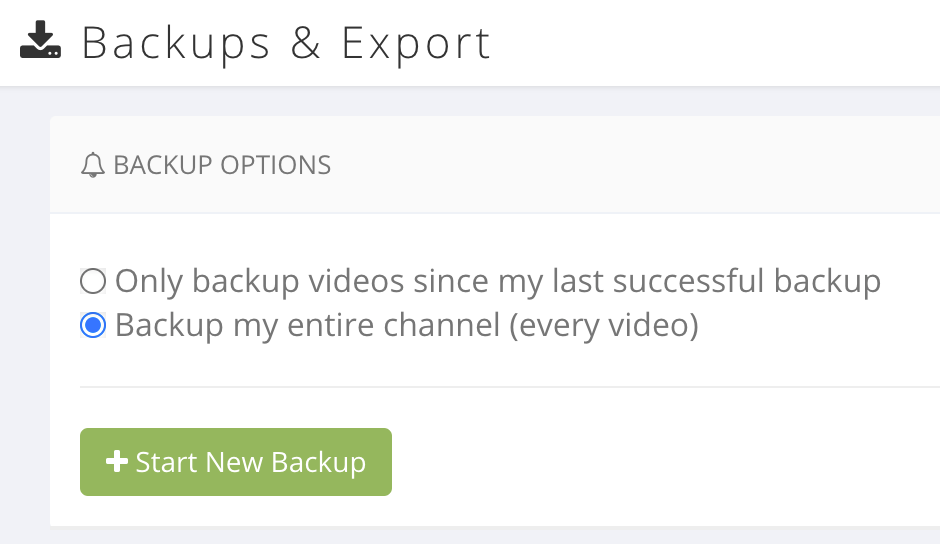
To create your first backup, select the second option, "Backup my entire channel", then press Start New Backup.
After a few minutes, your backup will be ready for download.
How to Use Your YouTube Channel Backup
Here are a few ideas on how you can use the data of your YouTube channel backup.
Create small video clips of each of your video for social media content and then mark each task as completed in your Excel sheet.
Use the description of your videos to create short-written content for social media.
Look for empty cells in the description and tags column to find video's that haven't been optimized yet.
Use a grammar and spellcheck software such as Grammarly to find potentially embarrassing issues with your titles and descriptions.
Excel spreadsheets are a great tool that allows you to keep track of any bulk tasks for your videos. Add new columns as you please, or use color coding to create a system that works for you.
Next Steps
If you're constantly making changes to your videos, and you're not documenting this anywhere else already, TubeBuddy's Channel Backup is a real lifesaver for you.
This is just one of many cool TubeBuddy tools and features. To learn more about what else TubeBuddy has to offer, check out my TubeBuddy review.