What Is the Tubebuddy Emoji Picker
You can use the TubeBuddy Emoji Picker to use emojis to make your videos stand out or to tag them in different ways to help them appear as related videos without visiting any external sites.
As they say, a picture is worth a thousand words, similarly - emojis speak louder than words.
Instead of having to open an external dialogue box to insert emojis into your title, video description, video tags, or replying to comments, the emoji picker makes your job so much easier.
How to Add Emojis to Your YouTube Videos With Tubebuddy
Visit YouTube Studio and open one of your existing videos from the Content tab.
Click on either the title, description or inside the video tags section.
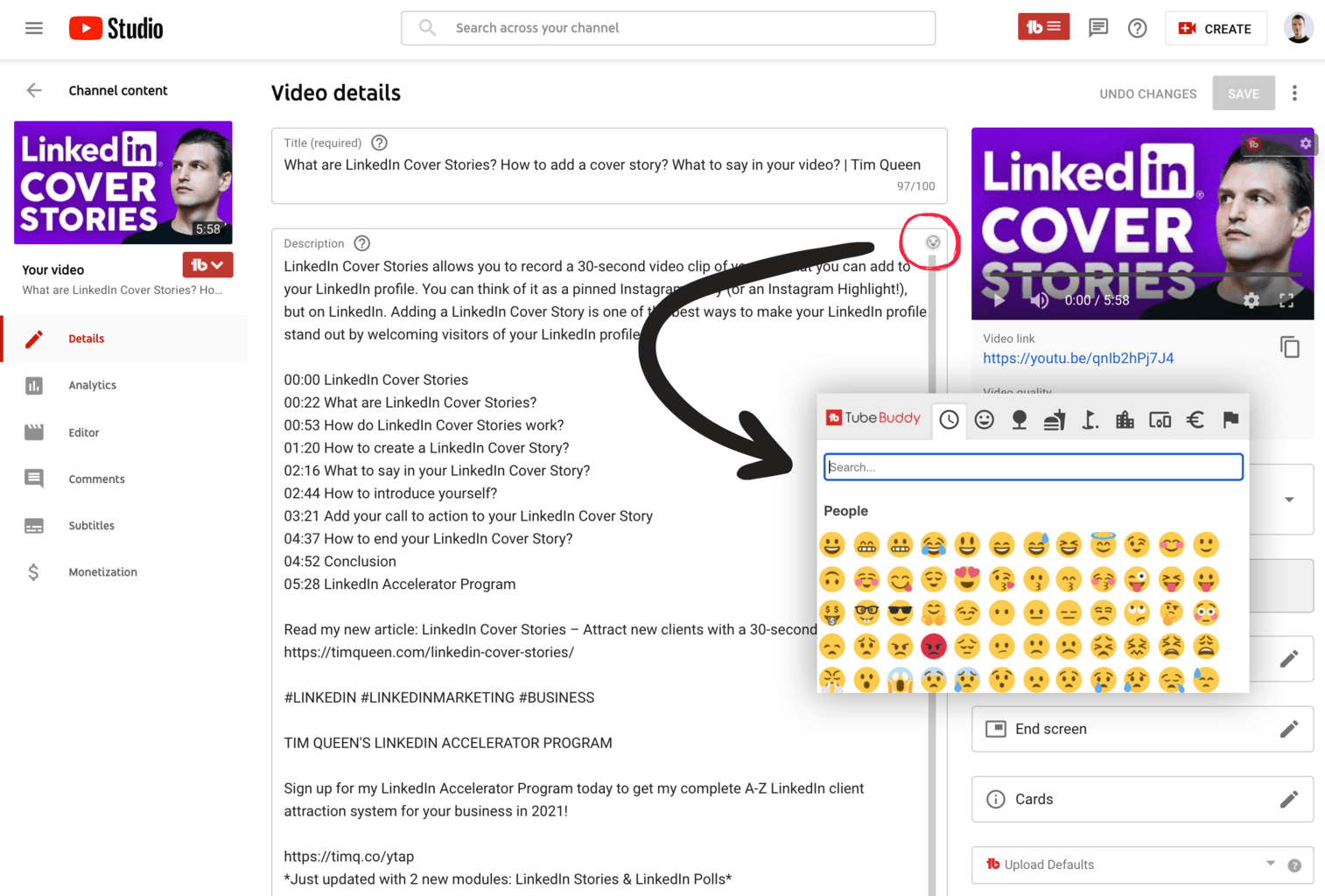
You will notice that a small face icon appears in the top-right corner of any text input field.
Just click the face icon to open TubeBuddy's Emoji Picker.
The clock tab shows you your most recently used emojis. You can use your mouse to scroll through the list, or click on any of the icons at the top to quickly jump to a specific section.
You can flip through different emoji categories or type the name of your desired emoji for quick access.
Next Steps
Emojis can help your video titles to stand out and are a great way to structure your description and make it more readable and easy to navigate.
Having the TubeBuddy Emoji Picker baked-in right into YouTube Studio is incredibly convenient and saves you the hassle of tab hoping to copy and paste emojis from an external source.
This is just one of TubeBuddy's super powerful tools that can help you grow your YouTube channel. For more details, have a look at my TubeBuddy review here.