What Is Tubebuddy's Scheduled Video Update Tool
TubeBuddy allows you to schedule changes to your video title, description, tags, privacy settings, and thumbnails.
You can also add or remove videos to specific playlists at a specific time, or temporarily make changes and roll them back at a later stage.
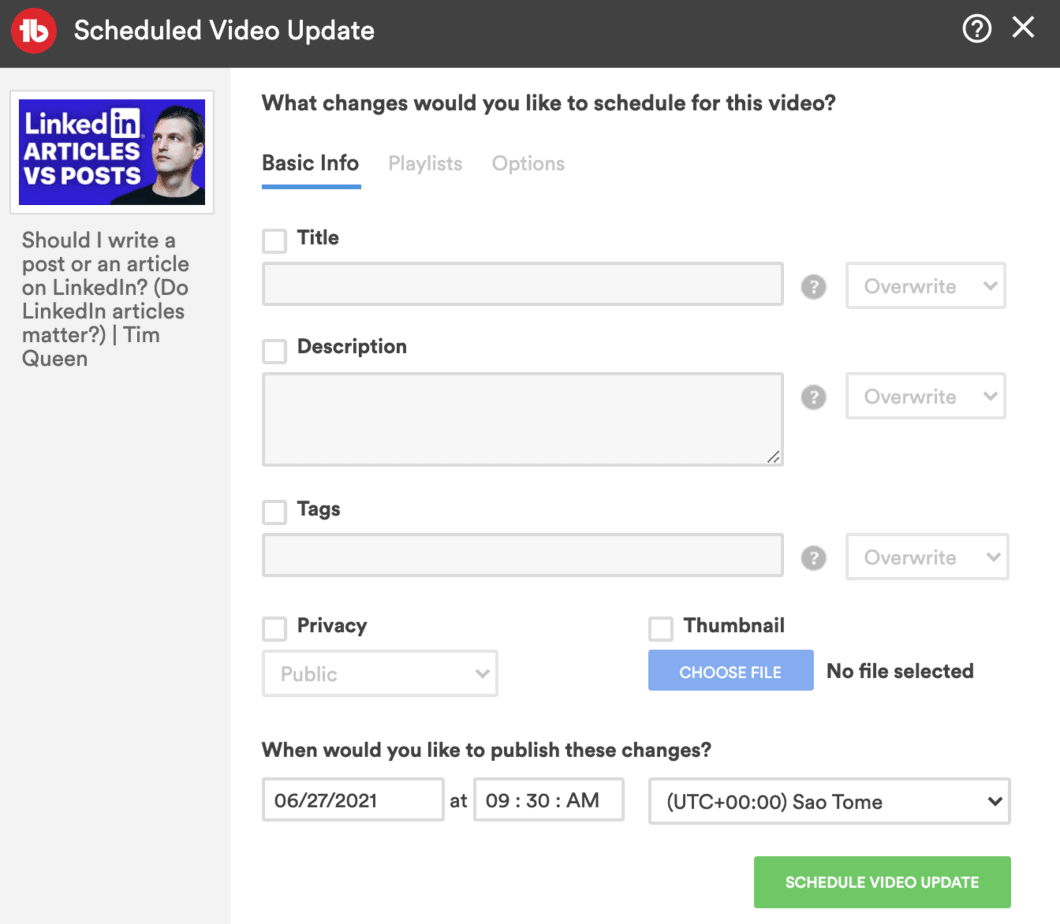
Schedule a title change
For the title field, you have three options to schedule a title adjustment.
- Overwrite and replace your existing title with the one you just typed in.
- Adds your text to the end of the original title.
- Inserts your text before the beginning of the original title.
If you are adding text before or after the original title, make sure to add a space at the beginning or end to ensure the text doesn't butt up against the existing text.
Schedule a description change
The description field also allows you to schedule four changes.
- Replace the existing description with a new one.
- Add text to the end of your description.
- Insert text at the beginning of the description.
- Removes matching text from your Description.
If you want to add text before or after, make sure to include a line break at the beginning or end to ensure the text doesn't collide with existing text.
Schedule a tags change
Just add a comma-separated list of tags that you want to add or remove at the scheduled date.
Schedule a privacy change
Imagine you have a Cyber Monday promo video that you only want to keep up for 24 hours.
Just schedule the privacy from Public to Private and your video will be hidden from your channel.
Schedule a thumbnail change
Want to give one of your evergreen videos a boost by including the current year in your video thumbnail?
With TubeBuddy you can schedule a thumbnail update and replace it with a new one the upcoming year number on New Year's Eve.
How to Schedule Video Updates With Tubebuddy
To schedule an update, visit YouTube Studio and locate the Content tab.
Hover your mouse over any video to reveal the TubeBuddy icon.
Click on it and then select Scheduled Video Update.
At first, you will see the Basic Info panel.
You can click on any of the checkboxes to schedule a specific change, for example for the title, description, tags, privacy or thumbnail.
Select your desired date, time, and time zone and press the green Schedule Video Update button to schedule your update or open the Playlists or Options tab for further options.
Schedule a playlist change
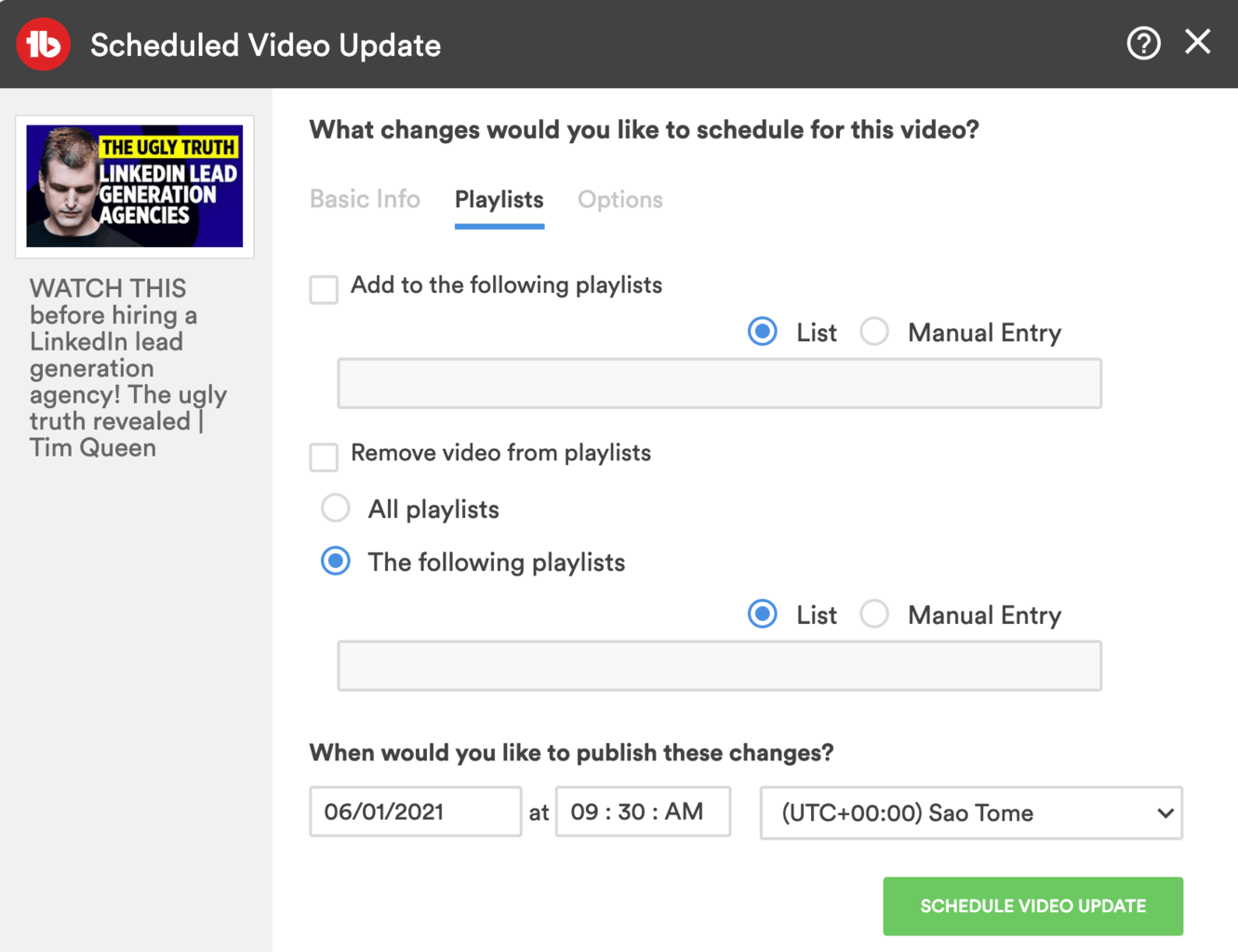
Want to add or remove one of your videos from one or multiple playlists?
With the Scheduled Video Update tool, you can!
Make your changes and hit the
Rollback your changes at a later time
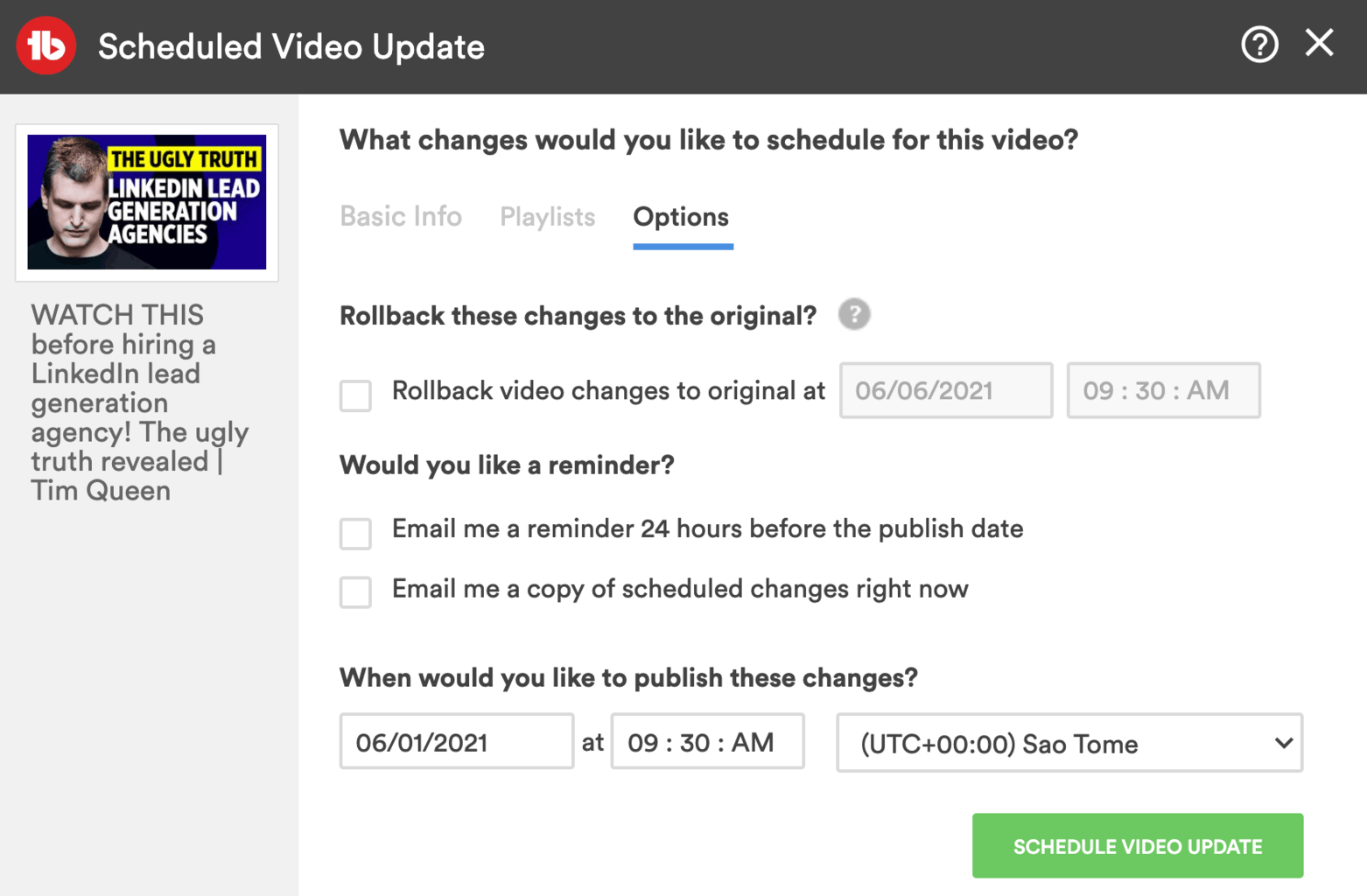
Want to make your scheduled changes just temporarily?
Then open the Options tab and select a date and time when you want to return everything to its original state.
Easy as that!
Next Steps
TubeBuddy's Scheduled Video Update is an incredibly powerful tool in the right hands and allows you to fully automate your YouTube channel without the need to hire an expensive assistant. Just let TubeBuddy work for it!
Want to learn what other cool features TubeBuddy has to offer?