How to Get Started With Tubebuddy
TubeBuddy is an incredibly powerful tool for every YouTube content creator.
You can check out my in-depth TubeBuddy review to learn how TubeBuddy helped me to grow my YouTube channel from 0 to 3000 subscribers to learn more.
Today, I will show you how to sign up for TubeBuddy, how to create a free TubeBuddy account, how to install the TubeBuddy extension, and how to connect your TubeBuddy account with YouTube.
If you have any questions about TubeBuddy, also visit my TubeBuddy FAQ article, where I answer all of your TubeBuddy questions.
How to Install the Tubebuddy Browser Extension
The first step is to click the following link to install the free TubeBuddy browser extension.
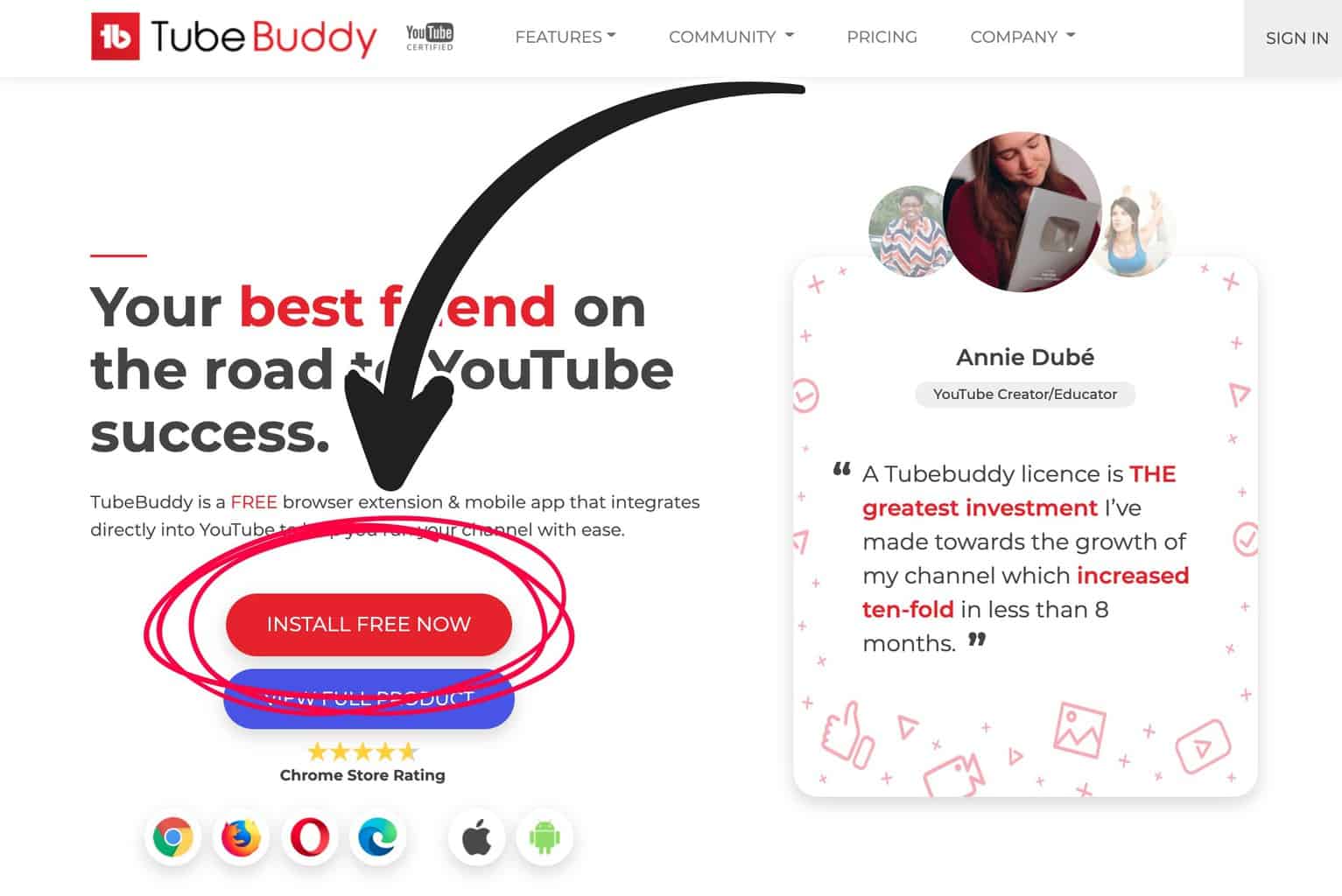
It will open up the TubeBuddy website. In the middle, you will notice a big red button with the word Install on it.
Click on it to get started!
Depending on your web browser, it will either open the Google Chrome Web Store or the Firefox Browser Add-Ons page, where you can add the TubeBuddy browser extension.
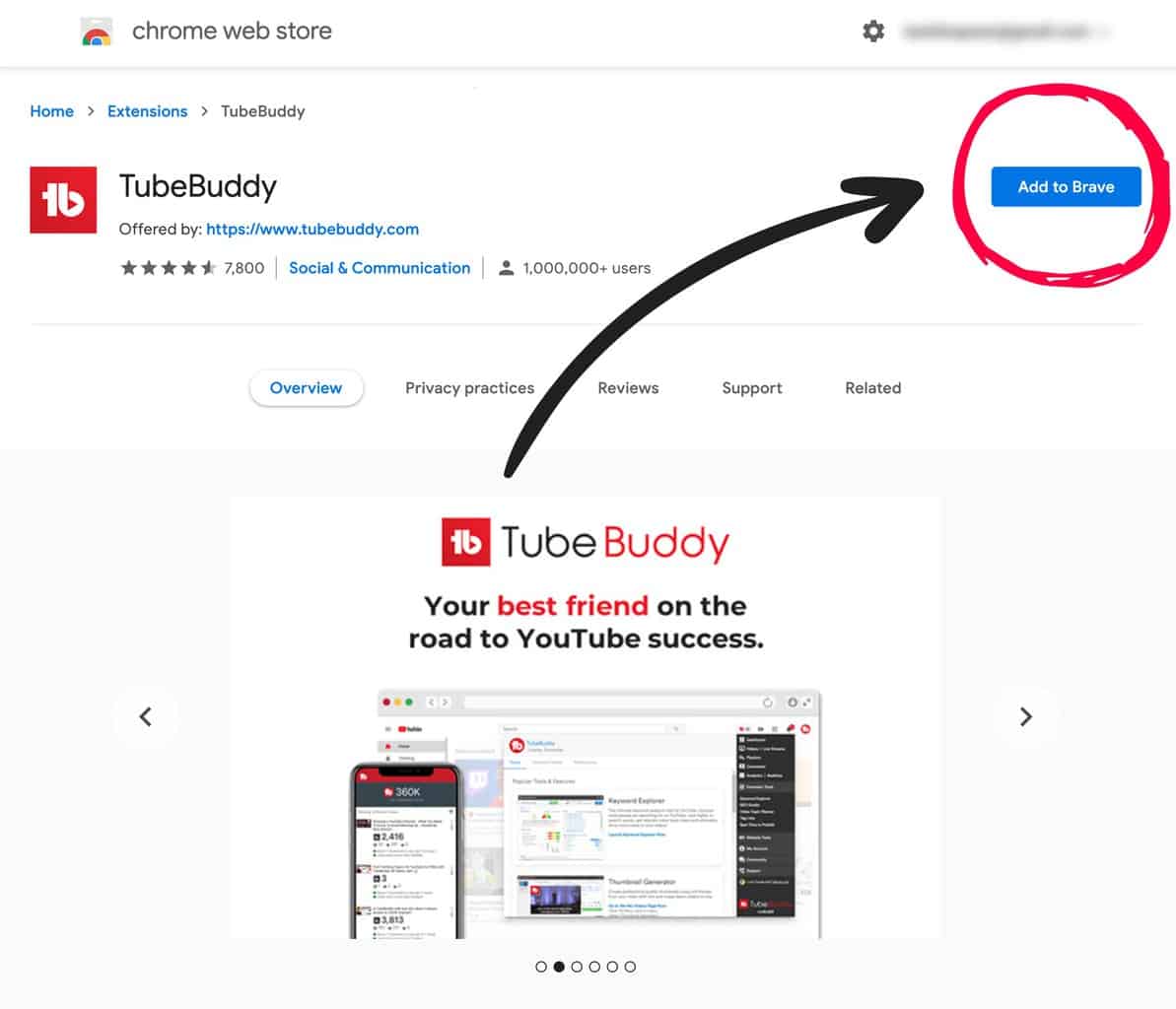
Since Chrome-based browsers including Google Chrome, Opera, Brave, and Microsoft are most common, I will show you how to install TubeBuddy via the Google Chrome Web Store.
Click on the blue Add to Browser button in the top right corner to install the TubeBuddy extension for your browser.
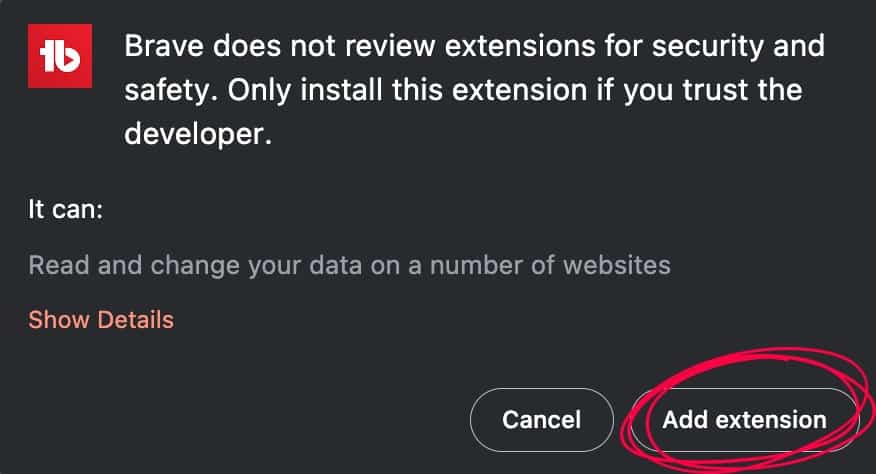
A popup will appear asking you to confirm the required permissions. Click on Add Extension to continue.
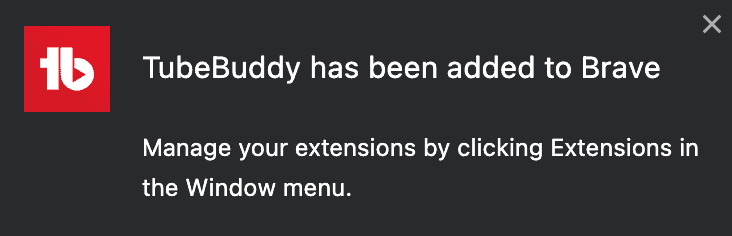
Afterward, you will see a confirmation message that TubeBuddy has been installed successfully.
How to Sign Up for a Free Tubebuddy Account
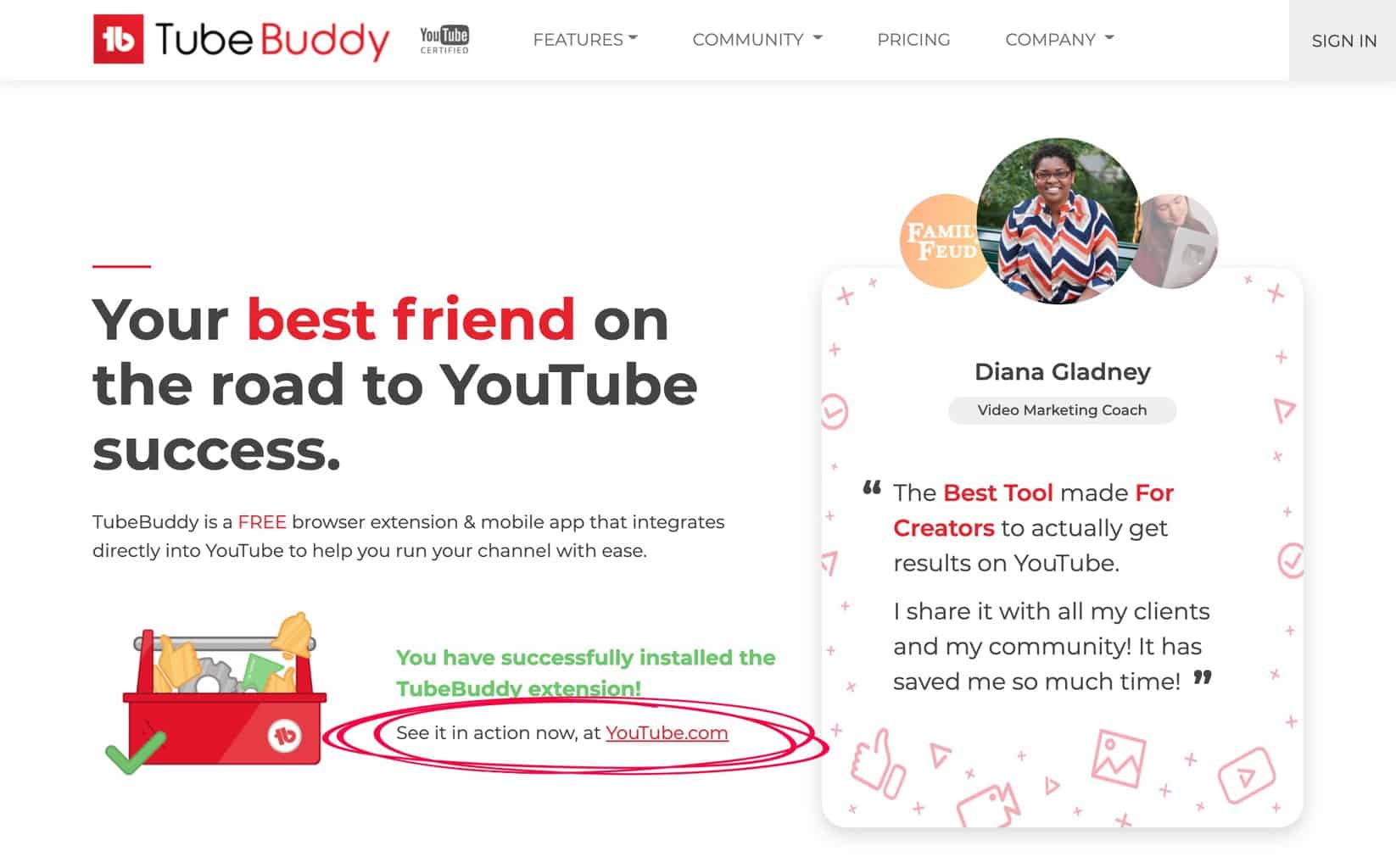
You will be redirected to the TubeBuddy website, where you will see another confirmation message. Right below, you will notice a reminder that you have to visit YouTube next to see TubeBuddy in action.
Click on the link, or visit YouTube directly.
On the YouTube homepage, you will notice a newly added TubeBuddy icon at the top menu bar, right next to an alert message that asks you to sign in with TubeBuddy.
Then click on the TubeBuddy icon to open the TubeBuddy dashboard.

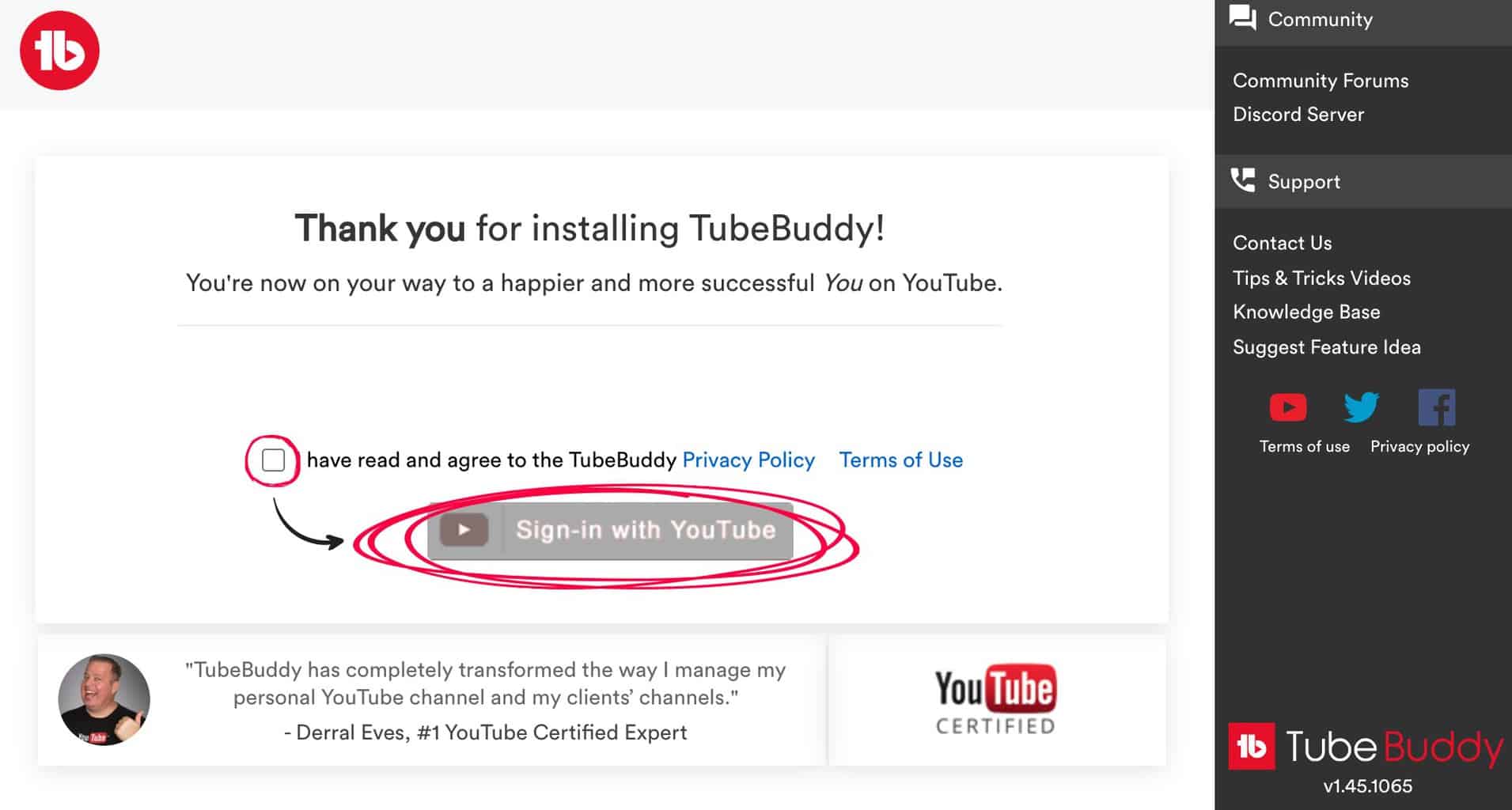
You will be greeted with a Thank You note for installing TubeBuddy.
Click on the checkbox below to confirm that you read and agree with TubeBuddy's privacy policy and Terms of Use.
Then press the Sign-in with YouTube button.
How to Connect Tubebuddy With Your YouTube Account
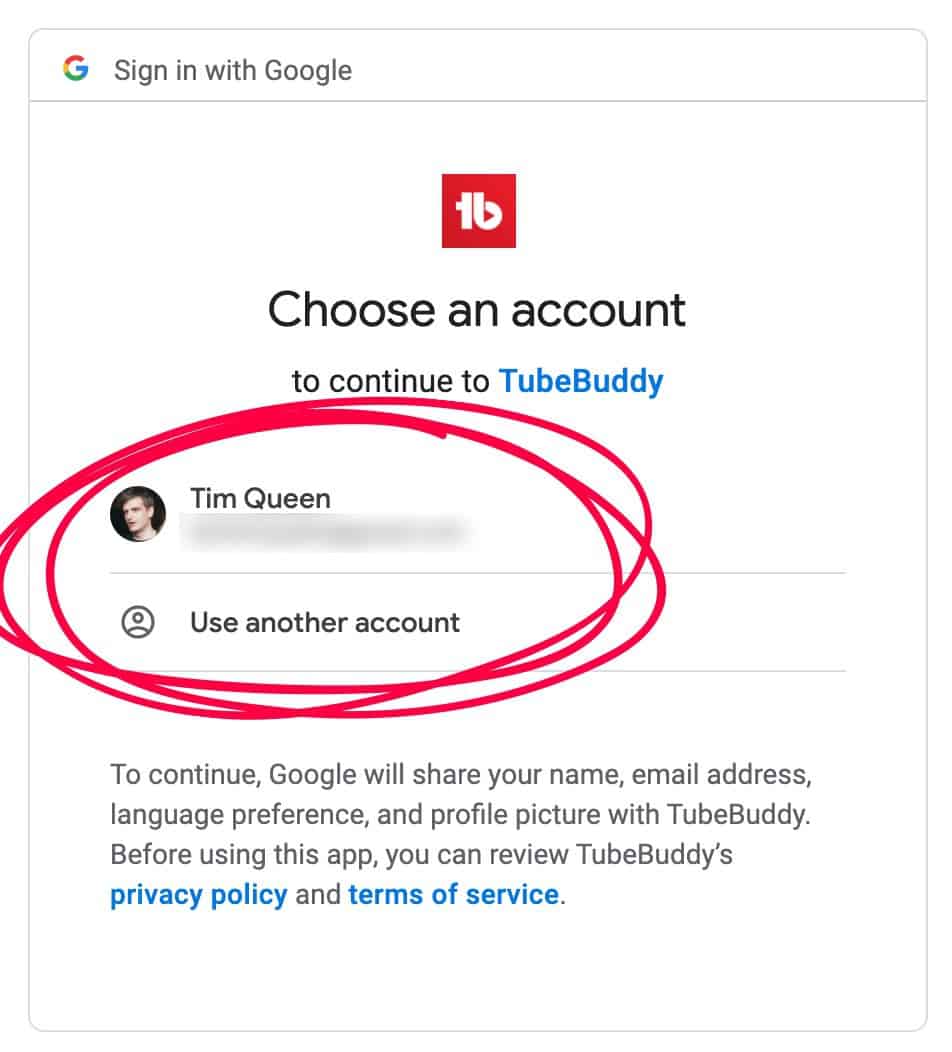
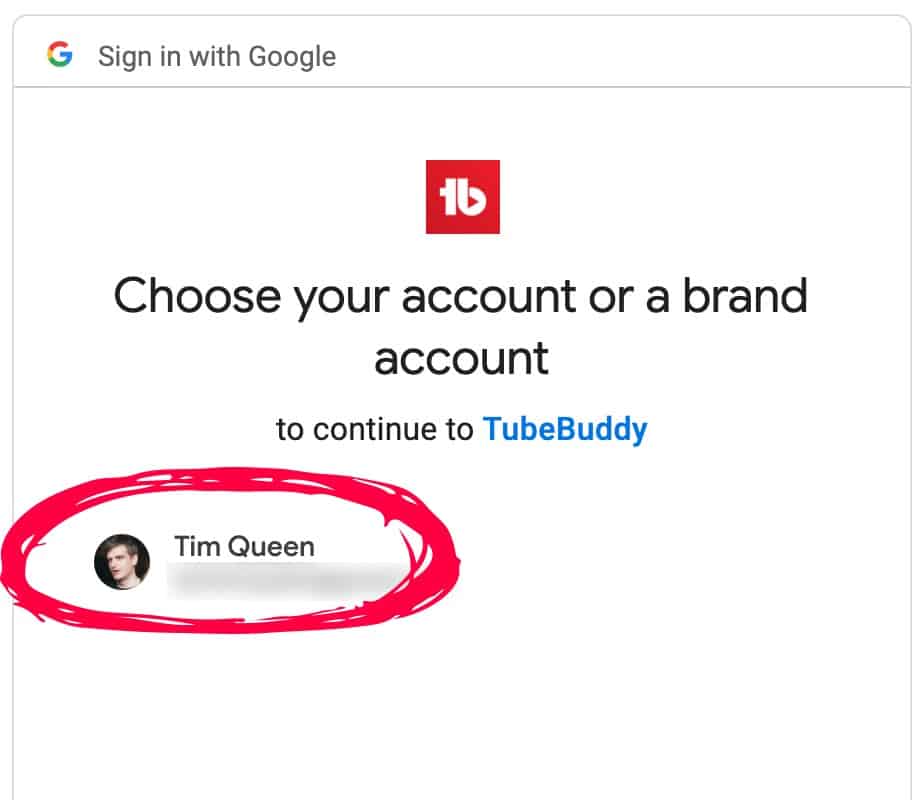
This step is very important. You have to select the correct Google account email address that you want to link to your TubeBuddy account.
Your TubeBuddy license will be linked to this email address. If your desired Google account isn't available from the list, click on Use Another Account to sign in to another account first.
Once you have selected the correct Google account email, you will be asked to choose the right YouTube channel. TubeBuddy will show you a list of all YouTube channels linked to your Google account email address.
Select the right YouTube channel you want to use with TubeBuddy and continue.
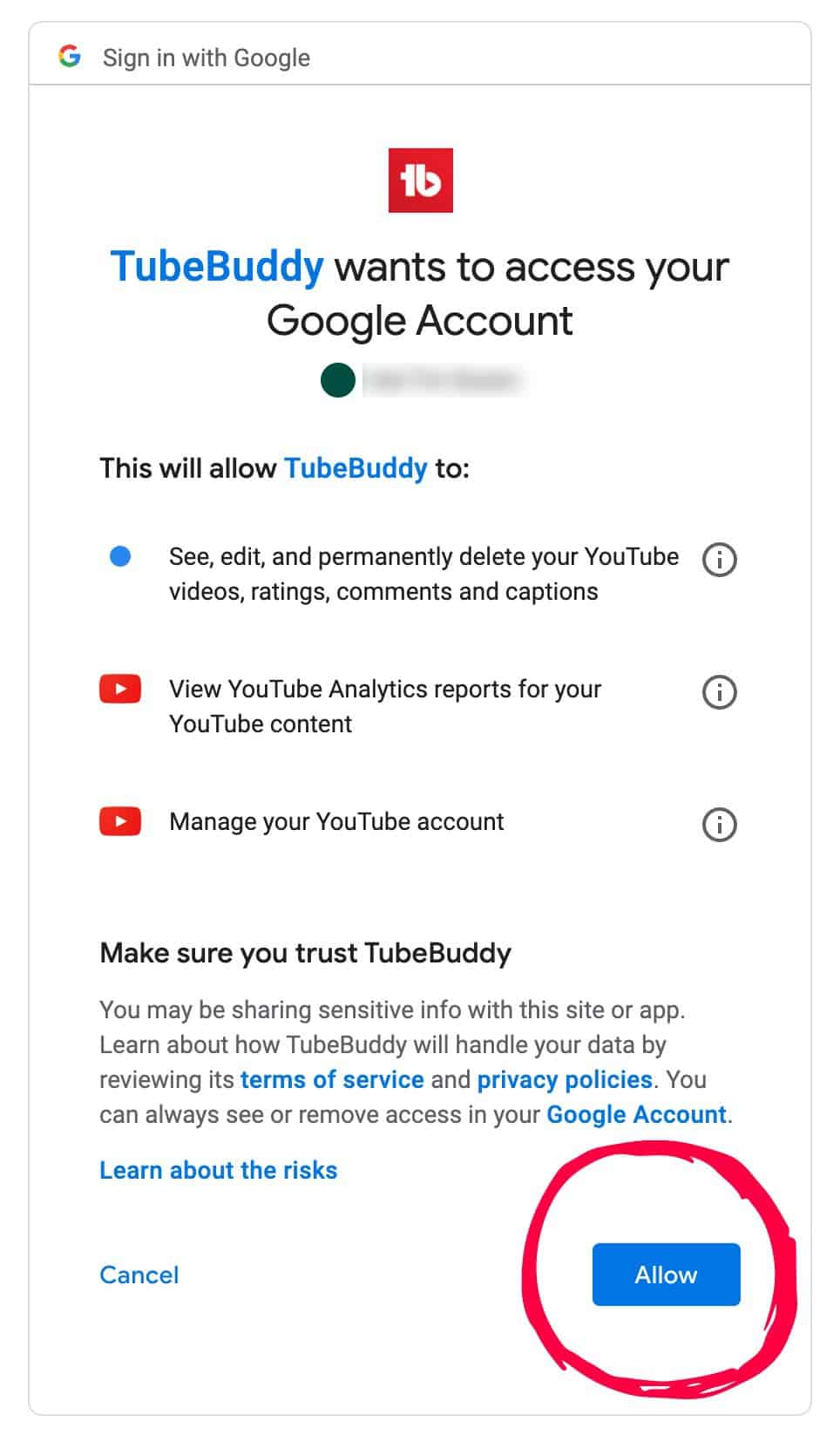
Now it's time to give TubeBuddy access to your YouTube account.
Next Steps
And that's it! You have now successfully created a TubeBuddy account, installed the browser extension, and linked your TubeBuddy account to your YouTube account.