This blog post explores selecting a good profile photo and how to upload or replace it on your YouTube channel.
Why It's Important to Have a Good YouTube Profile Photo?
A good YouTube profile picture is one of the most underrated things on your YouTube channel.
While you may think that your YouTube channel is only about the videos you upload, it's more than that.
How your channel looks plays a big role in how much attention it gets.
If your channel looks unprofessional, viewers may think that you are not serious about your channel and that your videos may be of low quality.
Your channel profile picture is often your first impression on the YouTube platform.
People see your channel icon when they search for your channel, next to each video in search results, below each video player, and next to every comment you make.
A good profile photo helps with branding and makes your channel stand out, gets more clicks, and allows you to grow your YouTube channel faster.
People who already know your channel are more likely to watch your videos when they recognize your picture, and first-time viewers feel more confident when your channel icon conveys fun and quality.
A good avatar allows you to communicate consistent branding and helps users quickly decide which video to watch next.
YouTube Avatar Requirements
Resolution
YouTube profile pictures have a square format that is displayed inside of a circle.
The minimum resolution for channel icons is 80 x 80 pixels, however, I recommend uploading an image that is at least 176 x 176 pixels, because that's the resolution YouTube uses when it displays your YouTube channel in search results.
That being said, the majority of all profile picture impressions are tiny with a resolution of either 36x36 pixels (videos on the YouTube homepage) or 24x24 pixels (videos in YouTube search results).
Therefore you should optimize your profile photo so it looks great and is recognizable even on very small resolutions.
File formats
Supported file formats for YouTube profile pictures are JPEG, GIF, BMP, and PNG files. Keep in mind that animated GIFs are not supported and will only use the first frame of your animation.
File size
The maximum filesize for YouTube profile photos is 4MB or less.
How to Choose a Good YouTube Profile Icon?
When it comes to choosing a YouTube icon, there are two main directions that have a proven track record. You can either use a branded logo or a photo of yourself, depending on your channel.
Brand logo
If you already have a square, icon-based logo, you are in good shape.
I recommend hiring a professional designer on Fiverr to create a pixel-perfect version of your square logo with a resolution that is divisible by 12, for example, 1200 x 1200 pixels. (Or ask them to create a new icon logo from scratch)
Or, if you're talented, optimize your logo yourself with Canva or Adobe Photoshop.
This is important as the two most common appearances of your YouTube profile icon are either 24 x 24 pixels and 36 x 36 pixels (two times 12 x and three times 12). By picking a number that can be divided by 12, you prevent interpolation that would result in blurry edges.
I recommend asking your designer to use a 12 x 12 grid to align all hard edges along those lines. This way your logo will look pixel perfect when it's scaled down to 24x24 pixels or 36x36 pixels.
If your logo contains too many fine details, ask the designer to simplify your design and to reduce the number of lines, elements, and colors to make it easier to recognize even on small screens.
Photo of yourself
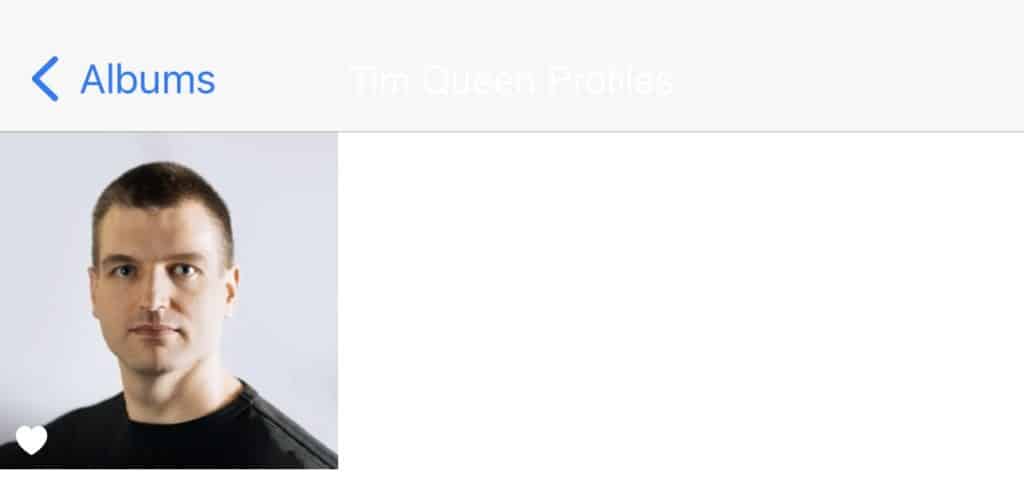
For photos, I always recommend using a zoomed-in headshot that allows people to recognize your facial features even when scaled down to 24x24 pixels or 36x36 pixels.
For enhanced branding consider using your brand color as the background behind your head.
YouTube Profile Picture Policies
Now that your new profile photo is ready to upload, it's time for a final check that you don't accidentally violate one of YouTube's community guidelines and policies.
YouTube's impersonation policy states that any YouTube channel that tries to imitate someone else's channel will receive a community strike or instant termination based on the severity of the violation.
Therefore it is super important that you should never upload someone else's profile photo!
YouTube's Thumbnails policy is also important for your profile photo.
Any of the following non-exhaustive lists of violations will trigger a community strike or termination of your channel, depending on the severity of the violation.
- Profile photos depicting sexual acts, nudity, or other sexually gratifying imagery.
- Images intended to shock or disgust.
- Images with blood or gore that are graphic or disturbing.
- Images with vulgar or lewd language.
- Note this is not a complete list.
How to Change Your YouTube Profile Photo - Step by Step
How to change your channel picture on desktop
Step 1
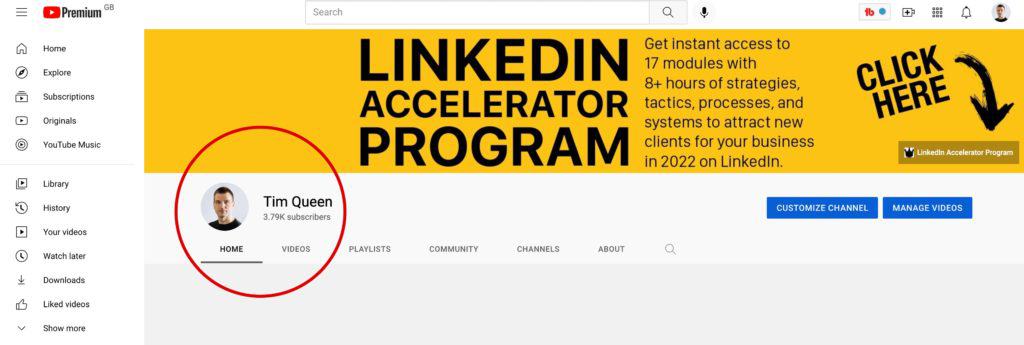
First, open your YouTube channel page on your browser and locate your profile photo. If you haven't uploaded a profile picture before, YouTube will display the first letter of your channel name.
Step 2
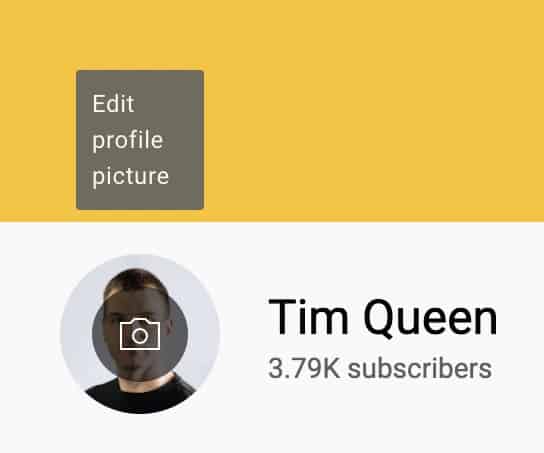
Move your mouse on top of your profile picture. A popover text will appear and tell you that you can edit your profile picture here.
Step 3
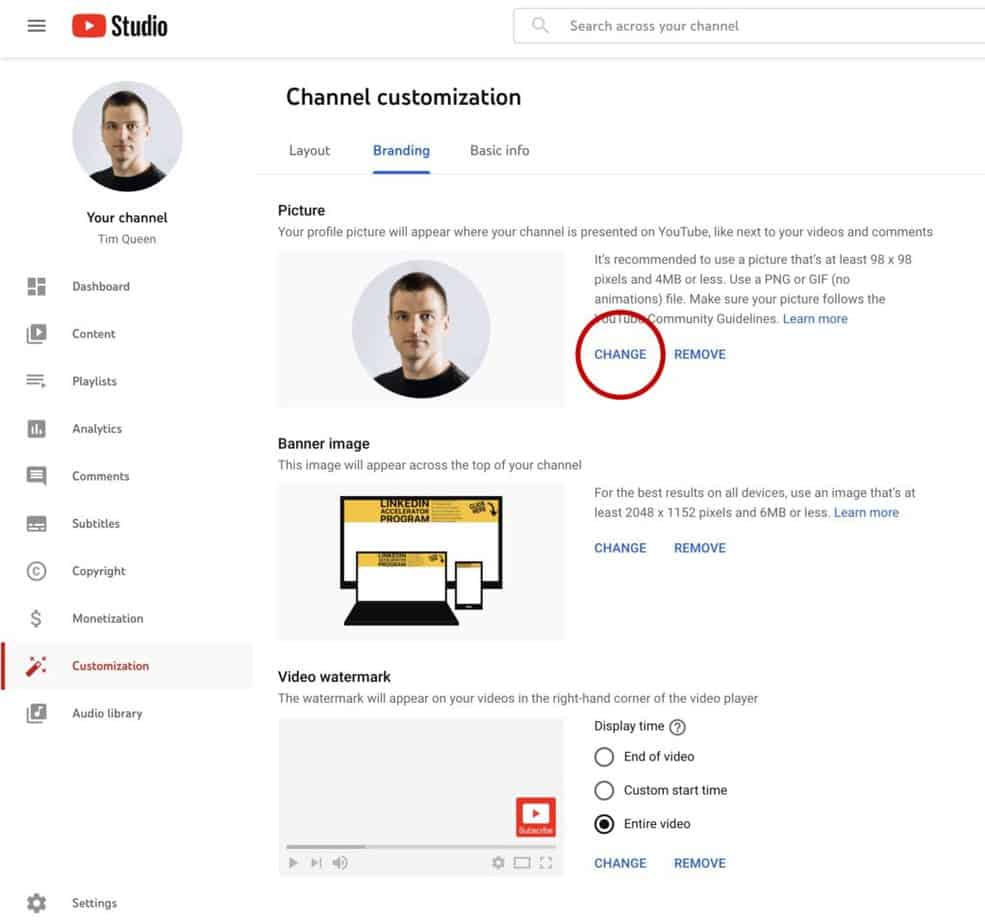
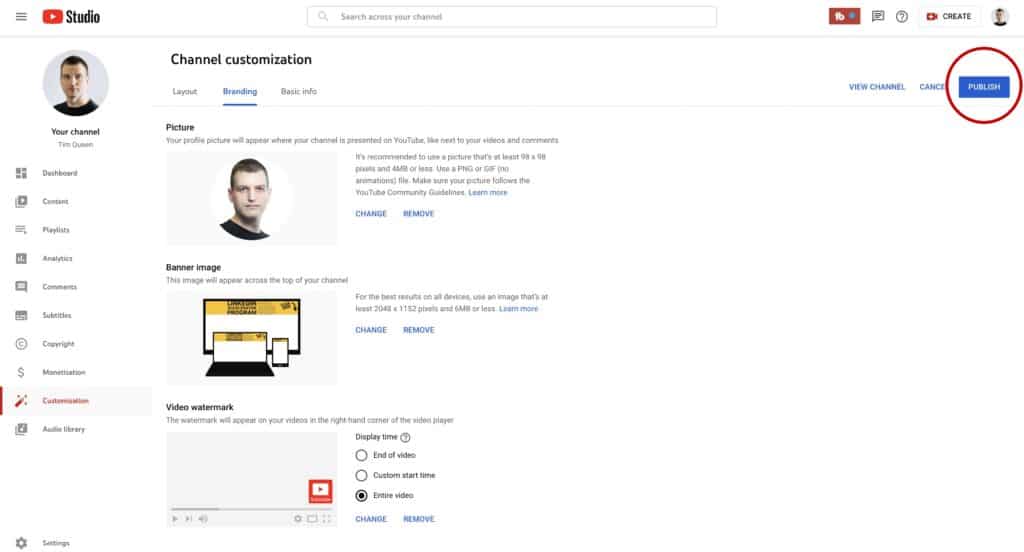
This will open the Customization tab within the YouTube Creator Studio. Find the "Change" button in the "Picture" section and click on it.
Step 4
Select a suitable photo from your hard drive and upload it.
Step 5
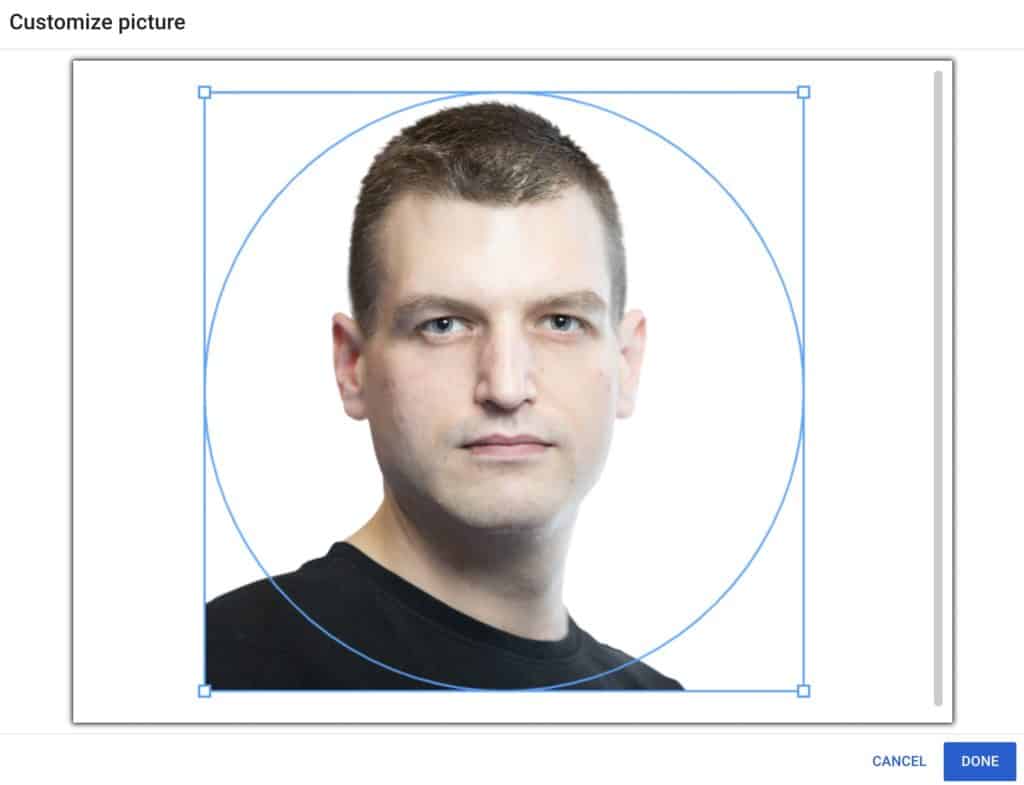
You can move your picture around and zoom in and out until you find the perfect crop. The blue circle indicates the visible area on your channel. Once you're ready, click on Done.
Step 6
It may look like it, but you're not done yet. It's important to save your new profile photo by pressing the blue "Publish" button at the top-right corner.
Step 7
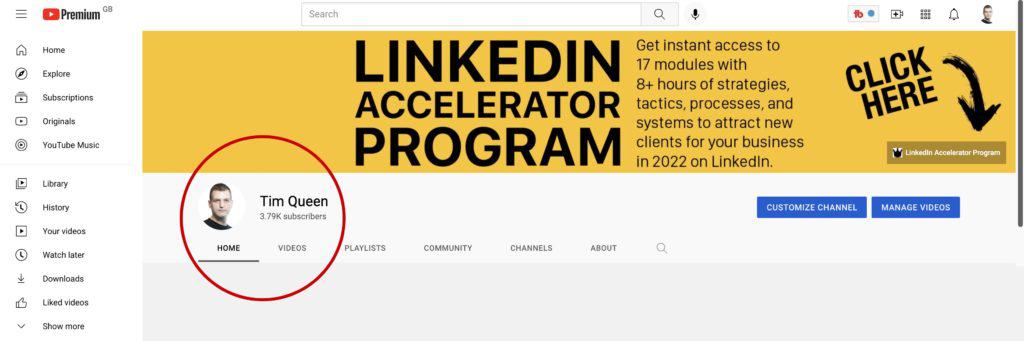
YouTube will redirect you to your YouTube channel page, where you can enjoy your new profile photo.
Changing your channel avatar on the YouTube app
Step 1
Open the YouTube app on your phone.
Step 2
Click on the icon in the top-right corner.

Step 3
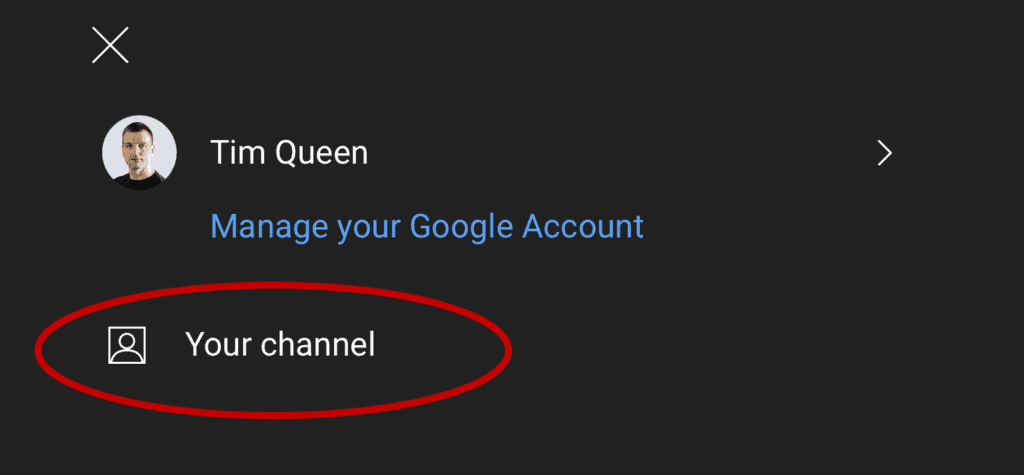
Click on "Your channel."
Step 4
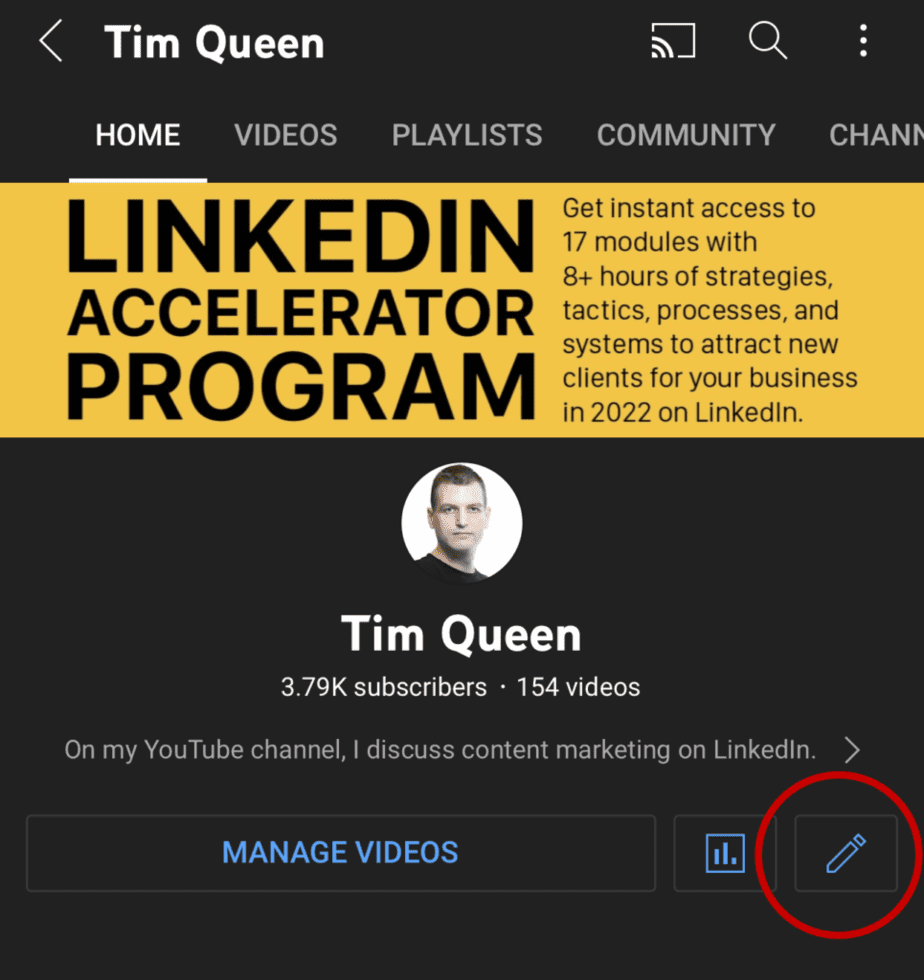
Find the little pencil icon at the top and click on it.
Step 5
You will see little camera icons on your profile picture and header. Click on your profile photo.

Step 6
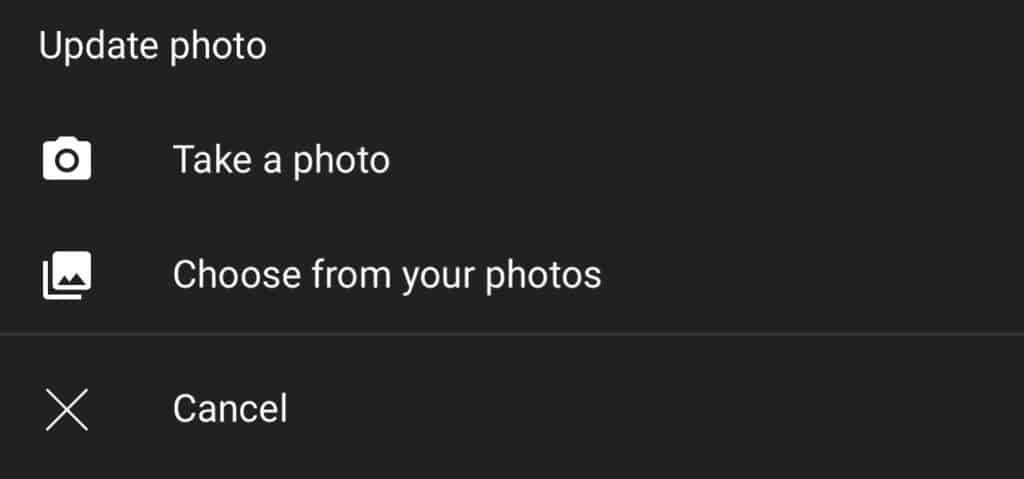
You can take a photo on the spot or select one from your media library.
Step 7
Select a picture from your media gallery.
Step 8
Use your fingers to move the photo around. You can also zoom in and out by pinching two fingers on your screen.
Once you're happy, click "Save" at the top-right corner.

Step 9
You will be greeted with a notification that lets you know that your profile picture has been updated successfully.

After Changing Your YouTube Channel Profile Picture, What's Next?
Selecting a good YouTube profile photo is an important step when it comes to growing on YouTube.
After you have completed this step and created the best first impression, your next focus is to craft a sound plan to attract your first 1000 subscribers.
If you want to learn more about growing your YouTube channel, check out my article on how to quickly get 4000 hours of watch time and how to maximize your YouTube video views.