What Are YouTube Cards?
YouTube's Cards feature allows you to create in-video notifications that appear both on desktop and mobile devices. They are a great way to advertise your brand and other videos on your channel.
Once you add a Card to your latest upload, it will appear In the upper right corner of the video, a small rectangular box or teaser gives your viewers a glimpse of the message.
When viewers tap or click the teaser, the associated video card appears along the right side of your video (or below the player on mobile).
Cards work well when paired with verbal calls to action or when relevant to your video content.
For example, you could try including a card whenever you mention a particular video or product.
This will help you to get viewers to watch more of your videos and increase your overall YouTube watch time, and help you to get your channel monetized faster.
What Are Tubebuddy's Bulk Cards Tools?
We already discussed how YouTube Cards can help you to grow your YouTube channel. TubeBuddy has some cool YouTube Card features to put your channel growth on autopilot.
For starters, check out TubeBuddy's Card template feature, which allows you to reuse the same cards across multiple videos.
TubeBuddy's Bulk Cards tool takes this to the next level by allowing you to automate the process of copying, updating, or deleting Cards across some or all of your YouTube videos.
This is incredibly useful and can save you a ton of time if you want to add, update or remove a special promo link in all of your videos.
I use Cards to cross-promote newly published videos on all of my YouTube videos, as well as promote some of my digital training programs by linking to my website.
Here are some additional ideas on how to use TubeBuddy's Bulk Cards feature. Run time-sensitive promotions, drive traffic to your latest video, or update URLs in bulk, for example, if your affiliate link for a specific product has changed.
How to Apply a YouTube Card Template to Multiple Videos
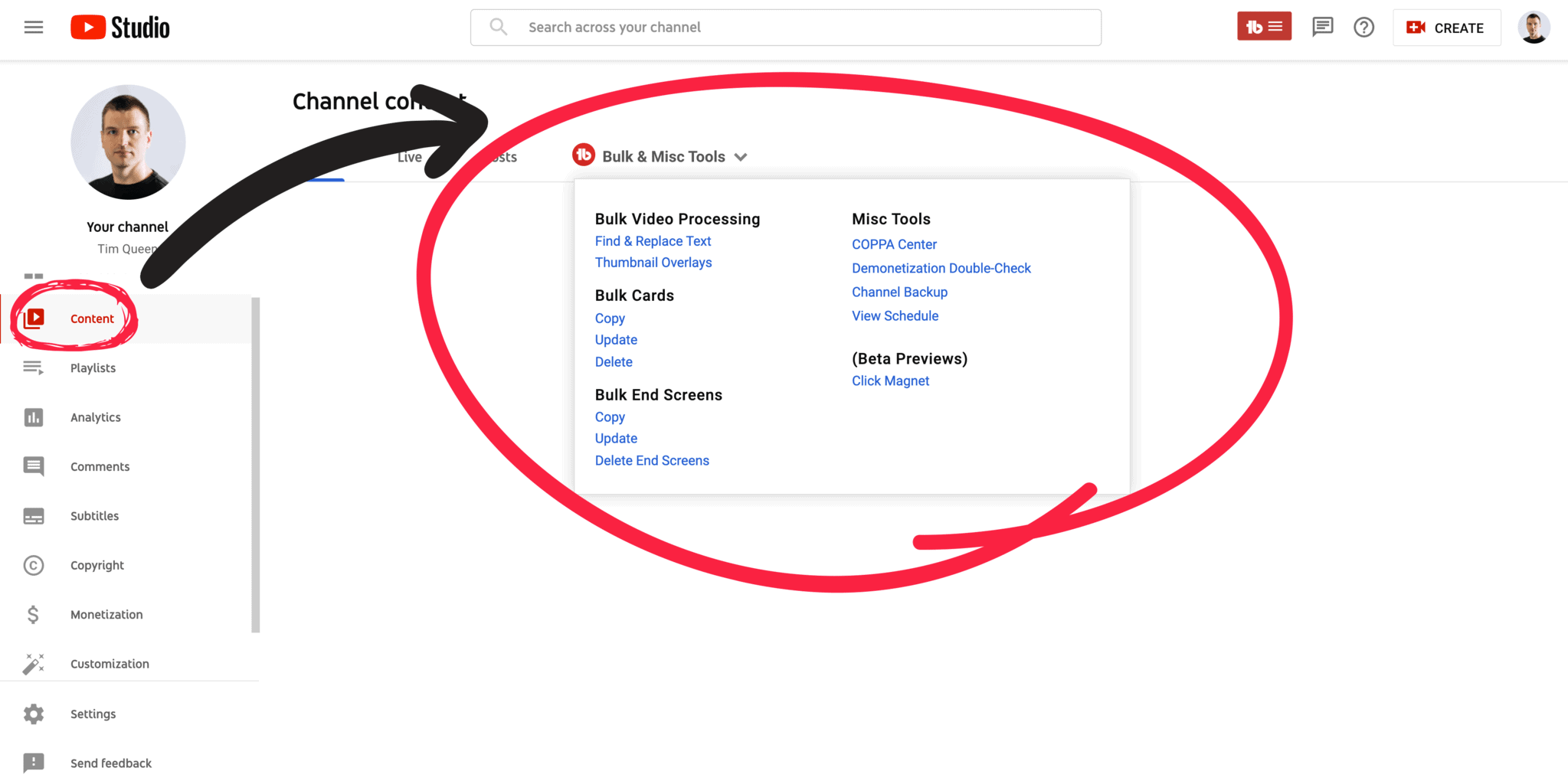
You can access TubeBuddy's Bilk Cards tools from the Content tab in YouTube Studio. Open the Bulk & Misc Tools menu at the top and click on Bulk Cards / Copy.
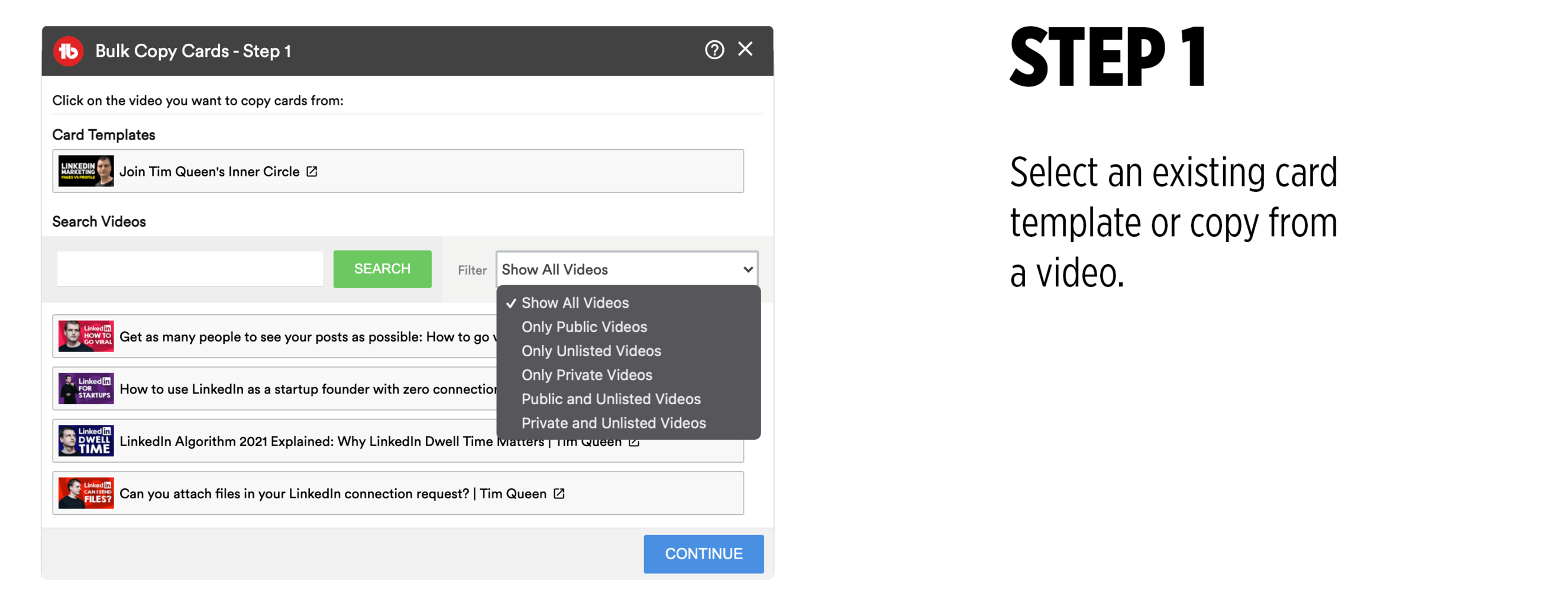
Select an already existing cards template or copy all cards from a specific video.
You can filter the results by privacy status or by typing the name of a specific video title.
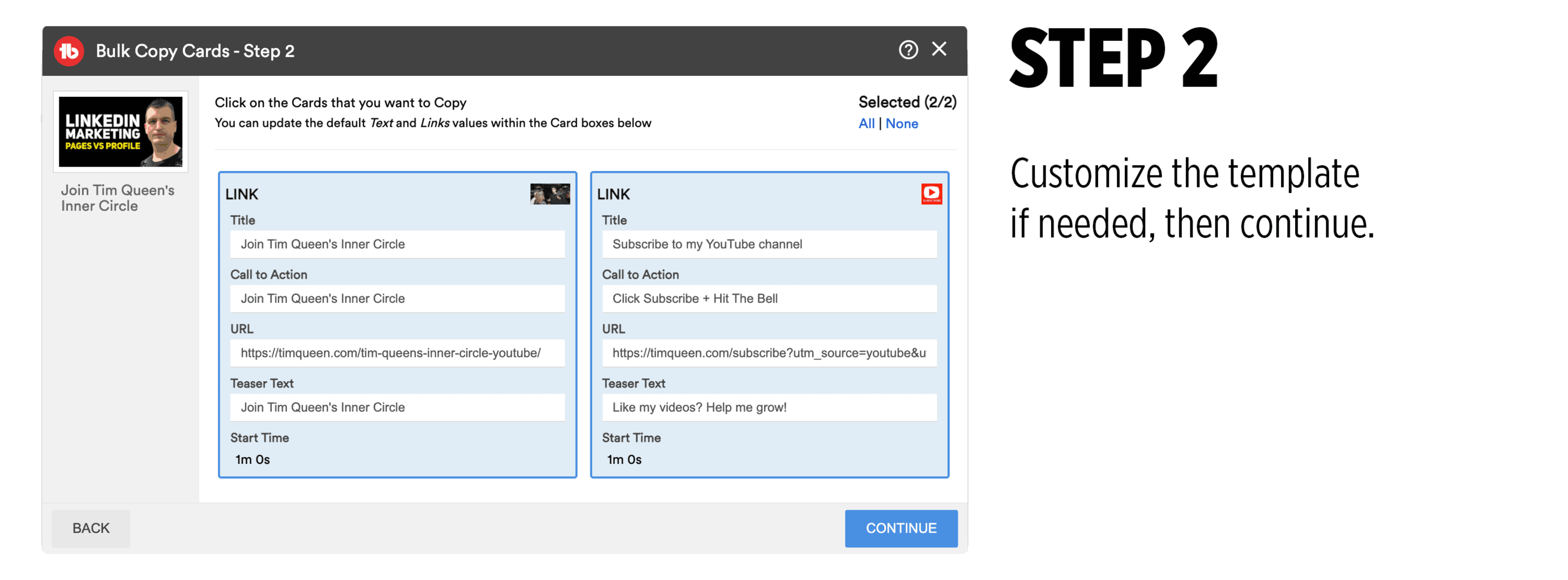
Once you pick your template, you have the opportunity to customize your cards before copying them to other videos.
TubeBuddy has a couple of dynamic variables that allow you to track your Cards performance in other apps, such as Google Analytics, by adding unique identifiers to your links.
For URLs, you can use these two placeholders to track either the video id or the name of your Card template.
((youtubevideoid)) or {videoid}
((templatename)) or {template}
Once you're happy with your cards, click on Continue.
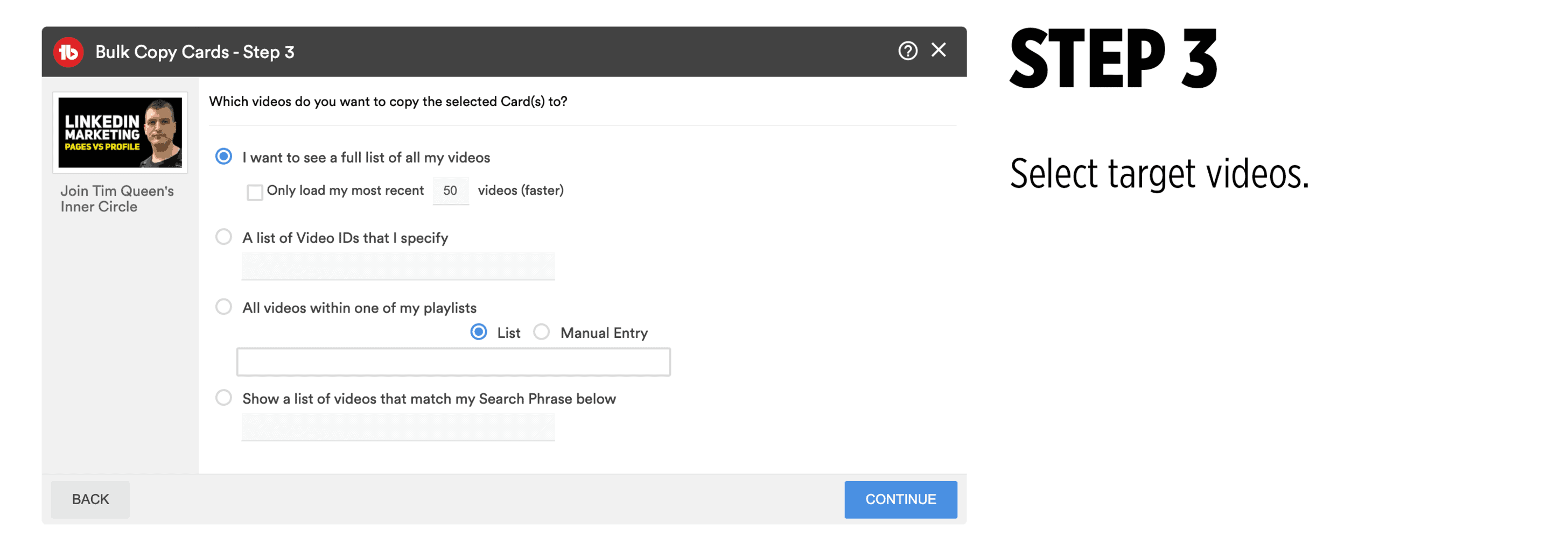
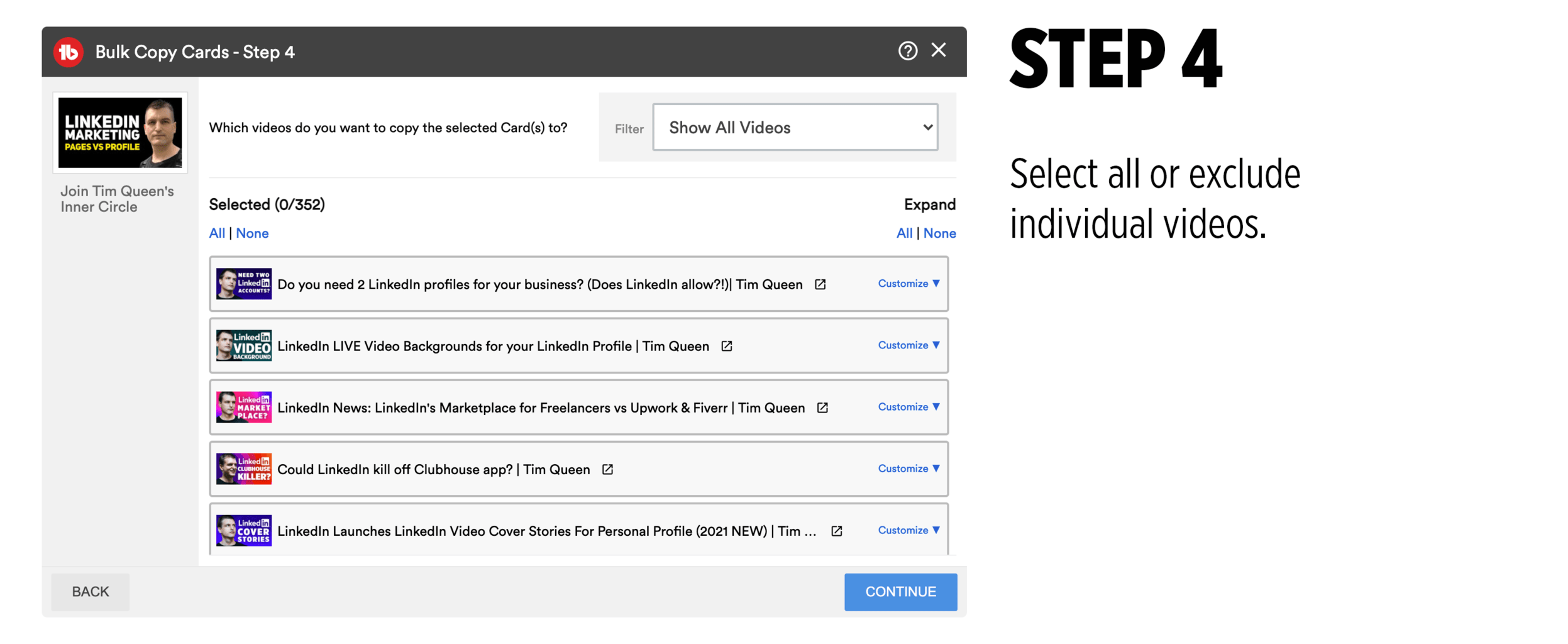
In step 3, you can narrow down the list of target videos.
You can get a list of all of your videos or limit the search to your X most recent videos.
Alternatively, you can type in a comma-separated list of specific video ids, select all videos from a specific playlist, or display all videos that match a specific search phrase.
TubeBuddy will now show you a list of all videos that match your search criteria. To select all videos, click on All.
You also have the option to manually select specific videos or to exclude videos by clicking on any of the video cards.
Each video also has a customize button that allows you to make adjustments to your template on a per-video basis.
When you're done, continue to the last and final step.
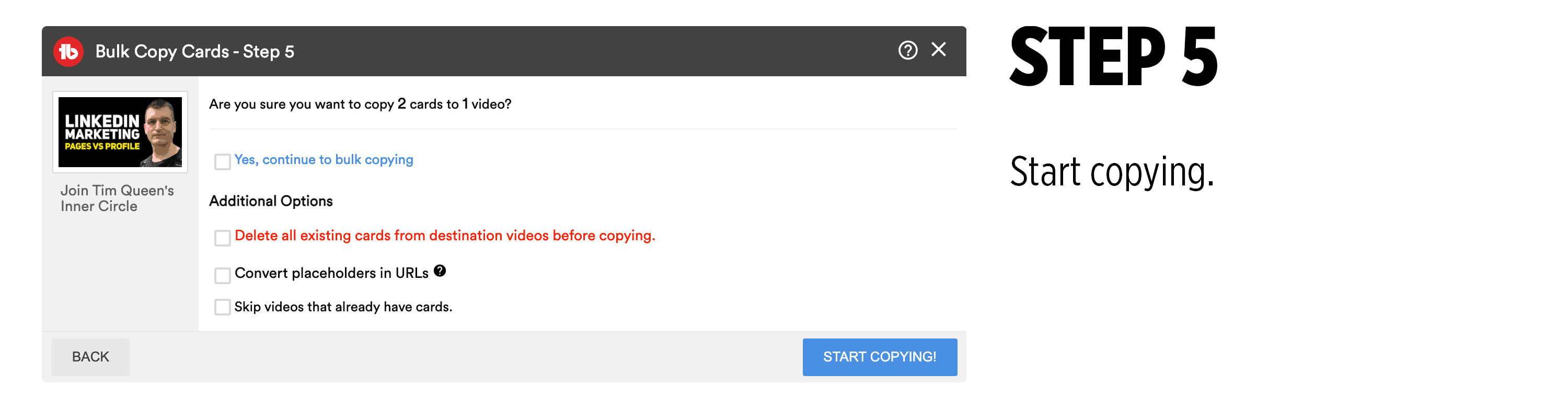
Here you can select if you want to delete any existing cards before copying.
This is a great option if you don't want to overwrite already existing cards. In this case, leave the checkbox unchecked.
If you want to overwrite all cards, mark the checkbox as checked.
If you decided to add placeholder variables earlier, make sure to click on "Convert placeholders in URLs".
Otherwise, they will not be updated with individual videos or template ids.
Once you're happy, confirm that you want to copy by clicking "Yes, continue to bulk copying" and then press the blue "Start Copying" button at the bottom right.
How to Update Cards Across Multiple Videos
Bulk updating cards work very similarly to copying cards.
You can also consider this your Search and Replace tool for YouTube cards.
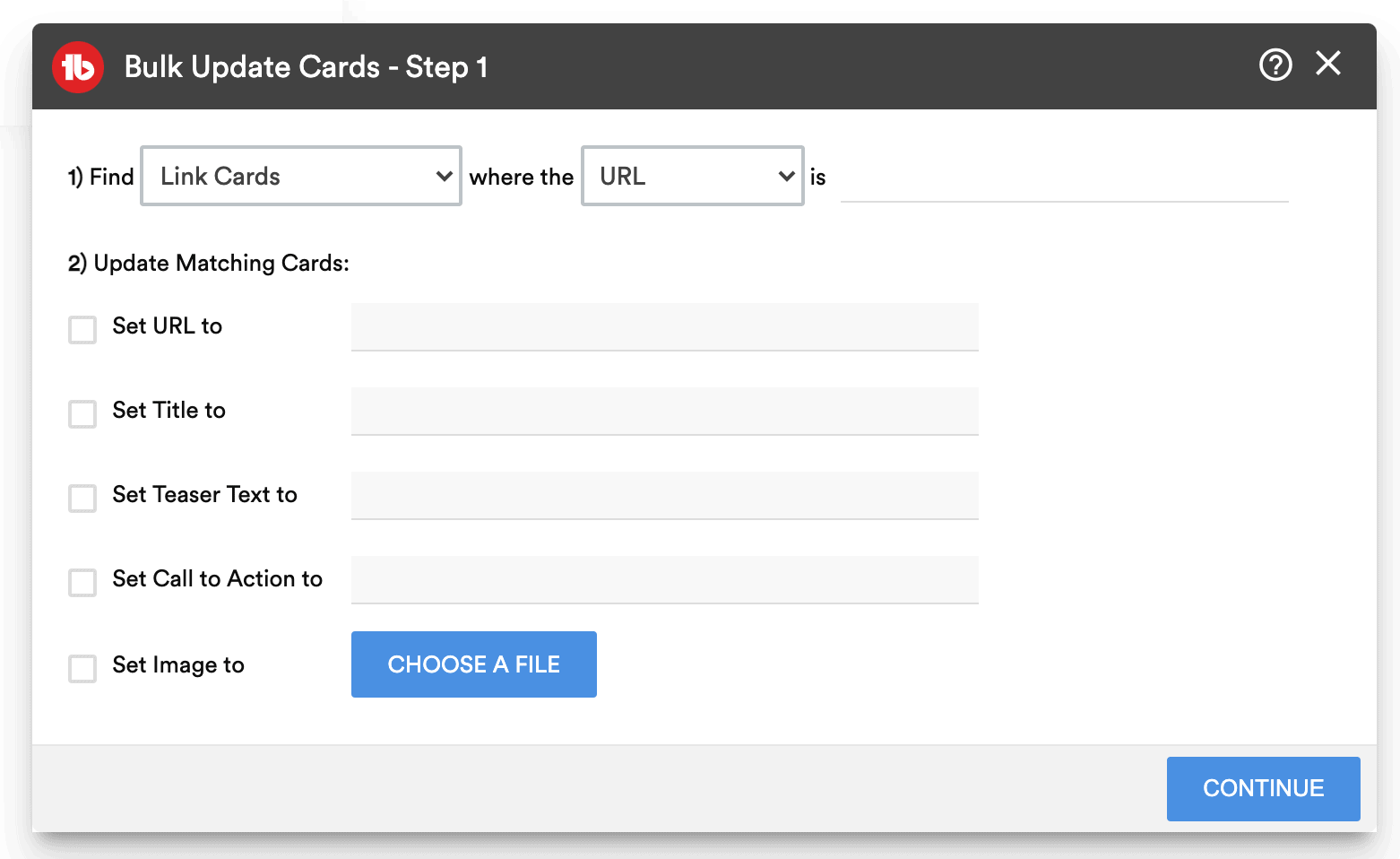
Initially, you can search for matching cards based on cards that match a specific link, video IDs, or playlist IDs.
You can filter link cards by URL, title, teaser text, or call to action.
Once your search filter is set, choose what and how you would like to update matching cards.
You can change the URL, title, teaser text, call to action or select a new image.
How to Delete Cards in Bulk
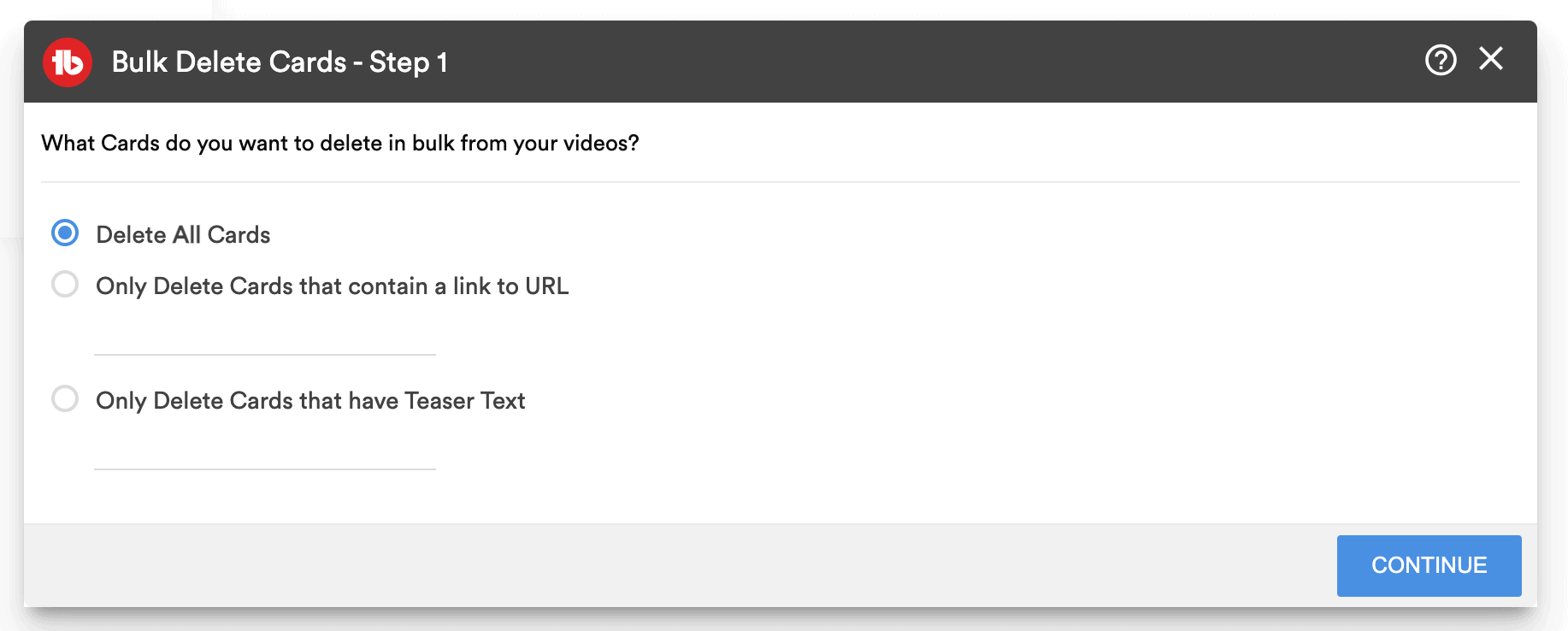
The Bulk Delete Cards feature lets you delete all cards if you want to start over or only cards with a specific URL or teaser text inside.
Next Steps
TubeBuddy's Bulk Cards feature is incredibly useful and can save you hours of time.
Updating hundreds of video cards would be impossible without TubeBuddy.
If you want to learn more about how TubeBuddy helped me to grow my own channel, read my full TubeBuddy review here.