What Are Tubebuddy Thumbnail Overlays
Instant brand recognizability is one of the key success factors for increasing your click-through rate on YouTube.
Well, thanks Tim... I wish you told me about this a 100 videos ago. I don't have time to redesign 100 thumbnails. Heck I don't even know if I even have the original files on my hard drive anymore...
Don't worry! That's where TubeBuddy's Bulk Thumbnail Overlay tool comes it. It allows you to create a consistent branding across all of your YouTube thumbnails by adding a custom watermark to an infinite number of video thumbnails.
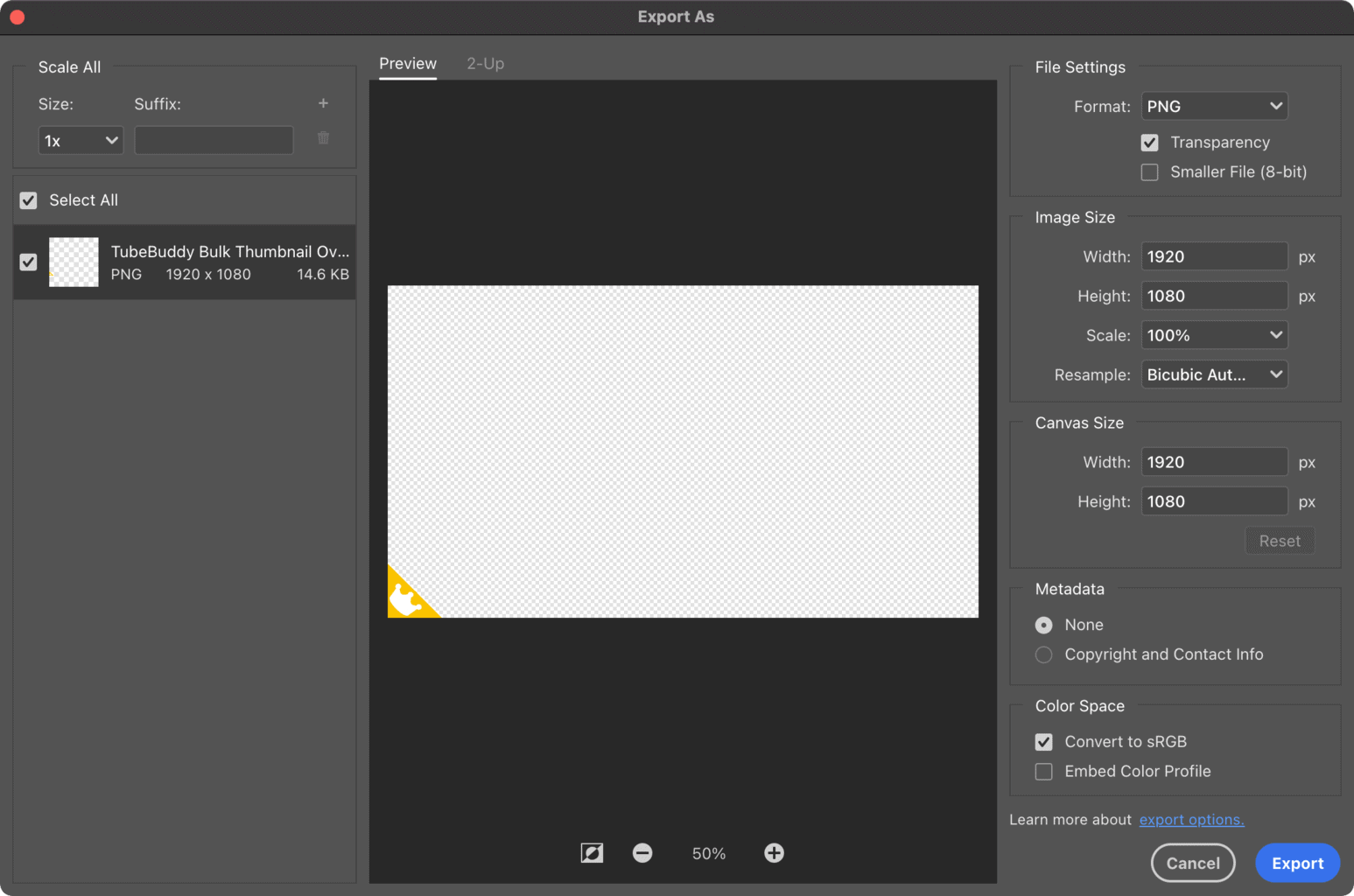
To get started, you have to create a transparent PNG template first.
How to Create a Logo Watermark Template for YouTube
The way TubeBuddy makes this work is by taking the original thumbnail and then adding a second layer with your transparent PNG on top of it, and then merges both of them together.
If you want to add a logo to the bottom left corner but keep the rest of your thumbnail intact, you have to use a transparent PNG file. Otherwise, you would just replace the original thumbnail and all thumbnails would look the same.
I use Adobe Photoshop to create my watermark template, but you can also use Canva in a very similar way.
Start by creating a 1920 pixel x 1080 pixel template with a transparent background.
Then add your logo or other branding elements to your video.
I recommend picking one of the corners to make sure that you don't accidentally cover any text, or even worse, your face, on your thumbnail.
Once you're happy, export your template as a transparent PNG and then head over to YouTube Studio.
How to Add Your Logo Watermark to All of Your YouTube Thumbnails With Tubebuddy
Head back to YouTube Studio and open the Content tab to see a list of all of your videos.
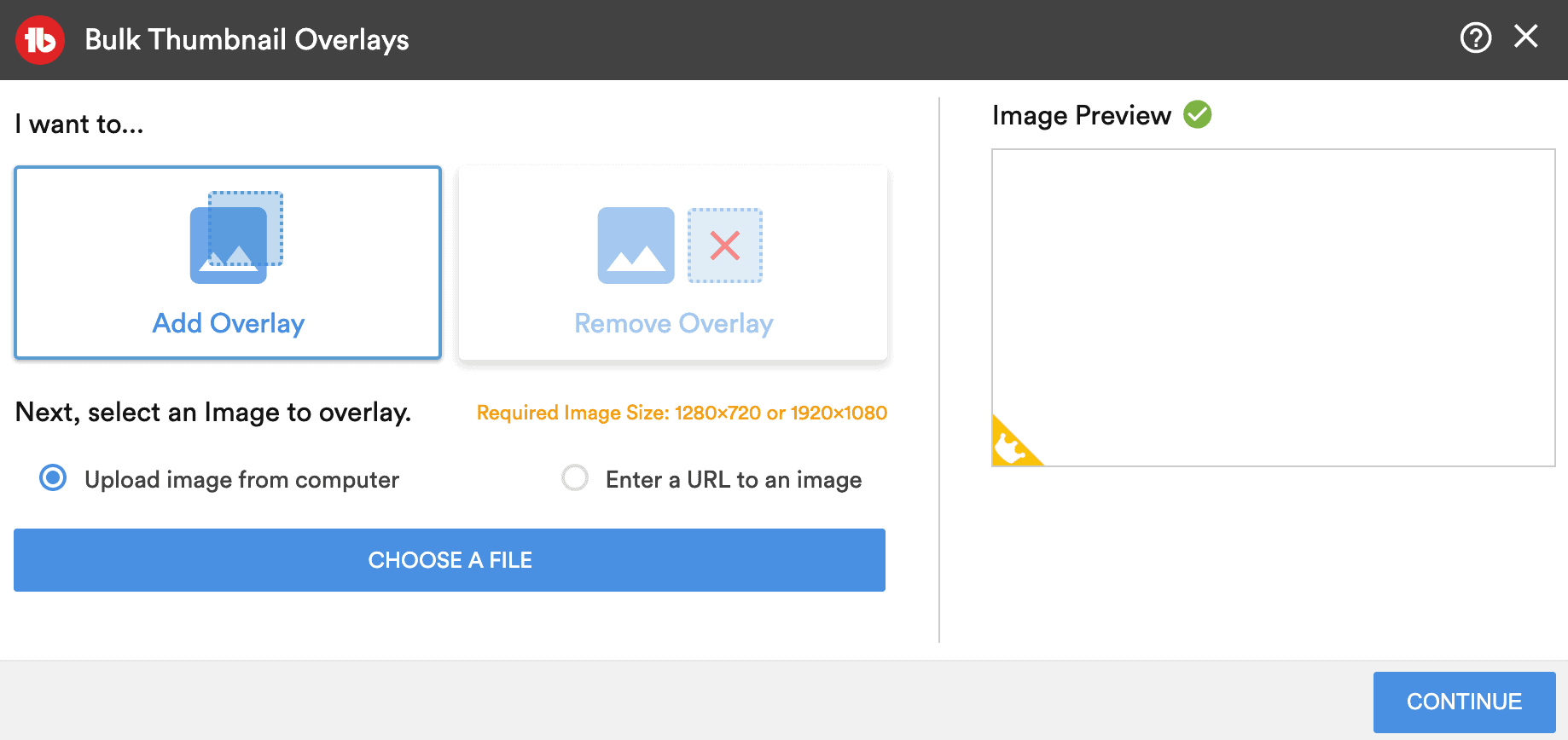
Select the Bulk Thumbnail Overlays tool from the TubeBuddy menu.
To add your watermark click on Add Overlay and then upload the transparent PNG you just created.
The great thing about this feature is, that TubeBuddy keeps a backup copy of your original thumbnail. This way you can always reverse it to its original state. Just come back later and use the Remove Overlay feature on the right.
Click on Continue to select your target videos.
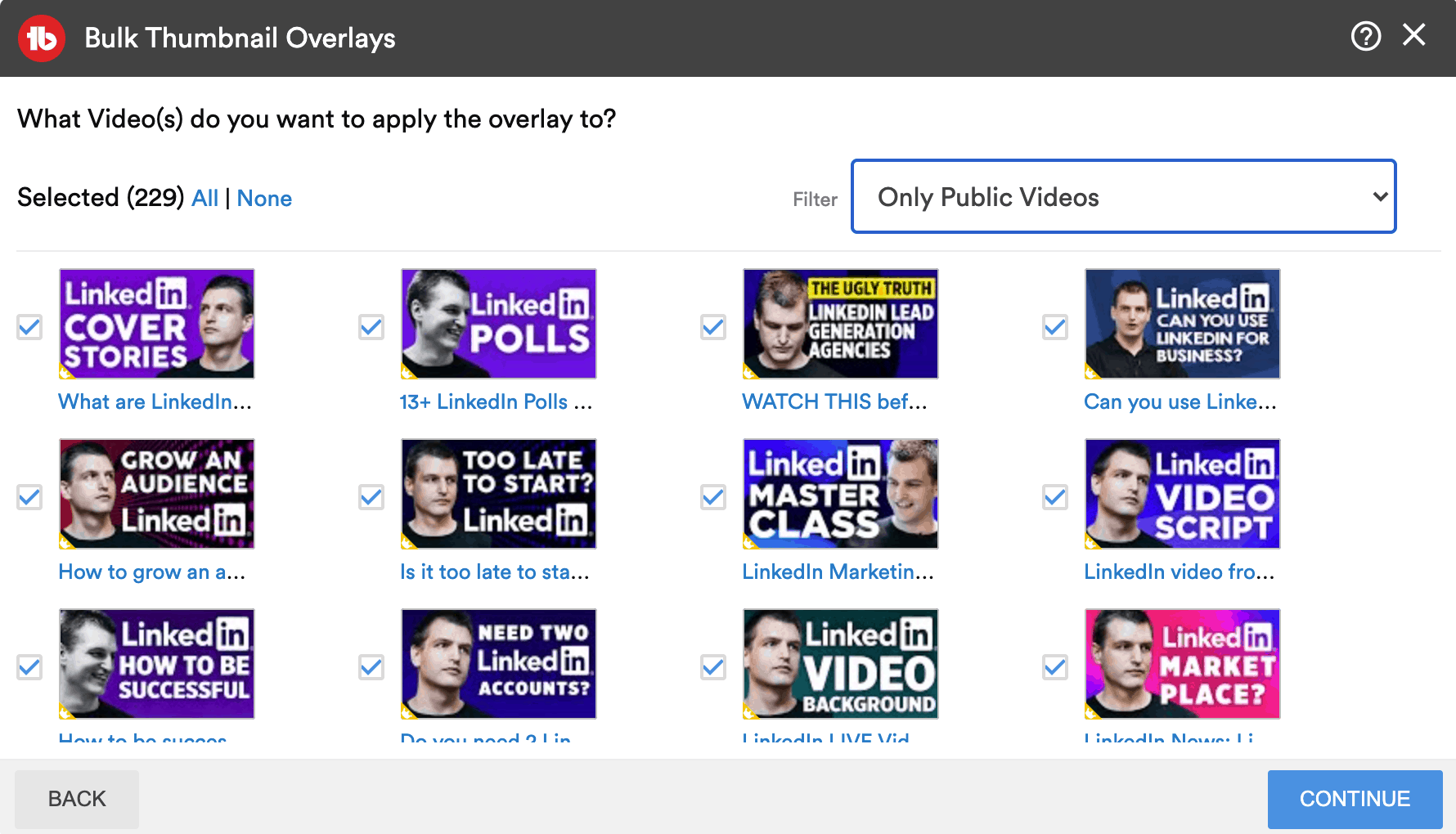
At this point, TubeBuddy will ask you to select a list of videos that you want to overlay with your watermark.
Use the Filter to narrow down your result and select individual videos or hit the All button to select all videos at once.
TubeBuddy will display a preview of how each thumbnail will look afterward the watermark has been applied.
If you're happy with how everything looks, click on Continue again and let TubeBuddy do its magic!
Next Steps
TubeBuddy's Bulk Thumbnail Overlays is an incredibly powerful tool to create a unique look and feel across all of your thumbnails by adding a logo or branded watermark to each video thumbnail.
I highly recommend designing your original YouTube thumbnails without any logo and then using TubeBuddy to add your channel branding on top of it. This way you can always change your channel logo at a later point and then replace all old logos on top of your YouTube thumbnails with your new branding.
If you want to learn how to use TubeBuddy to grow your channel, also make sure to read my TubeBuddy Review article where I share how I used TubeBuddy to grow my channel to 3000 subs.