What Are Tubebuddy's End Screen Templates
YouTube End Screens are one of YouTube's most underrated features.
They allow you to promote additional content at the end of each of your videos to amp up your YouTube watch time to fulfill the 4000 hours requirement necessary to join YouTube's Partner Program.
You can choose between sharing videos, playlists, links to your website or asking people to subscribe to your YouTube channel.
Adding End Screens to your videos can be very time-consuming.
Lucky for you, TubeBuddy has a solution for you that makes this tedious task a piece of cake! 🙂
How to Use Tubebuddy's End Screen Templates
TubeBuddy's End Screen Templates allow you to save and reuse end screens across multiple videos.
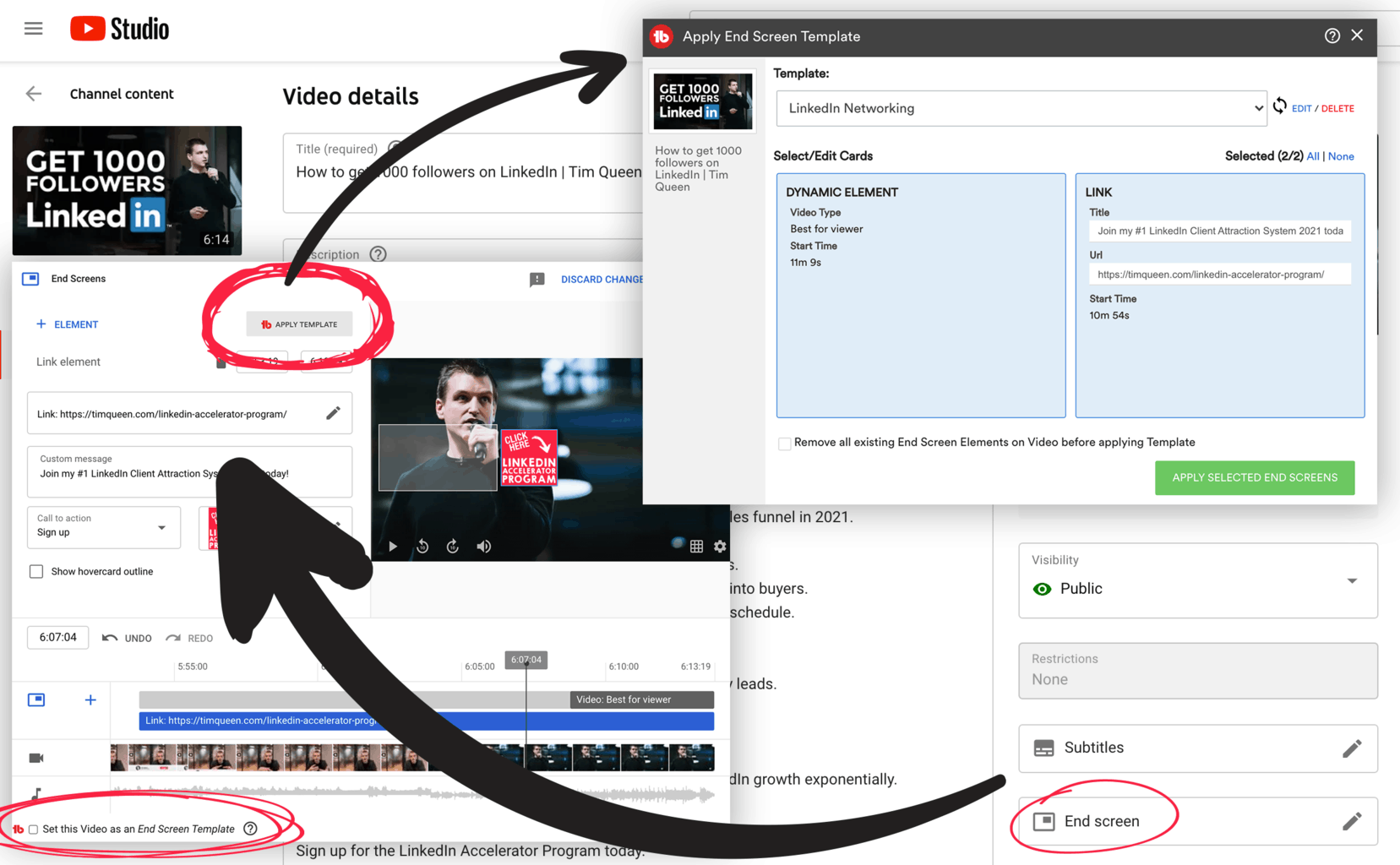
Just open any video of your choice in YouTube studio and click on the End Screens icon at the bottom right.
To create an End Screen template, first set up your template and timeline exactly as desired.
Then click on the button at the bottom left "Set this video as an End Screen Template". TubeBuddy will ask you how you would like to name your template. Pick a name and then save it.
To apply an End Screen template open the End Screen popup, but this time click on the "Apply Template" button at the top. It will open TubeBuddy's End Screen Template.
At the top, you can select an already existing template. The details will be displayed right below.
You have the option to apply the entire template as is, or only selected elements.
I recommend clicking on the "Remove all existing End Screen Elements" checkbox at the bottom to ensure that there are no conflicts or duplicate elements.
Once you're ready, hit the green "Apply Selected End Screens" button at the bottom right.
Next Steps
Now that you know how to use TubeBuddy's End Screen templates, it's time to have a look at some of TubeBuddy's other incredibly useful features in my complete A-Z TubeBuddy Review.