What Are YouTube Chapters?
YouTube's video chapter feature allows you to split your YouTube video into multiple sections, similar to how individual headlines break this article down.
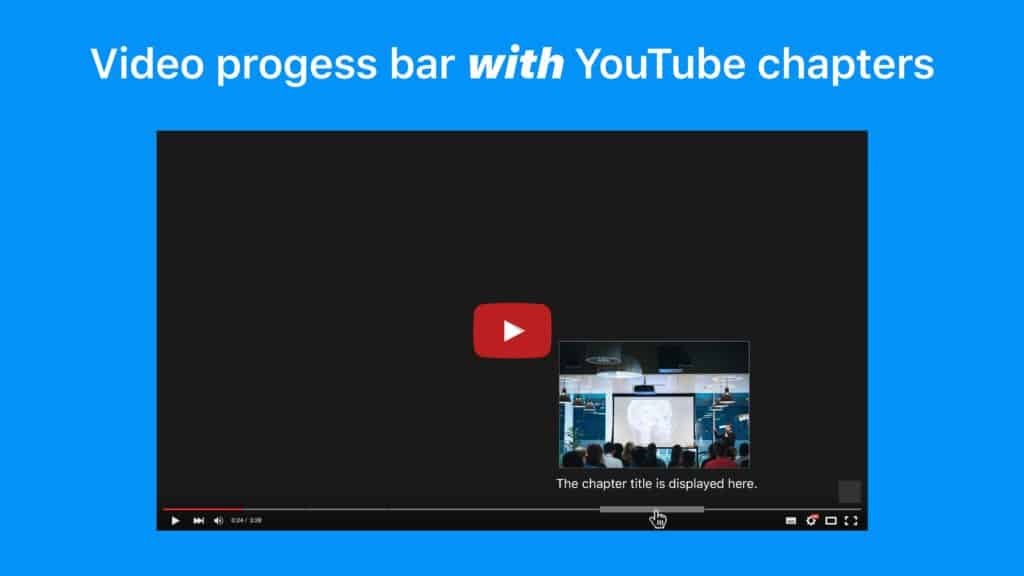
Each YouTube chapter has a unique timestamp, title, and preview image highlighted on the video progress bar.
Video chapters are a great tool to organize your YouTube videos into easily accessible subtopics.
They provide an outline of your video that allows viewers to jump to specific timestamps within your video to quickly find the information they are looking for.
You can manually add YouTube chapters to your video or let YouTube's AI generate them for you under certain conditions.
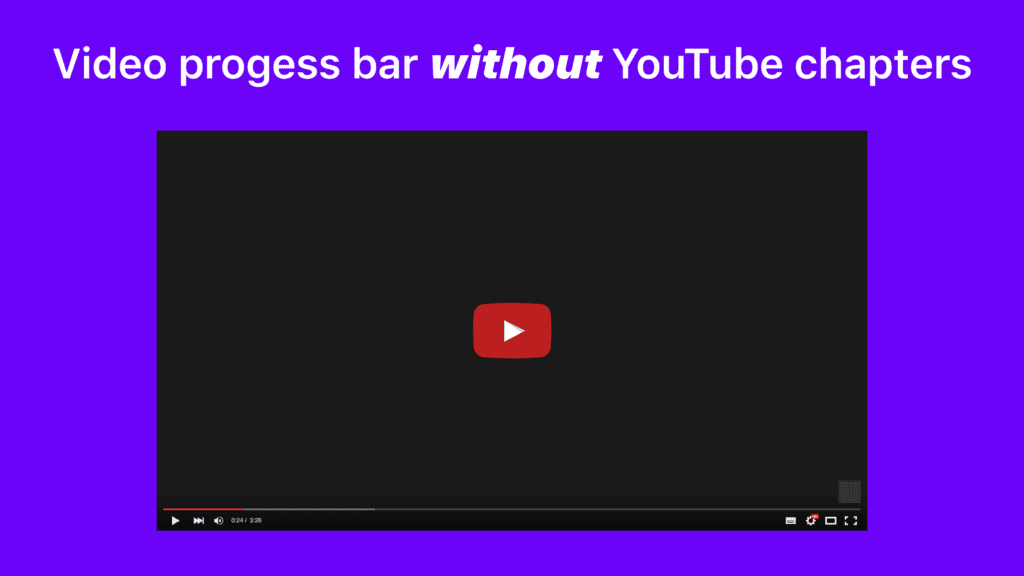
Here is an example of what a regular YouTube video without video chapters looks like:
And here is a video with video chapters enabled:
In this article, I am going to share what YouTuber chapters are, how they are able to help you grow your YouTube channel, and how to enable them by adding timestamps to your YouTube videos.
What Are the Benefits of Using YouTube Chapters?
Better viewer experience
YouTube chapters save your viewers a ton of time.
Ordinarily, users looking for a specific bit of information would not know where to find it within your videos, especially if it is a very long video.
Timestamps allow you to label different sections of your videos so that viewers know exactly where to find what they are looking for.
They can simply click on one of your chapters or anchor points on your timeline to jump straight to the relevant timestamp in your video instead of watching your entire video.
Increased video watch time and more subscribers
Did you know that very long videos such as podcasts or recorded Zoom meetings often have a poor watch time performance among non-subscribers?
The problem is that most viewers who are not subscribers yet do not know enough about you to evaluate if it is worth their time to watch an hour-long video, especially if they are only looking for a specific bit of information.
Since they don't know where to find what they are looking for, they will usually only watch the first 30-60 seconds of your video.
If they do not find what they are looking for, they will often hit the back button to watch someone else's video from YouTube search results.
By providing video chapters with timestamps, you allow non-subscribers to jump straight to the good parts of your video.
Because of the much higher relevance of certain sections of your video, they will watch longer, and more viewers will convert into subscribers.
Higher visibility on Google
With YouTube chapters, your videos are more likely to be indexed by Google and appear more prominently in search results.
In recent years, Google has shown more and more instant answers in the form of featured snippets within its search results, especially for searches such as "How to", "What", "Where," etc.
The idea is to provide viewers with just enough information so they don't have to leave Google. If they want to learn more, they can visit the original source.
That does not only apply to articles. With Google's acquisition of YouTube, YouTube videos have started to appear in Google search results as well.
With YouTube chapters, we can take the idea of featured video snippets to an entirely new level.
Google can now link to specific timestamps within one of your videos. The search intent and relevant answers match perfectly within your video content.
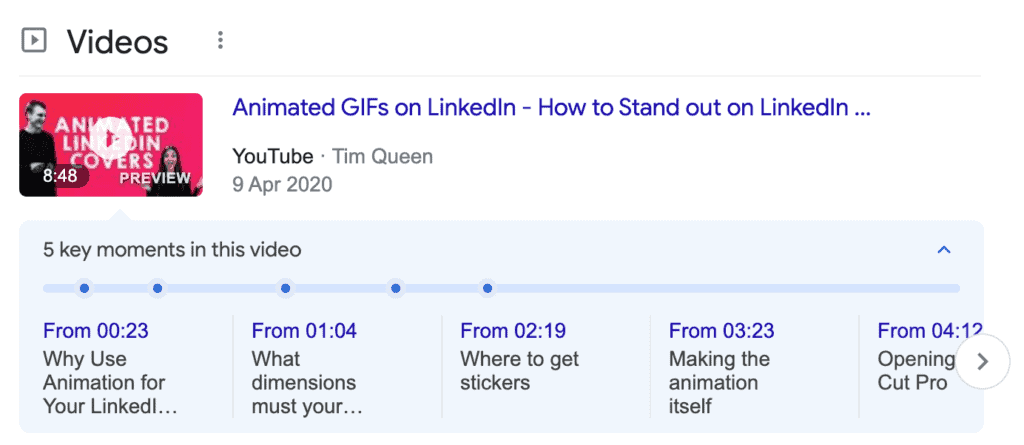
This strategy works even better if you map out an entire YouTube content cluster strategy, so Google understands that you are a key thought leader within your niche.
How to Name Your Video Chapters for YouTube SEO
If you want to get your video to rank on the first page of Google you need to have another trick up your sleeve.
You have to optimize the names of individual video chapters of your YouTube video for SEO.
I recommend signing up for Semrush trial and using its Keyword Magic Tool to identify common keywords, phrases, and related questions around a specific topic.
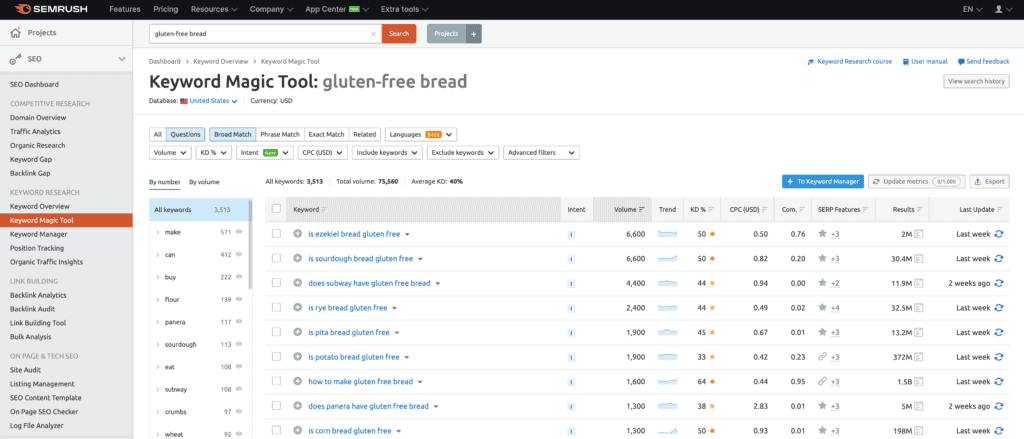
Alternatively, you can also try out TubeBuddy, vidIQ, or Morningfame with similar keyword research tools specifically aimed at YouTube content creators.
Write down a list of keyword ideas that complement each other well and could be covered in one of your next videos.
Use the key phrases as future chapters in your video outline. And then add more bullet points to map out each chapter.
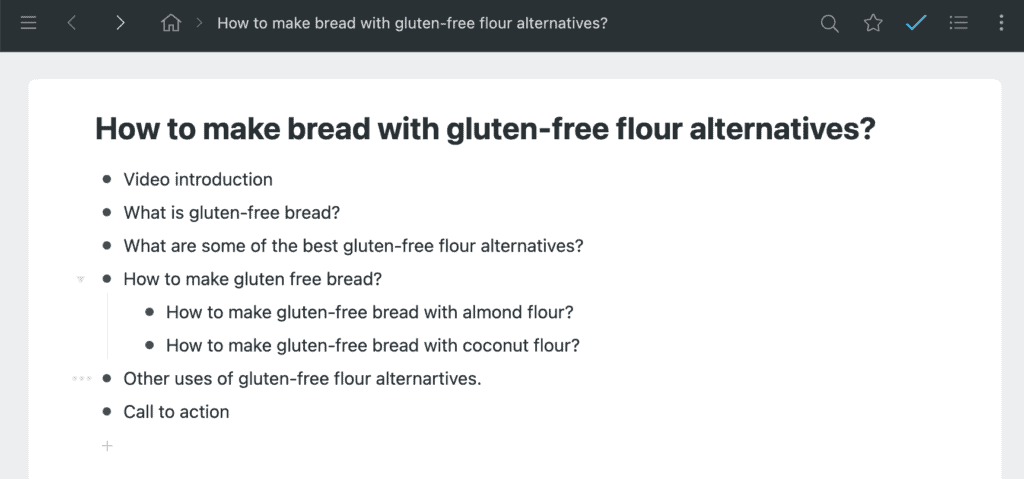
I recommend signing up for a free Workflowy account to map out your video outlines.
Let me give you a practical example.
Suppose you are creating a video about baking bread with gluten-free flour alternatives.
Instead of using single-word keywords such as "coconut flour", or "almond flour", try to incorporate full sentences or questions.
For example: "How to make gluten-free bread with almond flour?".
This way you dramatically increase the probability of Google linking to this particular chapter of your newly published video when someone types in a similar question as your chapter title into search.
How to Edit Your Videos for YouTube Chapters?
To make your life easier, I recommend planning video chapters while editing.
If you want to use auto-chapters, I recommend adding transition sequences with text overlays to represent the chapter name.
YouTube's AI is smart enough to recognize transitions as chapters and can extract burned-in text overlays via OCR and use it for transitions, especially if you add a music track to your transitions and don't talk.
YouTube may also pick up key sentences from your YouTube subtitles for chapter titles. So make sure to speak out specific questions you are going to answer in each new segment.
To set up your titles manually, I recommend adding chapter markers in Final Cut Pro X or Adobe Premiere Pro at the start of every transition.
This way, you can revisit your editing timeline and jump from one chapter marker to another, and just write down the timecode from your timeline.
How to Add Chapters to YouTube Videos?
Adding chapters to your YouTube videos is very straightforward.
First, you have to log in to your YouTube account and open YouTube Studio for your channel.
From the left menu, select the Content tab.
Select one of your videos and then scroll down to the Description text field.
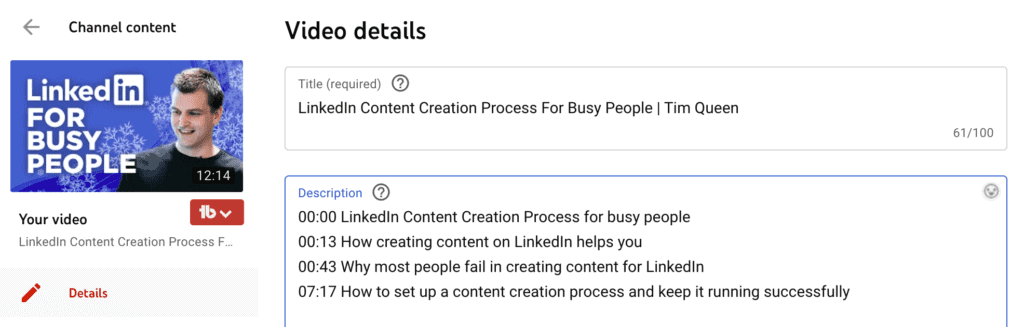
In the video description, add a list of timestamps and titles.
YouTube chapters use the following format for timestamps.
MINUTES:SECONDS chapter title
Here is a practical example:
00:00 Welcome
00:10 What are YouTube chapters
01:30 How to add YouTube chapters to your video
Make sure that the first timestamp starts at 00:00, and that your video contains at least three timestamps in ascending order otherwise, YouTube will not display any of your timestamps.
Once you have added all your timestamps, click save, and you are done.
YouTube may take a few minutes to update your video and display your chapters on the video timeline.
How do you add automatic chapters to YouTube videos?
YouTube's advanced AI is capable to add chapters automatically based on video overlays, pauses, transitions, and video subtitles.
This feature is turned on by default for all new uploads, but here is how you can enable automatic chapters for older videos.
Sign in to YouTube Studio and click on the Content tab on the left.
Open any video of your choice by clicking on the video thumbnail or the pencil icon.
Scroll to the bottom of the page and click on View More.
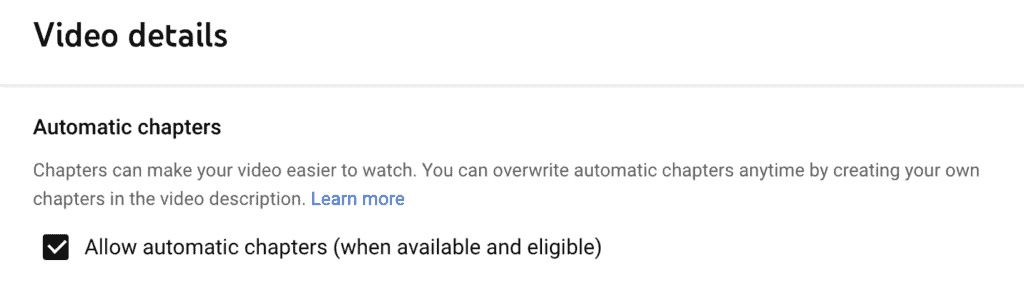
Scroll down further until you see "Automatic Chapters".
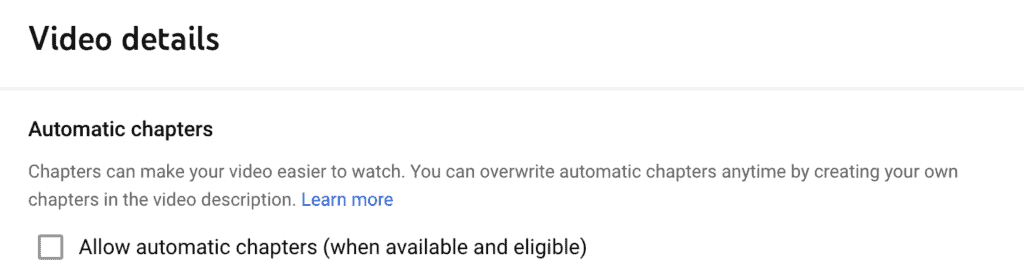
Enable the checkbox on the left of "Allow automatic chapters (when available and eligible)"
Save your video, and you are done.
How to Edit Automatic YouTube Chapters?
Once YouTube adds automatic chapters to one of your videos, how can you edit them?
The solution is that you must override them by adding chapter markers in your video description.
Fortunately for you, YouTube gives you a one-click option to import all existing auto chapters into your video description.
You can access this function by signing into YouTube Studio.
As always, head over to the Content tab and open a video with auto-chapters.
At the bottom of your video description, you will notice a little icon with stars and the text "Chapters available" next to it.

To import your auto-generated chapters click on it.
You will see a preview popup like the example below.
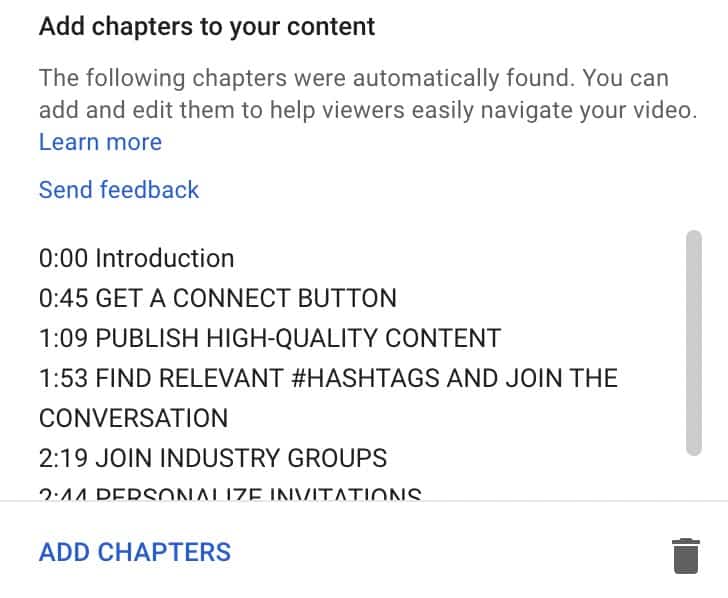
Click on Add Chapters to import the auto chapters to the end of your description.
If you are already close to the 5,000-character limit, you might have to shorten your description before importing.
How to Opt-Out of Automatic YouTube Chapters?
If you don't like to use automatic YouTube chapters you can disable this feature for individual uploaded videos, as well as the upload default settings for all future videos.
How to opt-out of automatic video chapters for a specific video.
To remove automatic chapters from a specific video, open the video in YouTube Studio.
Click on "Show More" at the bottom, then scroll down to Automatic Chapters, and unselect "Allow automatic chapters (when available and eligible)".
Click on "Save" and YouTube will no longer show or generate any chapters for this video.
How to opt-out of automatic video chapters in bulk.
Doing this one-by-one can quickly become a tiring endeavor, especially if you have a large number of videos.
Luckily, there is an easier way to do this in bulk.
First, log in to YouTube Studio and open the Content tab.
Scroll down and change the number of displayed videos from 30 to 50.
Scroll up again and click on the "Select All" checkbox. This will select the first 50 videos and open the bulk editing toolbar.
Click on Edit and then select Automatic Chapters.
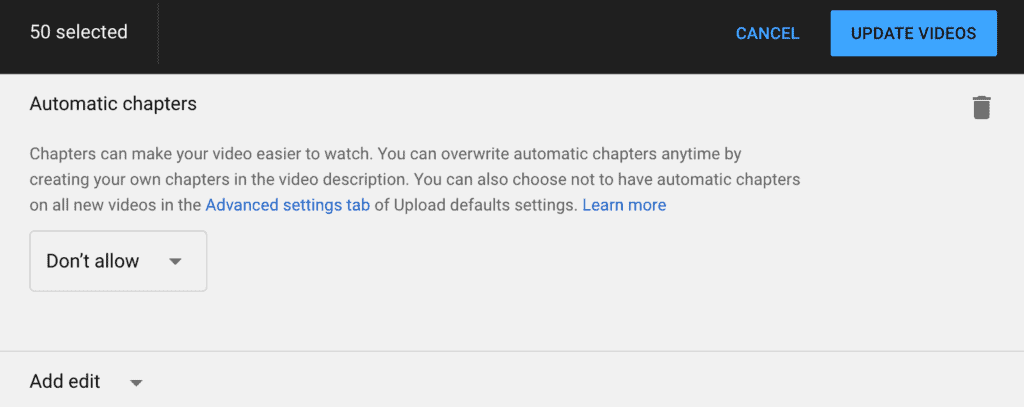
You can now change the setting from "Allow" to "Don't allow" to disable this feature.
Finally, click on "Update videos" on the right and wait for YouTube to complete the bulk processing.
Once this is done, you can click the "Next page" button at the bottom right of the table and then repeat the same process for the next 50 videos, until your entire video library has been updated.
How to opt-out of automatic video chapters for all future videos by default.
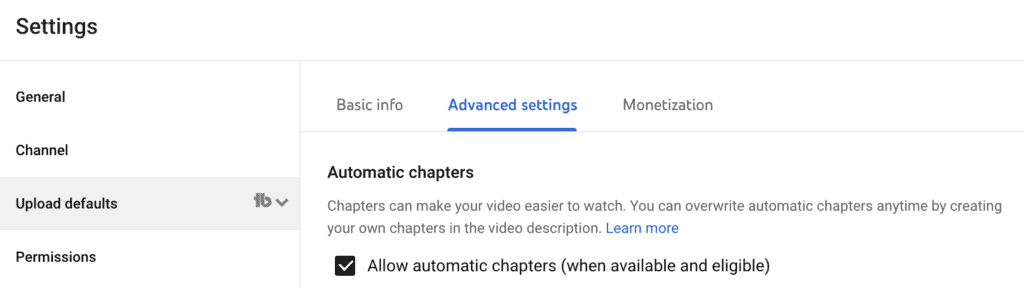
To turn off automatic chapters by default, open YouTube Studio and then click on "Settings".
In the popup, switch to the "Upload defaults" tab.
Then, under "Advanced settings", uncheck "Allow automatic chapters (when available and eligible)" and save.
New videos will now no longer enable auto-chapters by default.
Frequently Asked Questions About YouTube Chapters
Why are my YouTube chapters not working?
There are several reasons why YouTube chapters might not work for your video, including:
- Some of your timecodes may have incorrectly used "." as the divider, instead of ":".
- The content of your video may not be appropriate for all viewers.
- Timestamps are not listed chronologically.
- You did not include a 00:00 time stamp.
- You have added fewer than three chapters.
- You have one chapter that is shorter than ten seconds.
- Your channel has less than 1,000 subscribers.
- Your channel might have one or more active copyright strikes.
Should all videos have YouTube chapters?
No, having chapters only makes sense if your video contains at least three different sections and all chapters are more than 10 seconds long.
That is usually only true for longer videos that are more structured.
Are YouTube chapters available in all countries?
Yes, YouTube video chapters are available worldwide.
Will YouTube chapters reduce your video watch time?
Not necessarily. It may even increase your watch time. Here is why.
It is true that someone who jumps to a specific section of your video usually watches everything leading up to the selected chapter.
But it is also true that many people would only watch the first 10-30 seconds of your video and then leave.
By giving viewers what they want, you increase the chance that they first watch the selected chapter and then jump back to the beginning to watch the entire video if they really resonate with what you had to say.
Does it matter where you add YouTube chapters in your video description?
No, it does not matter where you add YouTube chapter timestamps in your video description. You can add them to the first line of your description, somewhere in the middle, or all the way to the end.
What is important is that your first timestamp starts with 00:00, that you add one timestamp per line, that all timestamps are sorted chronologically from beginning to end, and that there are no empty lines in between.
How to Grow Your YouTube Channel
YouTube chapters are an excellent tool that will help you to improve your viewing experience and to better rank your videos in search.
If you want to accelerate your YouTube channel growth I also recommend checking some of my other YouTube growth articles on my YouTube growth blog here.