What do other people see when they view your LinkedIn profile?
LinkedIn offers a variety of profile privacy settings that affect what other people can see when visiting your profile.
In this article, I walk you through the different options on how to limit the visibility of specific information in your profile and show you how you can view your profile as someone else.
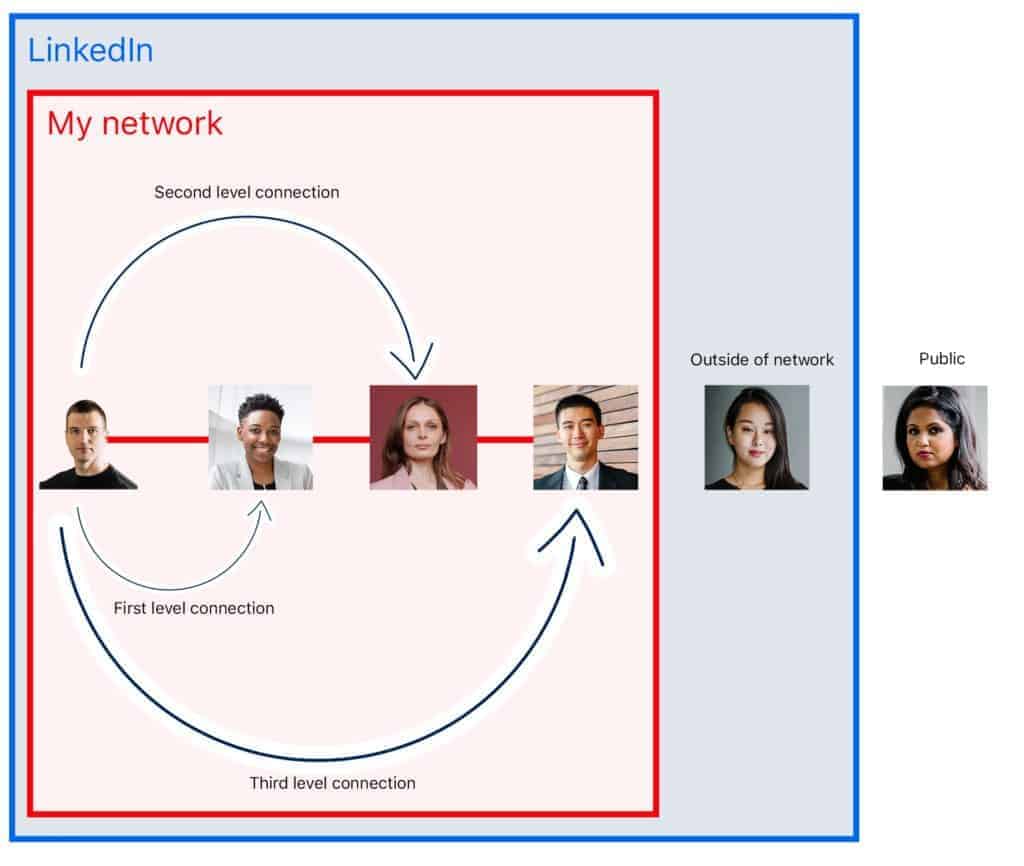
LinkedIn relationships explained
My network
First-level connections
People you're directly connected to because you've accepted their invitation to connect, or they've accepted your invitation. You'll see a first-degree icon next to their name in search results and on their profile. You can contact them by sending a message on LinkedIn.
Second-level connections
People who are connected to your 1st-degree connections. You'll see a second-degree icon next to their name in search results and on their profile. You can send them an invitation by clicking the Connect button on their profile page.
Third-level connections
People who are connected to your 2nd-degree connections. You'll see a third-degree icon next to their name in search results and on their profile.
LinkedIn users outside of my network
LinkedIn members who fall outside the categories listed above. Some fields of profiles out of your network have limited visibility, but you can build your network with other valuable connections to see more profiles. If the option is available, you can also send them an InMail to introduce yourself.
Public / People outside of LinkedIn
Everyone who is currently logged out of LinkedIn.
LinkedIn profile privacy
LinkedIn broadly categorizes privacy settings into two distinct categories.
- Internal privacy settings for LinkedIn users who are logged into their account
- Public privacy settings for LinkedIn users who are logged out of their account, or do not have an account.
Internal LinkedIn profile privacy settings
For logged-in users, you can only change the appearance of these two features:
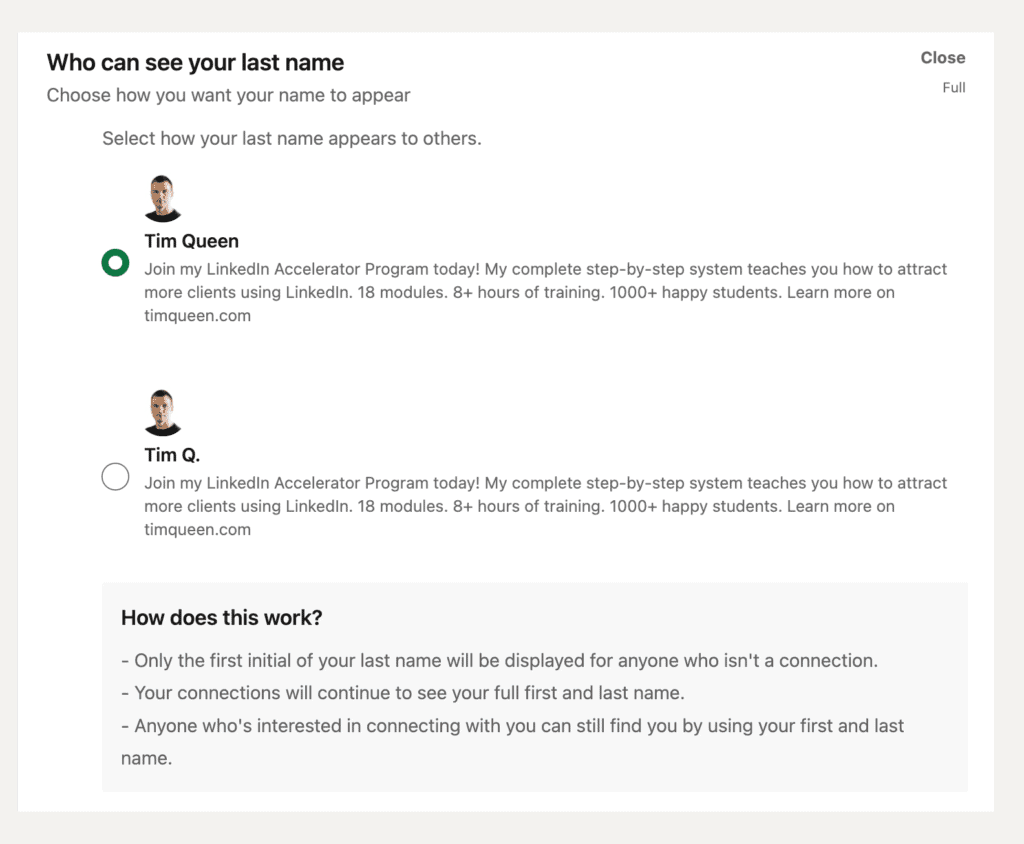
Your last name
- Tim Queen
- Everyone will be able to see your last name.
- Tim Q.
- Only the first initial of your last name will be displayed for anyone who is not a connection.
- Your connections will continue to see your full first and last name.
- Anyone interested in connecting with you can still find you by using your first and last name.
Your profile photo
- Only first-degree connections: LinkedIn members who are directly connected to you.
- Your network: Your connections, up to three degrees away from you.
- All LinkedIn members
- Public: All LinkedIn members on or off LinkedIn. Your content could be visible in search results (Google, Bing, etc.).
Public LinkedIn profile privacy settings
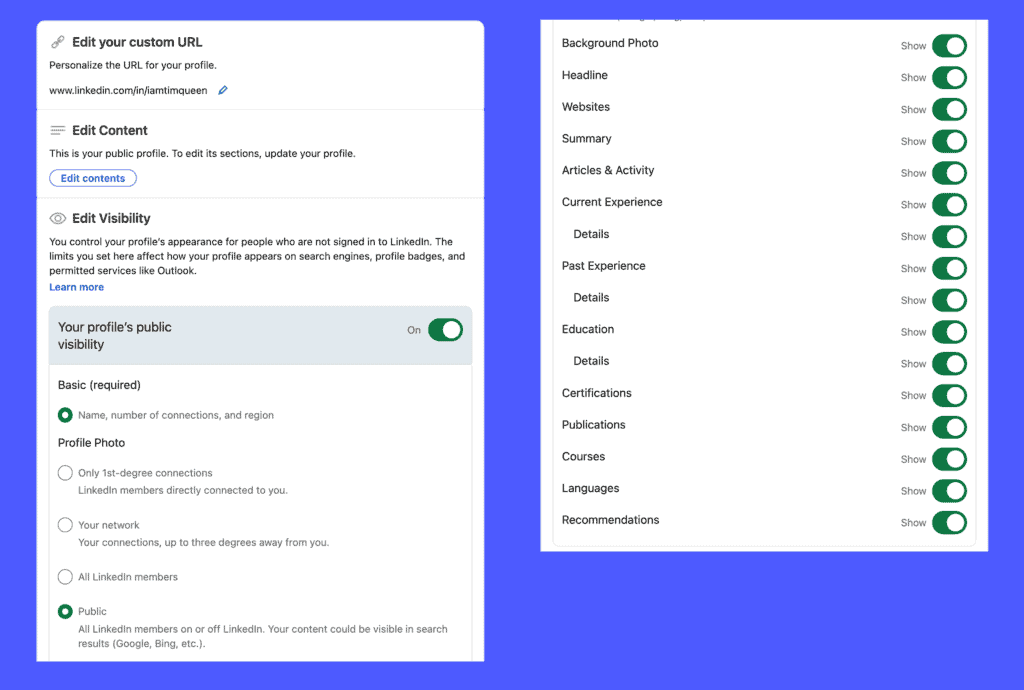
You can change the appearance and visibility of almost every section of your LinkedIn profile for logged-out public users.
The visibility of your profile
- Visible only to logged-in users
- Visible to everyone, including logged-out users and search engines
Your last name
- Tim Queen
- Everyone will be able to see your last name.
- Tim Q.
- Only the first initial of your last name will be displayed for anyone who is not a connection.
- Your connections will continue to see your full first and last name.
- Anyone who is interested in connecting with you can still find you by using your first and last name.
Your profile photo
- Only 1st-degree connections: LinkedIn members who are directly connected to you.
- Your network: Your connections, up to three degrees away from you.
- All LinkedIn members
- Public: All LinkedIn members on or off LinkedIn. Your content could be visible in search results (Google, Bing, etc.).
Your profile sections
LinkedIn allows you to either hide or show any of the following sections on your public LinkedIn profile:
- Background Photo
- Headline
- Websites
- Summary
- Articles & Activity
- Current Experience Summary
- Current Experience Details
- Past Experience Summary
- Past Experience Details
- Education Summary
- Education Details
- Certifications
- Publications
- Courses
- Languages
- Recommendations
How to preview your LinkedIn profile as a logged-in user
A long time ago, LinkedIn used to have a special button that allowed you to view your own LinkedIn profile as someone else. This feature was removed in 2016.
If you want to see your profile as someone else, you have to rely on one of the following workarounds.
How to preview your LinkedIn profile as a first-level connection
If you are in a relationship or live together with friends or family, you could ask a person of your choice to log into their LinkedIn account so that you can take a peek at your own LinkedIn profile.
If that is not possible, you create a second LinkedIn account with a second email address and add yourself as a connection. Once you have accepted your connection request, log in as your newly created account and visit your original LinkedIn profile.
How to preview your LinkedIn profile as someone from your extended network (second- or third-level connections)
The easiest solution is to find a trusted person from your first-level connections with whom you share more than one connection and ask them to temporarily remove you as a connection and then take a screenshot of your profile.
This works because they shared more than one mutual connection; ergo, they become a second-level connection by disconnecting from you.
Since LinkedIn does not differentiate between second- and third-level connections, this covers both cases.
The DIY method is to create an additional third LinkedIn account. You then connect your original and second accounts and your second and third accounts.
Your original account is connected to your second account.
Your second account is connected to your third account.
Your third account is now a second-level connection to your original account.
How to preview your LinkedIn profile as a logged-in user outside of your network
If you only created a second LinkedIn account, disconnect it from your original account.
If you create a second and third LinkedIn account, disconnect the third account from your original and second account.
In either case, you can now see your profile as a logged-in user outside of your network.
Due to LinkedIn's restrictions for free accounts, you cannot search for yourself via LinkedIn search. Instead, you have to enter or copy the URL of your original LinkedIn account into the browser address bar.
How to preview your LinkedIn profile as a logged-out/public user
There are two ways.
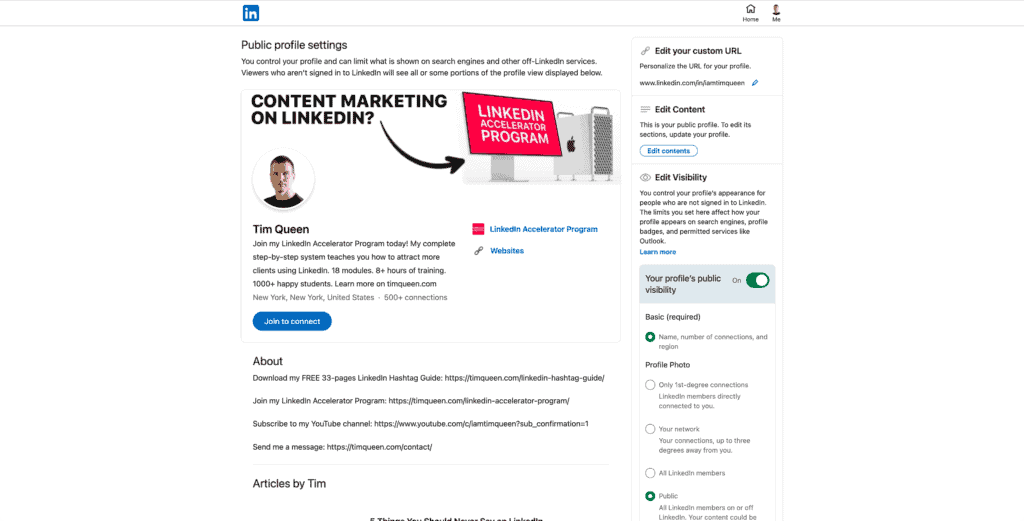
You can use LinkedIn's public profile settings feature to see a preview of your profile. This preview updates in real-time as you adjust the privacy settings in the right sidebar.
It is not 100% identical to what logged-out users will see, but it is close enough.
If you want to get the real deal, I recommend doing a Google search for your name + LinkedIn.
For example, "Tim Queen LinkedIn"
Then, click on your LinkedIn profile in the search results.
LinkedIn might challenge you with a security capture to make sure that you are not a bot trying to scrape LinkedIn profiles, but once you have completed this, you will be able to see your public profile as it got indexed by Google.
How to view someone's LinkedIn profile anonymously
There are two ways to look at someone's profile without the person knowing about it.
Private Mode
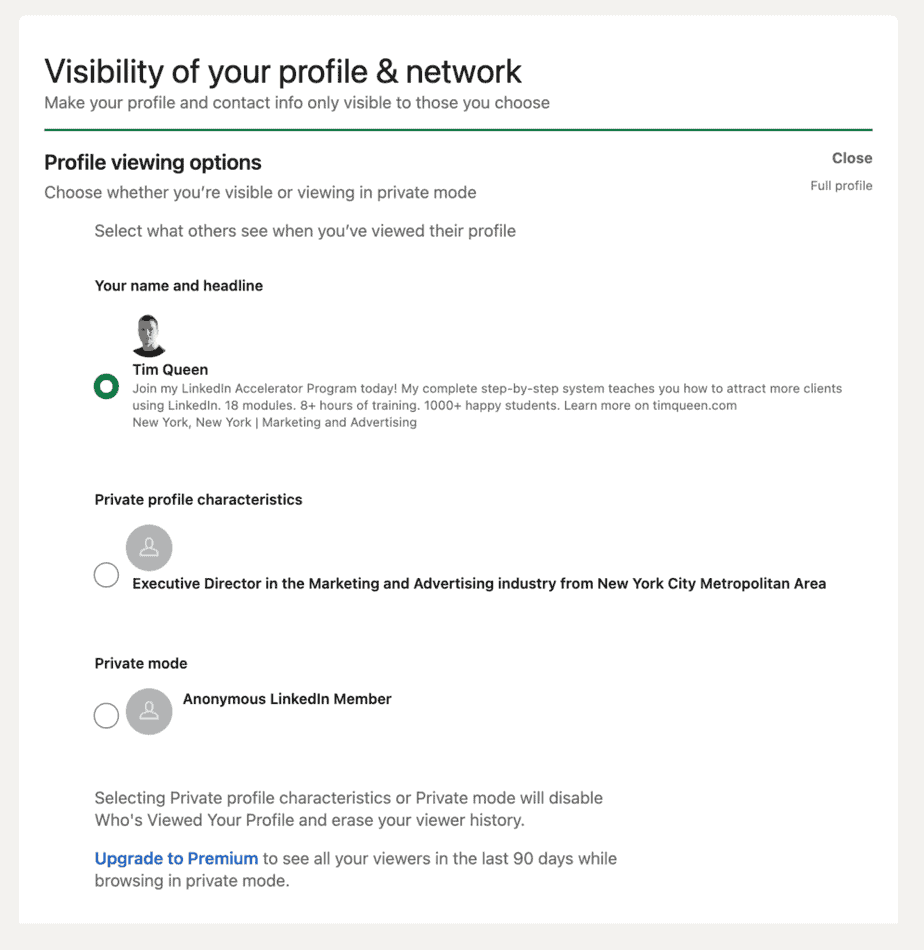
By changing your LinkedIn profile viewing options, you can make yourself invisible when you view LinkedIn profiles of other users.
You have three options.
- By default, your full name, headline, and profile photo will be visible to any person whose profile you view.
- By turning on "Private profile characteristics", you can hide your name and profile photo and only show up as a generic job title within a generic industry and a general area.
- Even stricter is "Private mode". This hides everything, including your name, photo, job title, and location.
The only downside to using "Private profile characteristics" and "Private mode" is that you will not be able to know who visited your personal LinkedIn profile. LinkedIn will limit show visitors to the same degree of detail as you are willing to share, even if someone is happy to share everything about them.
You can avoid this by paying for LinkedIn Premium or LinkedIn Sales Navigator. Here you can surf LinkedIn in Private mode while still seeing all your viewers who share their information in the last 90 days.
Google search
The second option works by first logging out of your LinkedIn account. Then head over to Google and search for a person's full name and the word LinkedIn.
Then click on their profile link. If they made their profile public, you will be able to see most of the information.
Second LinkedIn account
The third option works if you have a second LinkedIn account or know someone who is happy to let you take over their computer so that you can view someone else's profile vis their account.
In this case, you don't have to switch your profile to Private Mode and can still see who visited your profile.
Building a LinkedIn content business
Suppose you want to learn how to use LinkedIn for business to generate warm and hot leads with highly-targeted content marketing.
In that case, you can check out my LinkedIn Hashtag Guide and my LinkedIn Accelerator Program which teaches you how to build a highly-effective content funnel on LinkedIn.