What Is the Tubebuddy Thumbnail Generator
You probably already know how important YouTube video thumbnails are, if you read my article on how to design better thumbnails that get you more views on YouTube.
There are many great tools out there that allow you to design pretty video covers. If you prefer not to invest in an Adobe Creative Cloud or Canva subscription, you're in for a treat.
TubeBuddy got your back with its built-in thumbnail generator tool.
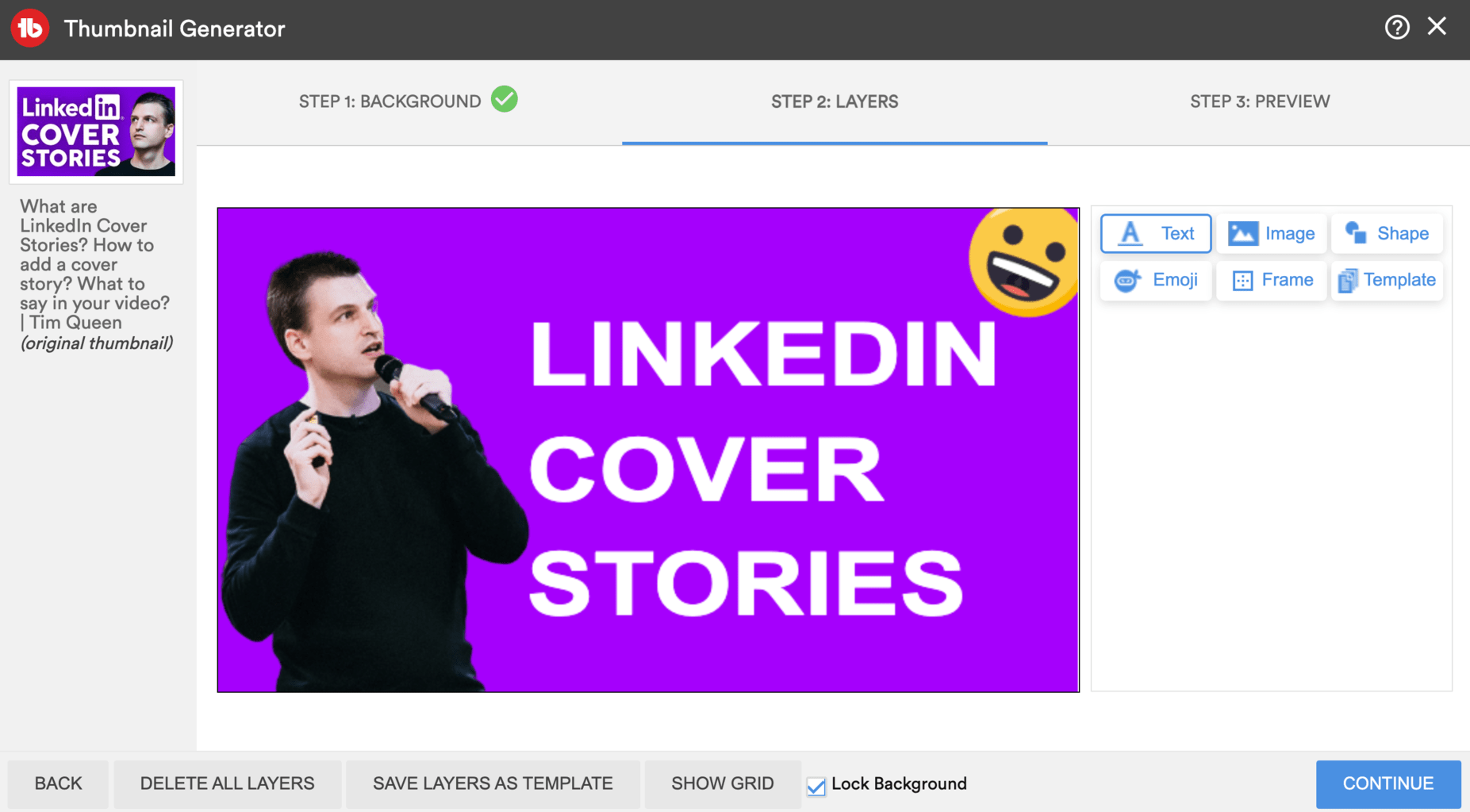
It's a simplified version of Canva and allows you to add text, images, shapes, emojis, and frames on top of a background of your choice.
The number of fonts is a bit limited, but you can upload your font files if you want.
It's also super useful if you want to go frame by frame through one of your YouTube videos to download a specific video frame. You can learn more about this here: How to go frame by frame on YouTube?
How to Design a Video Thumbnail With Tubebuddy
To access TubeBuddy's Thumbnail Generator, go to YouTube Studio and open the Content tab.
Hover over any video till the TubeBuddy icon appears.
Under Misc, select Thumbnail Generator.
First, select your background, then add layers of text, images, shapes, emojis, or frames. You can also save and reuse templates for a consistent look and feel.
Preview your thumbnail and decide if you want to download your new creation or apply it to your video right away.
Here is a simple thumbnail I designed in a few minutes.
Next Steps
Don't expect any Photoshop-level editing capabilities, TubeBuddy isn't a design company foremost.
But as a free tool that's included in your TubeBuddy subscription, it does a magnificent job. Especially if you have a good eye for design you can make it work.
If you want to learn more about TubeBuddy, visit my in-depth TubeBuddy review article.