Can you see who has subscribed to your YouTube channel?
You can see who subscribed to your channel, but you can only see users who made their subscription settings public.
Previously, YouTube subscription settings were set to public by default for all YouTube members.
When someone subscribed to your channel, you would receive a notification and could look up the user's name under your subscriber list.
Today, the list of YouTube channels to which people subscribe is by default private. However, many YouTubers want other channels to know that they are subscribed to their channel and will change their subscription privacy settings to public.
How to see your subscribers on YouTube
See your subscribers in YouTube Studio on the desktop browser
To see a list of your YouTube subscribers, you have to first log in to your YouTube account and then visit YouTube Studio. [https://studio.youtube.com/]
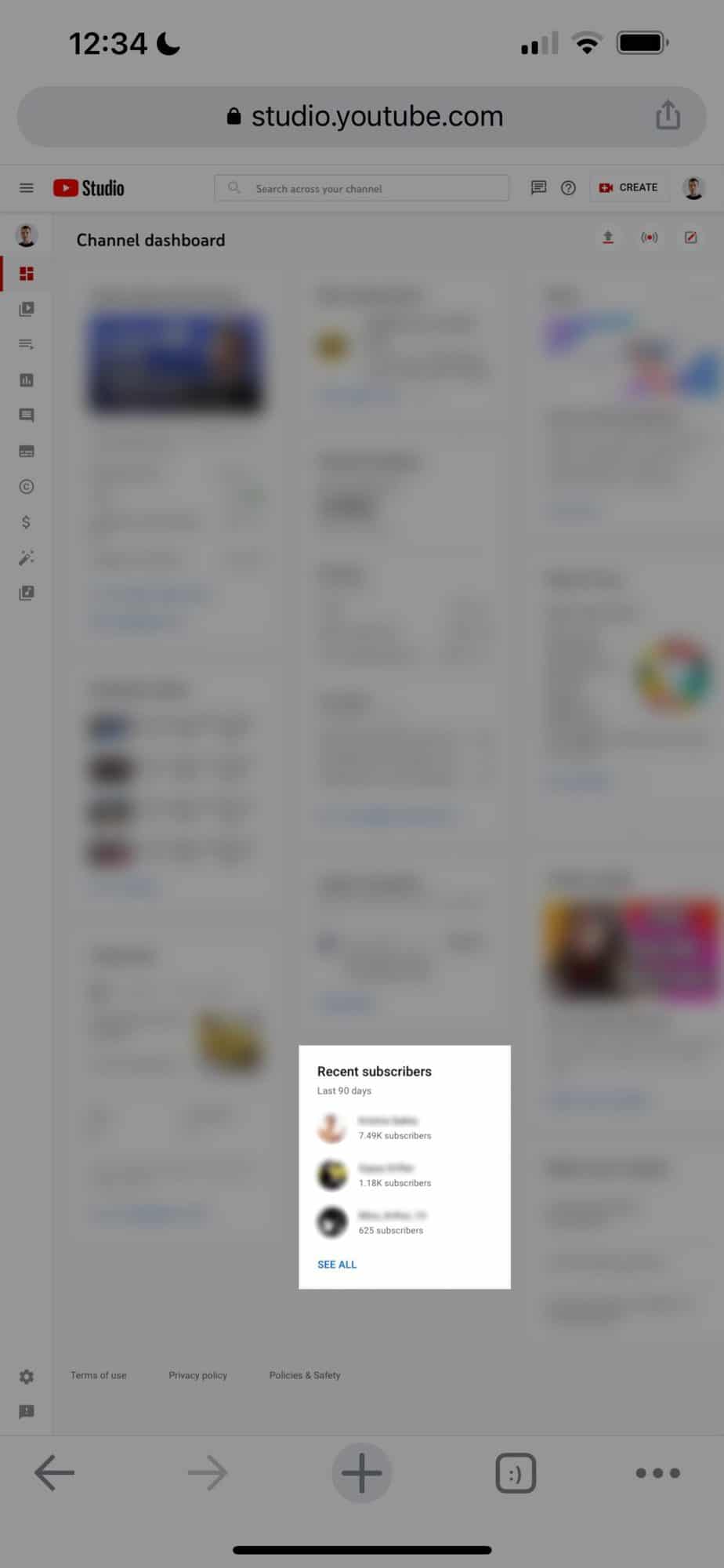
Scroll down until you see the "Recent subscribers" container in the center column on the dashboard page.
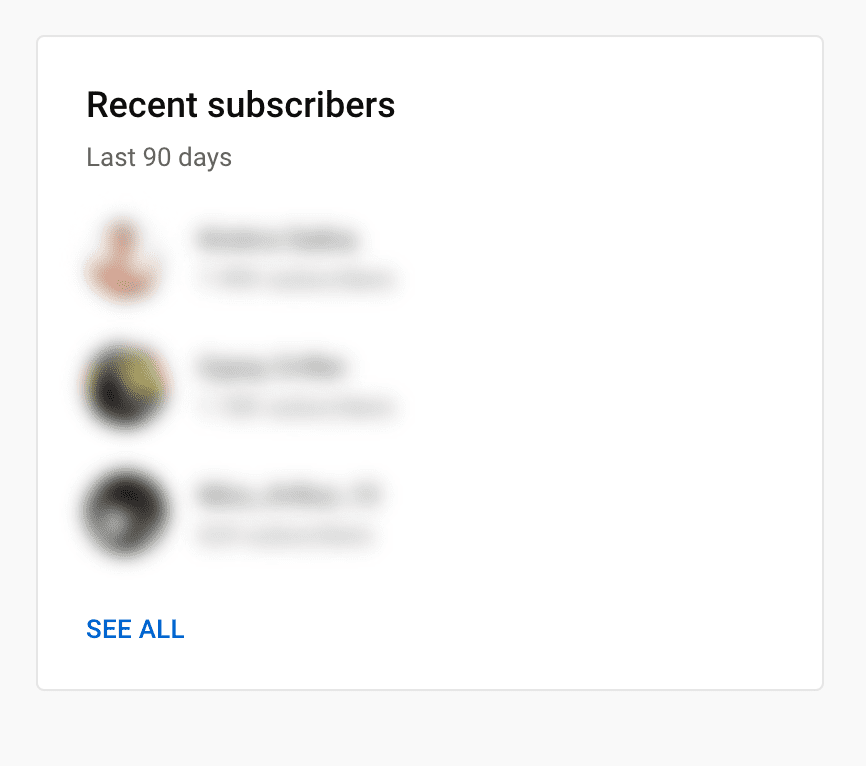
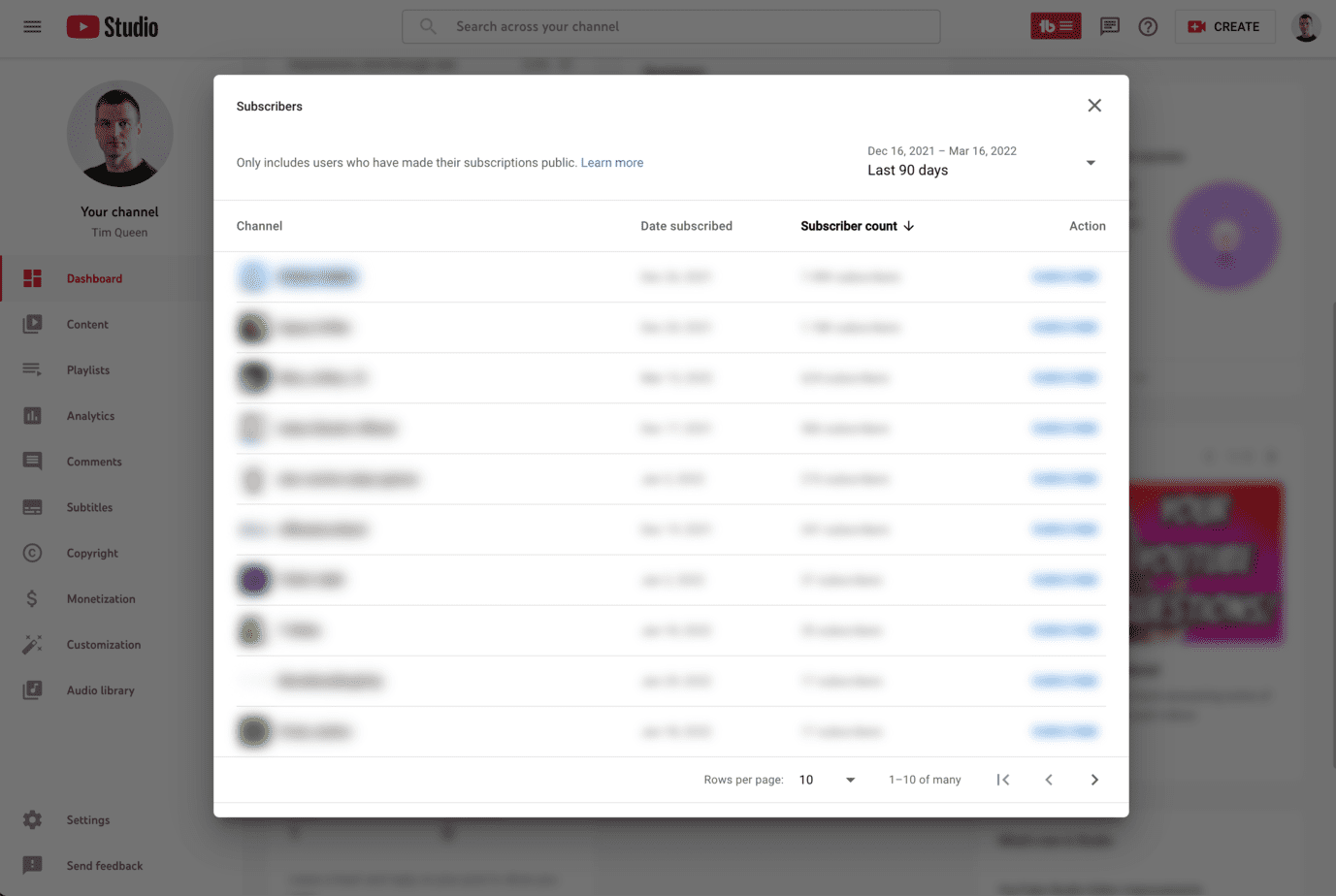
Click on "See All" to open the list of your most recent subscribers.
See your subscribers on the YouTube Studio app
The YouTube Studio app for mobile devices is severely limited compared to the desktop version.
There is no built-in feature to see the list of subscribers within the app.
You can see your subscribers via the YouTube Studio website on your mobile browser.
View your subscribers on YouTube Studio via mobile browser
Open a browser of your choice on your phone. If in doubt, stick to Google Chrome.
Visit the YouTube Studio URL: https://studio.youtube.com.
A warning will appear on your screen, asking you to use the mobile app. Ignore it and click on "Continue to Studio" at the bottom.
Type your details and log in to your YouTube account.
The YouTube Studio layout looks identical to what you see on the desktop. YouTube didn't implement any form of mobile optimization or responsiveness.
To see your YouTube subscribers, locate the center column and look for the "Recent Subscribers" tab at the bottom.
It should look like this:
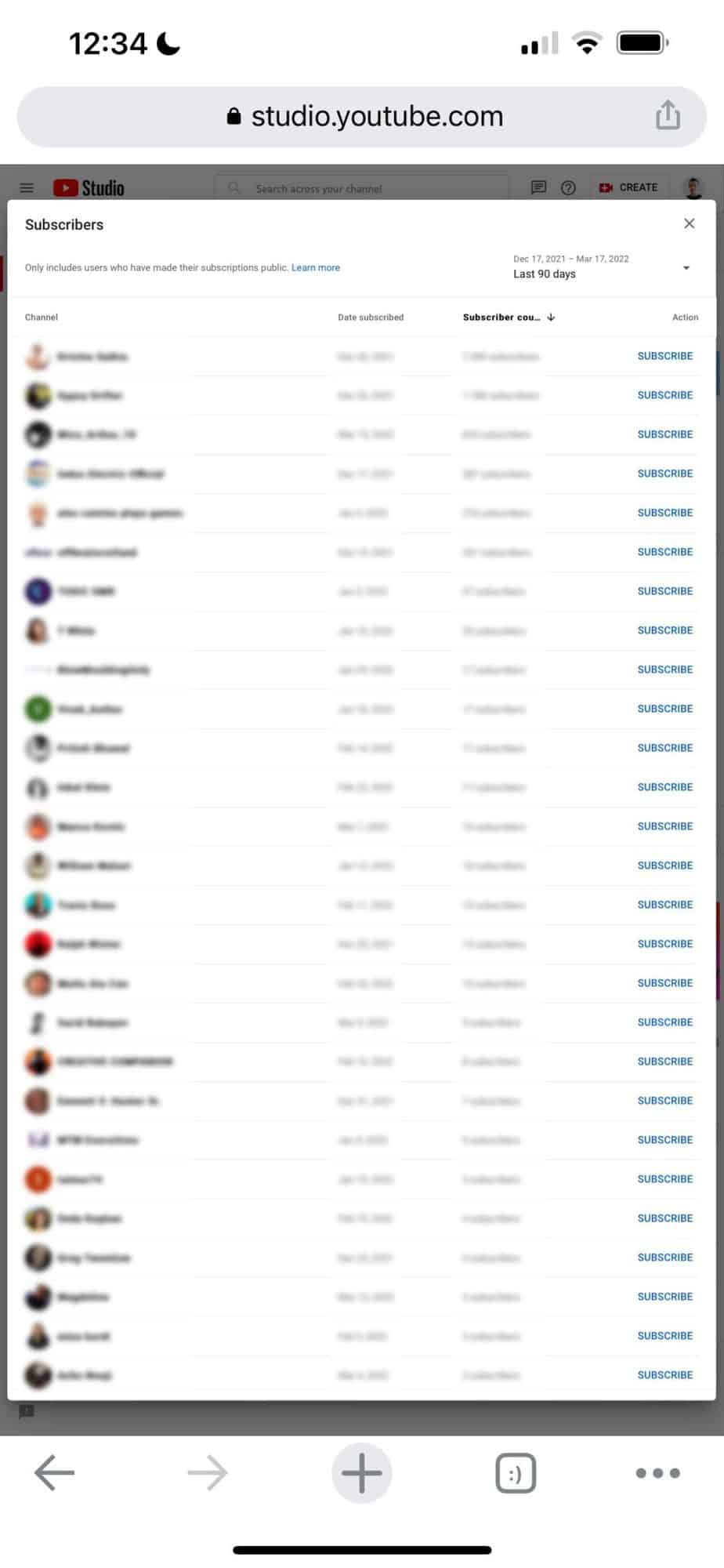
Clicking on "See All" will bring up the list of all subscribers in an overview table.
See your YouTube subscribers via the comments from the public subscriber filter.
Another hack that helps you see your YouTube subscribers, especially the most active ones, is using the comments tools in YouTube Studio.
This feature works in YouTube Studio on desktop and mobile browsers and the YouTube Studio mobile app.
I will demonstrate how it works on the desktop, but it works the same on mobile or app.
Visit YouTube Studio, open the comments in the left menu, and click on the Filter icon until a drop-down menu appears.
Select "Public Subscribers".
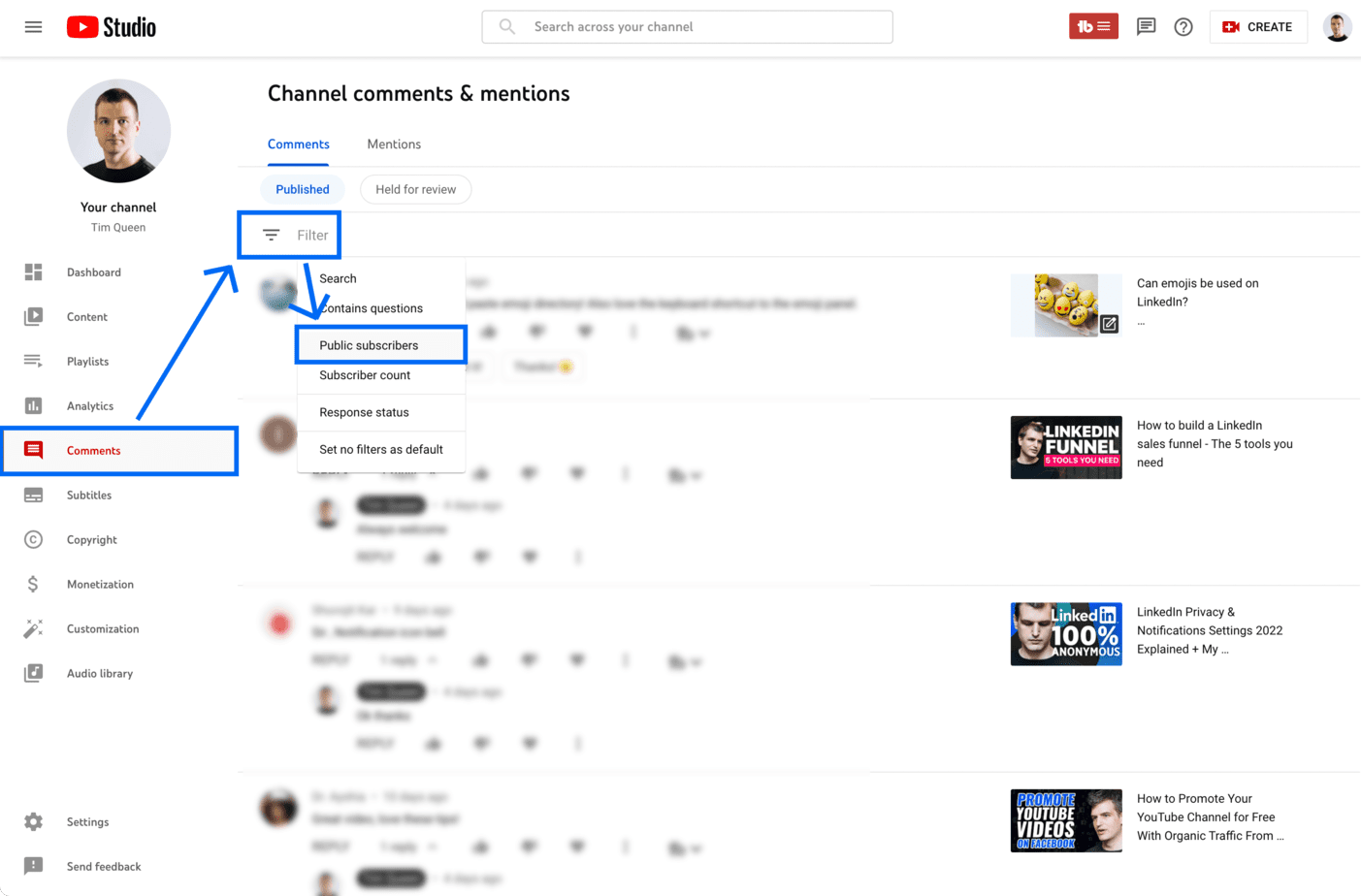
This will reload your comments and only display comments from people who publically subscribed to you.
By the way, that is one of the reasons why you might want to share your subscribers on your channel.
I always prioritize replying to comments from subscribers, and many other YouTubers do so as well. 😉
How to learn more about your subscribers?
Although YouTube only allows you to see subscribers who publicly subscribed to you, YouTube will tell you more about your subscribers' demographics.
Sign in to YouTube Studio, as usual, then from the left menu, select "Analytics", and click on the "Audience" tab.
You will see a graph of your returning viewers, unique viewers, and subscribers at the very top.
- Returning viewers. The number of viewers who already watched your videos returned to watch in the selected time.
- New viewers. The number of viewers who watch your YouTube channel for the first time in the selected period. Viewers who watch one of your videos in incognito mode, those who deleted their watch history, or who haven't watched your channel in over a year are considered new viewers.
- Unique viewers. Estimated number of viewers who watch your content within the selected date range.
- Subscribers. The number of viewers who are subscribed to your YouTube channel.
If you offer YouTube channel paid memberships, you will also be able to see an overview of your paying members.
- Total members. The total number of people who have or have a channel membership. This includes members who recently canceled their membership.
- Active members. The number of members with an active, paid membership. This excludes members who recently canceled their membership.
- Members gained. The number of new channel members who recently signed up.
- Canceled memberships. The number of members who canceled their membership.
- Members lost. The number of channel members who lost access after canceling their membership.
Below you find a couple of info boxes that tell you more about your audience demographics and behaviors.
Videos growing your audience
The report shows which videos have grown your audience in the past 90 days. This will help you understand what happened.
When your viewers are on YouTube
This report shows you when your viewers were online across all of YouTube in the last 28 days. It can help you build your community, schedule a Premiere, or plan your next live stream.
Other videos that your audience watched
The report shows you which other videos your viewers have watched outside of your channel over the last seven days. This information can be used to find topics and titles for new videos. The data can also be used to develop thumbnail ideas and collaboration ideas.
Other channels that your audience watches
The report shows you which channels your viewers have consistently watched outside your channel over the past 28 days. You can use it to discover what channels your viewers are interested in and find ideas for potential collaborations.
Top geographies
This report shows the top geographies for your YouTube channel in terms of watch time.
Age and gender
With this report, you can find out which age ranges and genders add the most watch time to your channel.
Top subtitle/CC languages
You can see how many people are watching your channel in each subtitled language.
How to grow a successful YouTube channel
My recommendation is to focus on the YouTube Studio audience report to learn more about your subscribers.
This should be combined with talking with your subscribers in the comment section and will give you many valuable insights and ideas about what your viewers are genuinely interested in.
If you want to learn more about growing a successful YouTube channel, I recommend checking out my YouTube blog here. You can also read one of my most popular articles about getting your first 1,000 subscribers, getting 4000 hours of watch time, and how to start a successful YouTube channel in 2025.