There are two different ways to see a list of your own LinkedIn posts.
The easiest way is by visiting your activity feed on your LinkedIn profile. This method has many limitations and will only show a limited selection of your posts. Especially older posts are often hidden.
The more complicated approach is to request a copy of your LinkedIn data and then review the included CSV files in Excel to see a list of all your LinkedIn posts you have ever shared.
In this article, I will show both approaches step by step.
Export your LinkedIn data
I recommend starting the LinkedIn data export now before you continue reading my article.
It only takes a minute to request your LinkedIn data, but you will not be able to download your LinkedIn data archive until 24 hours later.
First, open the LinkedIn website and log into your account, then visit the LinkedIn Settings & Privacy page.
In the left-hand sidebar, click on Data Privacy.
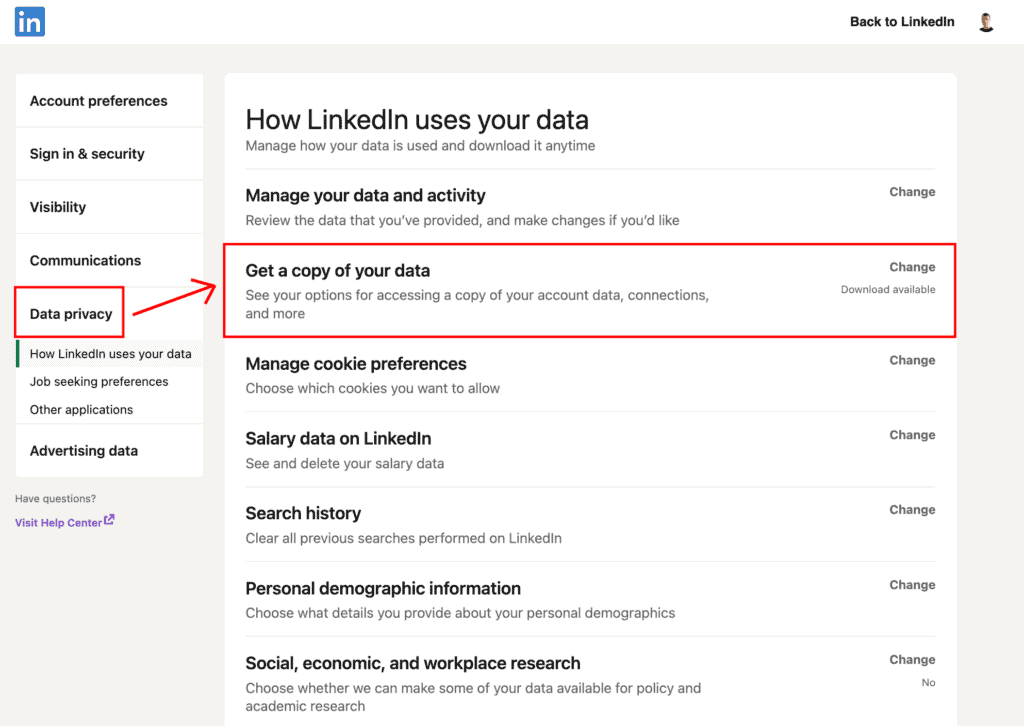
Open the Get a Copy of Your Data tab on the right.
Select the checkbox "Download larger data archive".
Then click on "Request Download" and come back to my article.
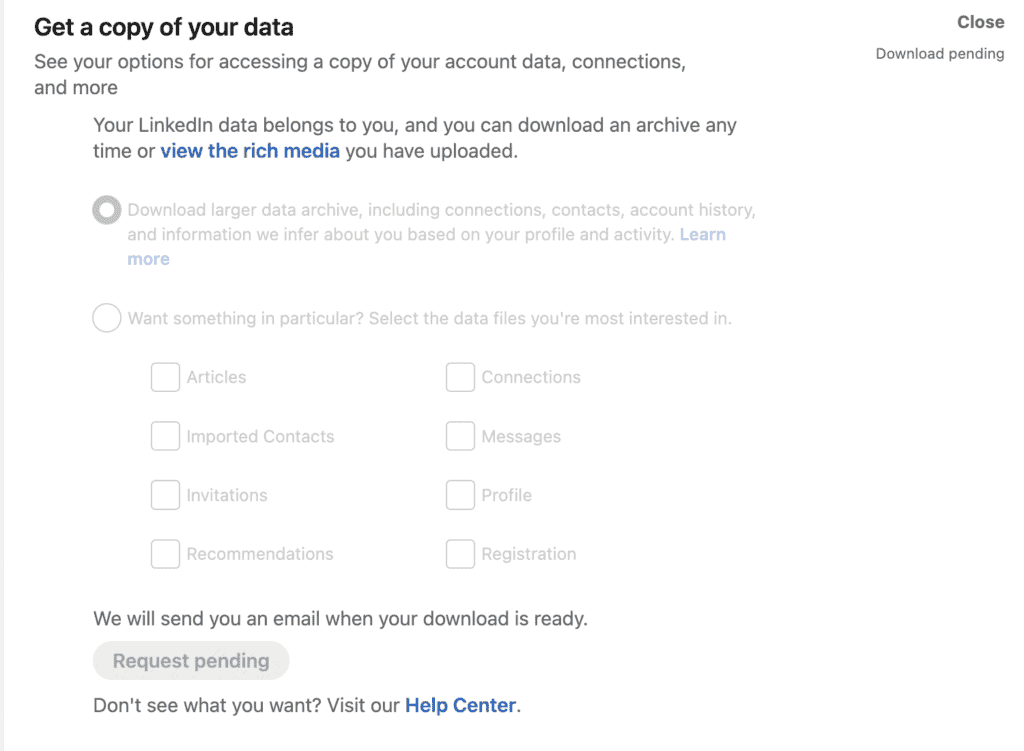
The export takes a long time and is split into two separate exports. The first export with very limited data will be available in about 15 minutes. The second part – which contains all the information we are looking for – will be completed in 24 hours.
Now that this is done, you must wait 24 hours. Once your full archive is complete and ready to download, you will receive an email.
Make sure to download your archive as fast as possible, as LinkedIn deletes your archive after 72 hours.
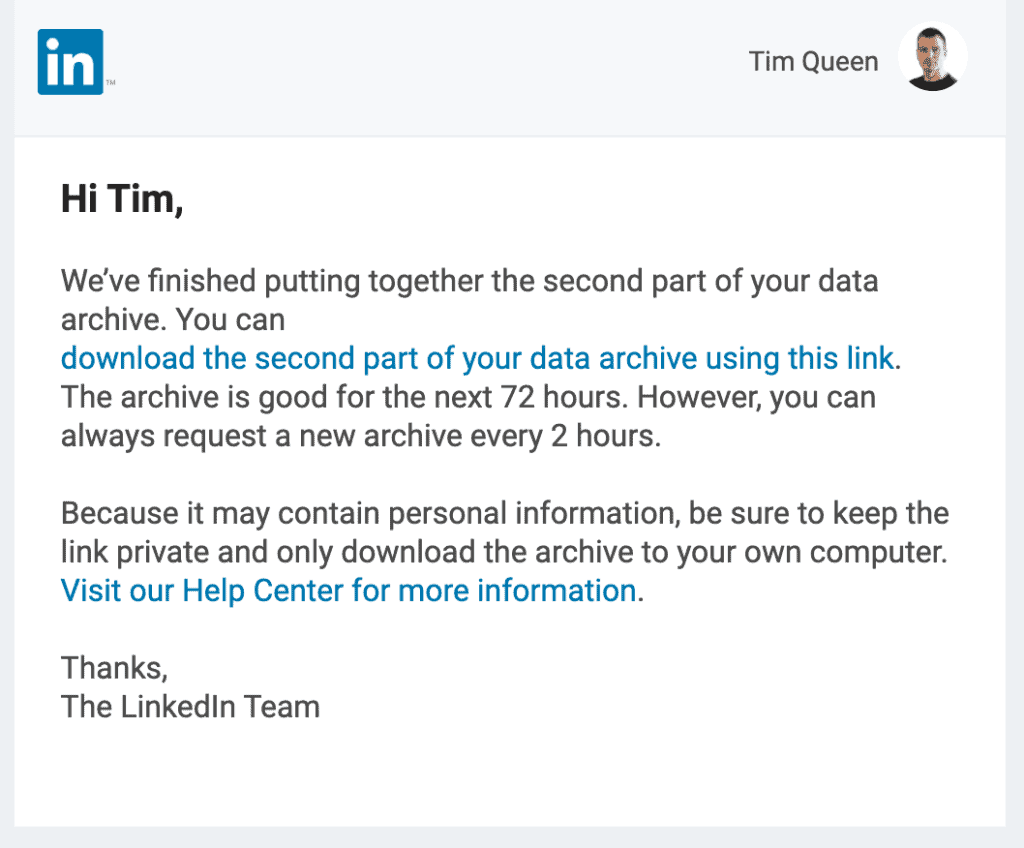
The email contains a download link to a ZIP file with a file name similar to this: Complete_LinkedInDataExport.zip (each file name ends with your export date).
Double-click on the file to open it and then extract everything into a new folder.
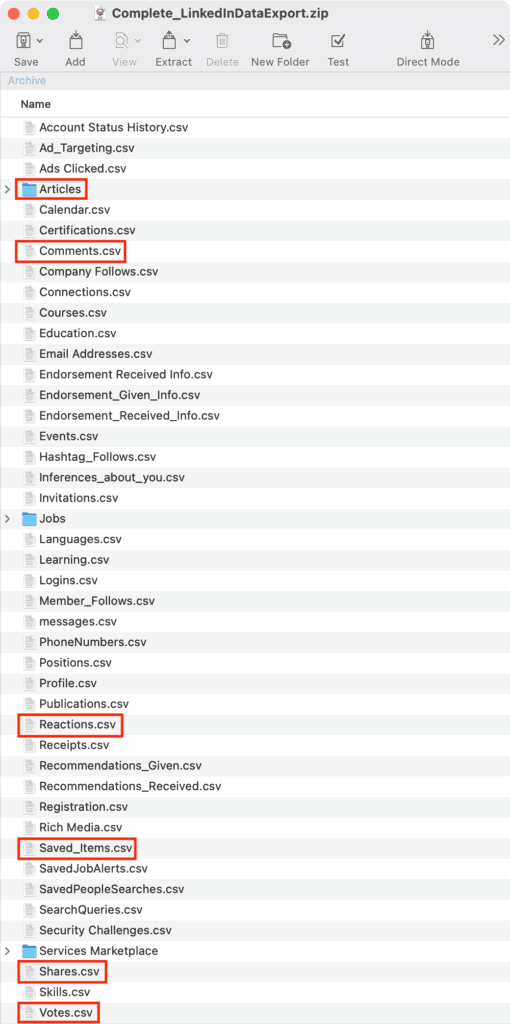
The only files that we are going to look at today are:
- Articles folder Contains copies of all articles.
- Shares.csv Contains all text posts, photo posts, and video posts.
- Saved_Items.csv Contains links to all articles and posts that you saved.
- Reactions.csv Contains a list of all posts and comments you reacted to (like, surprise, empathy, interest, maybe.
- Comments.csv A list of all comments you have ever published.
- Votes.csv A list of all your votes in polls.
The LinkedIn data archive does not contain your polls or document posts.
I will show you how to analyze the individual CSV files from your LinkedIn data archive in more detail below.
But for now, let us see what you can see within LinkedIn itself.
LinkedIn Profile Activity Feed
Each LinkedIn profile has its own activity feed.
You can find it by visiting your own LinkedIn profile.
Scroll down until you see the "Activity" section.
Click on "Show all activity".
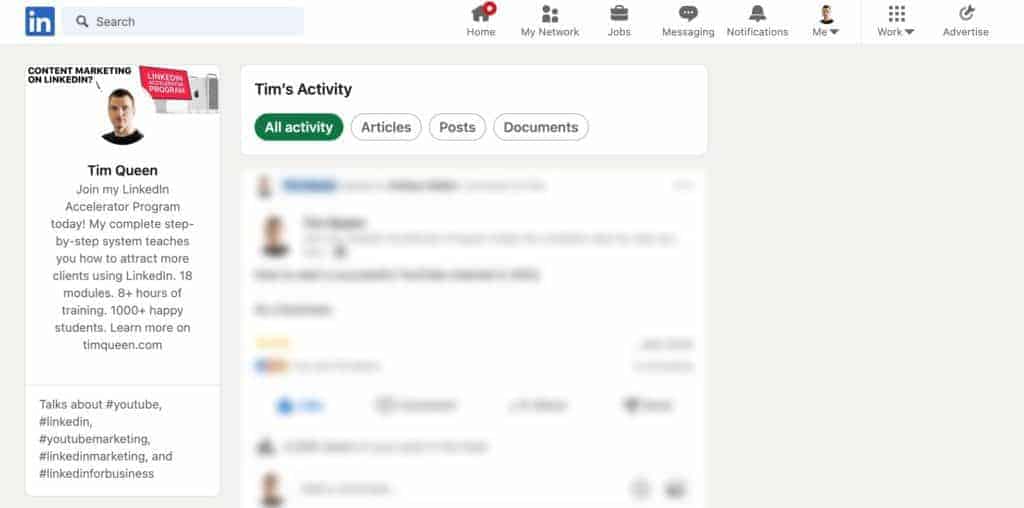
You will be redirected to this All Activity tab.
This feed contains a list of most* of your recent activity, including articles, posts, and documents that you published, links that you shared, posts that you liked, commented on, and other content from other users and pages that you shared on your profile.
There are four different tabs.
- All activity (Articles, Text Posts, Photo Posts, Video Posts, Polls, Shared Links, Shared Posts, Likes, Comments, Shares)
- Articles
- Posts (Text Posts, Photo Posts, Video Posts)
- Documents
How can I see all my LinkedIn articles?
Open your LinkedIn Profile Activity Feed, and select the Articles tab to see a list of every article you ever published on LinkedIn.
If you are wondering why LinkedIn is using the word "posts" instead of "articles" in the article overview URL; they used to call articles "posts" in the past, as in blog posts.
If you have never published an article, this list will be empty.
If you prefer, you can also visit the LinkedIn Article Editor to see a list of all your articles.
Select My Articles from the "Publishing menu" to see a list of all published articles.
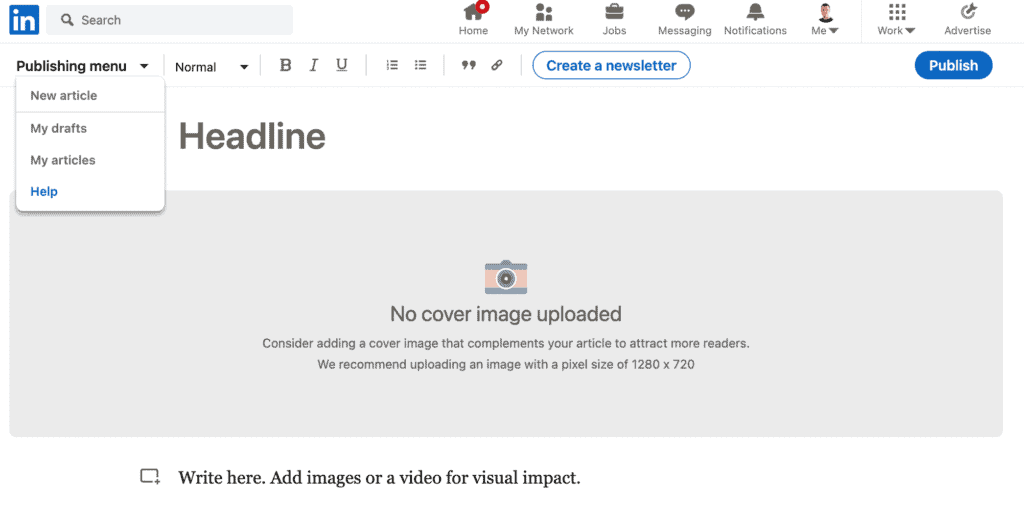
Select My Drafts from the "Publishing menu" to see a list of all unpublished articles.
If you have written many LinkedIn articles, I highly recommend opening the "Articles folder" of your Complete_LinkedInDataExport.zip file.
It is a much quicker way to find the list of HTML file copies of all your published articles.
These files do not contain a list of URLs where the original articles were published.
How do I see my text posts on LinkedIn?
Open your LinkedIn Profile Activity Feed and select the Posts tab to see a list of every text, photo, or video post that you have published on LinkedIn.
There is no option to display text-only posts, so you must scroll through the list manually.
Please note that this list is limited and will only show a complete list of your most recent posts.
You must use LinkedIn's data export tool to see all previous text posts.
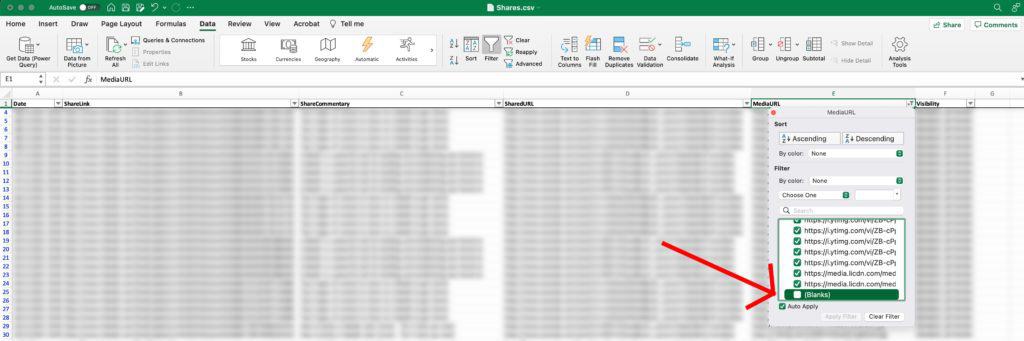
Look for the Shares.csv file from your Complete_LinkedInDataExport.zip file and open it in Excel.
Apply Excel's Filters feature and change the settings for the MediaURL column to only show "Blanks"
Please keep in mind that the CSV does not distinguish between text-only and video-only posts.
Where are my LinkedIn photo posts?
The list of all your photo posts can be located under the Posts tab of your LinkedIn Profile Activity Feed.
Sadly, there is no option to only display photo posts, so you must scroll through the list manually.
Please be aware that this list is limited and will only show your most recent posts.
You will need to use LinkedIn's data export function to see all photo posts.
If you frequently share photo posts, it is quicker to open the Shares.csv file from your Complete_LinkedInDataExport.zip file in Excel.
Apply Excel's Filters feature and change the settings for the MediaURL column to the "Contains" filter with a value of "jpg".
This will give you a list of URLs of all photo posts.
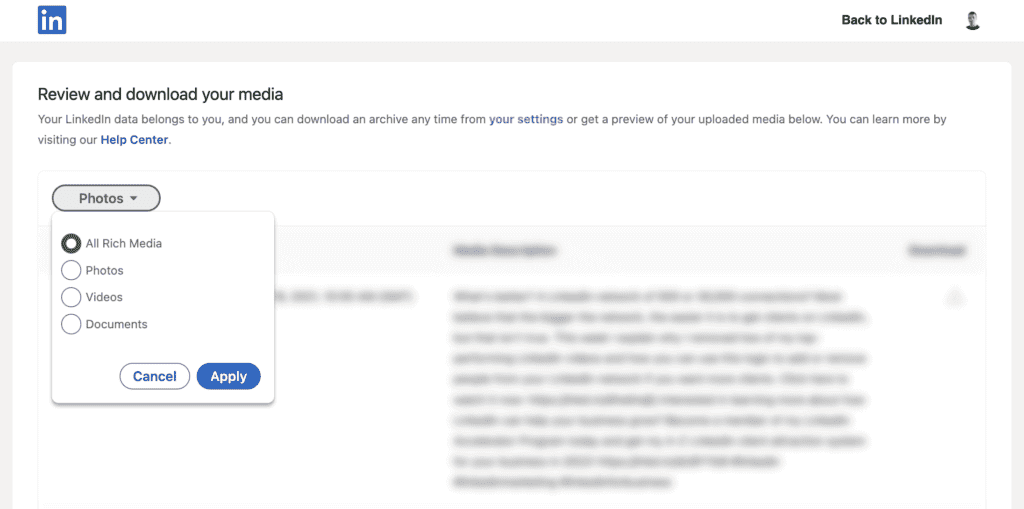
If you are only interested in downloading the media files themselves, you can also open LinkedIn's Rich Media Export Tools and filter by Photos.
How do I get a list of my LinkedIn video posts?
Similar to text-only and photo posts, you can see the list of every video post you have published under the Posts tab in your Activity Feed.
However, there is no option to display video-only posts, so you must scroll through the list manually.
Bear in mind that this is a limited list that will only show your most recent posts.
For a faster alternative, open the Shares.csv file from your Complete_LinkedInDataExport.zip file in Excel.
Apply Excel's Filters feature and change the settings for the MediaURL column to only show "Blanks"
The CSV does not differentiate between text-only and video posts.
If you are only interested in downloading the media files themselves, you can also open LinkedIn's Rich Media Export Tools and filter by Videos only.
For some reason, LinkedIn also offers an alternative link to download your LinkedIn videos.
How can I see my LinkedIn document posts?
Document posts are also known as carousel posts.
Open your LinkedIn Profile Activity Feed and select the Documents tab to see a list of every document you published on LinkedIn.
The Complete_LinkedInDataExport.zip does not contain a special CSV file to see links to your document posts, nor does it include the historical records of any text you have written to accompany those documents.
If you are only interested in downloading the document files (PDF, PPTX, etc.) themselves, you can also open LinkedIn's Rich Media Export Tools and filter by Documents only.

How can I see a list of my LinkedIn polls?
Open your LinkedIn Profile Activity Feed and select the All Activity tab to see a list of your LinkedIn activities, including polls you created on LinkedIn.
Please note that this feed is unfiltered and that you have to scroll through your feed to identify your poll posts manually.
Unfortunately, the Complete_LinkedInDataExport.zip does not contain a special CSV file to see links to polls you have created.
If you want to keep track of all the polls you have made, I highly recommend saving your own personal copy on your computer.
Where can you see all external links you shared on LinkedIn?
To see a list of every external link you shared on LinkedIn, open your LinkedIn Profile Activity Feed and select the All Activity tab.
Please note that this feed cannot be filtered. You must scroll through your list to visually identify external link posts by hand.
Open the Shares.csv file from your Complete_LinkedInDataExport.zip file in Excel for a more efficient method.
Apply Excel's Filters feature, change the settings for the SharedURL column, and un-select "Blanks" only to see posts with external URLs.
How can I view all the LinkedIn posts I shared from other users and pages?
Open your LinkedIn Profile Activity Feed and select the All Activity tab to see a list of all your LinkedIn activities, including posts from other LinkedIn users and pages you shared on your profile.
This feed is unfiltered, so you will have to manually scroll through your list to find shared posts.
Unfortunately, there is no faster alternative to view posts you have shared from other users and pages.
The Complete_LinkedInDataExport.zip does not contain a special CSV file to see the URLs of the LinkedIn posts you shared on your profile.
And the Shares.csv file does not contain shared posts.
How do I see LinkedIn posts that I have saved?
To see a list of all the LinkedIn posts and articles you saved, visit the Saved Posts page.
Alternatively, open the Saved_Items.csv file to see a list of all posts and articles you saved on LinkedIn.
How to see a list of everything you liked on LinkedIn?
Open your LinkedIn Profile Activity Feed and select the All Activity tab to see a list of your LinkedIn activities, including things you liked.
This feed is unfiltered, so you will have to go through your list manually to find posts and comments you liked.
I would see "Tim Queen liked..." on top of the post or comment I engaged with on my feed.
Instead of the manual method, you can also go into your data export and open the Reactions.csv file to see a list of all posts, articles, and comments you liked via your personal LinkedIn profile.
Where can I find all comments I made on LinkedIn?
Under the LinkedIn Profile Activity Feed, you can select the All Activity tab to see a list of your LinkedIn activities, including things you commented on.
You will have to go through your list to find comments manually.
I would see "Tim Queen commented" on my feed on top of the post or comment I engaged with.
For a less time-consuming method, open the Comments.csv file in your data export to see a list of all posts, articles, and comments that you liked through your personal LinkedIn profile.
How do I see all the polls I participated in on LinkedIn?
To see the list of every poll you have voted in, you can look under the All Activity tab under your LinkedIn Profile Activity Feed.
You will have to carefully browse through your list to find your votes.
If you have participated in many polls, a quicker way would be to go into the Votes.csv file in your data export to see the complete list of all poll URLs you voted in.
Take your LinkedIn journey to the next step
If you want to learn more about using LinkedIn to promote your business, make sure to check out my LinkedIn Hashtag Guide. It shows you how to find the best hashtags for organic growth.
Also, have a look at my LinkedIn blog where I share awesome articles such as how to increase your LinkedIn post engagement, and subscribe to my YouTube channel where I share a ton of videos with LinkedIn tips & tricks.
For a complete step-by-step LinkedIn lead generation system, check out my LinkedIn Accelerator Program.