Introduction
LinkedIn is the perfect platform for B2B content marketing.
Over one billion interactions take place on LinkedIn pages alone every month. User-generated content has increased by more than 60%, and over 96% of B2B marketers use LinkedIn to distribute their content.
Over 1.1 billion users are currently registered on LinkedIn, representing nearly 58 million companies from 200 countries.
The number of conversations between members has also increased by more than 55%.
By publishing valuable and exciting content for your ideal targeted clients, you will build an audience of ideal clients.
LinkedIn offers a wide variety of native content types such as text-only posts, photo posts, video posts, articles, etc.
The LinkedIn carousel post type is one of the best content types with the highest engagement and extended organic reach.
This article explains what LinkedIn carousel posts are, how they work, and how to use them.
What Are LinkedIn Carousel Posts
Carousel posts are optimized PDF documents with unlimited slides that can be shared on your LinkedIn newsfeed.
By clicking the left or right arrow buttons, people can navigate from page to page, similar to PowerPoint presentations.
The fact that carousel posts are entirely hosted on LinkedIn means users don't have to leave the platform, which keeps the LinkedIn newsfeed algorithm happy and results in a strong increase in organic views, and helps you to get more followers on LinkedIn.
PDFs can be customized with your logo and contact information, making them perfect for personal branding.
This is especially useful when people download and share your PDFs outside of LinkedIn, so readers outside of your network can still get in touch with you.
Since the number of slides for carousel posts is unlimited, carousel posts allow you to share much more information than regular LinkedIn posts, which are limited to 3000 characters.
This is especially useful for adding a detailed call to action at the end of your PDF.
What Topics Work Best for LinkedIn Carousel Posts?
If you want to attract customers on LinkedIn you have to develop a laser-focused content cluster stragegy and bundle everything up with the perfect mix of native LinkedIn content types.
Carousel posts are a welcome addition for your LinkedIn content marketing toolbox and will help you to attract an audience of ideal buyers.
Here are some themes and topics ideas to get you started:
- Listicles, or list articles, are a very popular form of writing that breaks down topics into smaller subtopics, often in the form of numbered lists. This content format works exceptionally well for LinkedIn carousel posts. For example, you could share a list of the top 10 free resources to solve a specific business challenge.
- Mini tutorials also work exceptionally well. Think about explaining how to solve specific problems in 5 simple, follow-along steps.
- You could also map out the specific process, for example how you are approaching, diagnosing, and solving a problem that many of your customers face. Think of animated explainer videos, just in the form of a slideshow.
Best Practices for LinkedIn Carousel Post
For your PDFs, I recommend using a square page format. In this way, you can also recycle your carousel posts on other platforms such as Instagram.
The font size should be large, so people can read your posts on their smartphones without wearing glasses or using an optical magnifier. 😉
A good rule of thumb is to aim for a max of 10 to 15 words per slide.
Ideally, limit the number of words even further. Remember, you have unlimited slides and can easily split a longer text across multiple pages.
Your background should be consistent. I recommend using the same color or pattern within the same section of your slideshow and only switch for title slides or new topics.
Give your first slide an attractive title to stop people from scrolling. You can check my articles on finding title ideas and optimizing titles to get more clicks here.
Keep your carousel posts digestible.
I know we have unlimited slides, but don't overdo it. Think of this as bite-sized slideshows and not as books. I recommend keeping the total number between 10 to 30 slides.
Have a more complex topic?
Consider splitting it up into multiple smaller carousel posts instead.
Always add a strong call to action at the end of your presentation with links to your website, newsletter, or lead magnet.
Add relevant hashtags to your post (no more than 3), and make sure to respond to any comments on your carousel post to increase engagement.
How to Create a LinkedIn Carousel Post in Canva
There are many great tools how you can create awesome-looking carousel posts.
Today I am going to show you one of the easiest and most beginner-friendly tools to design your first carousel. It's called Canva.
If you have never used Canva before, don't worry.
Just follow along with my step-by-step guide, and you'll see how easy it is to create your own LinkedIn carousel post in Canva.
Step 1: Sign up for a free canva account
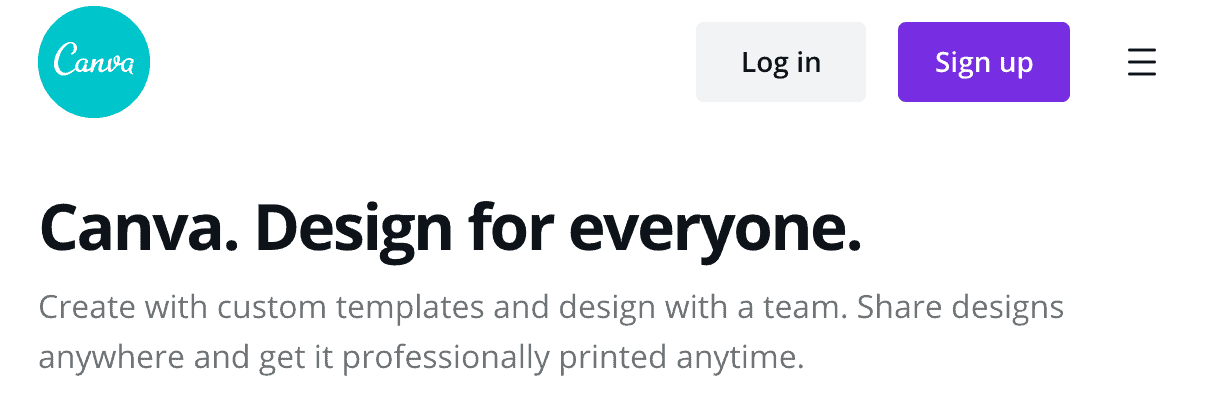
Head over to Canva and click on the “Sign up” at the top right corner.
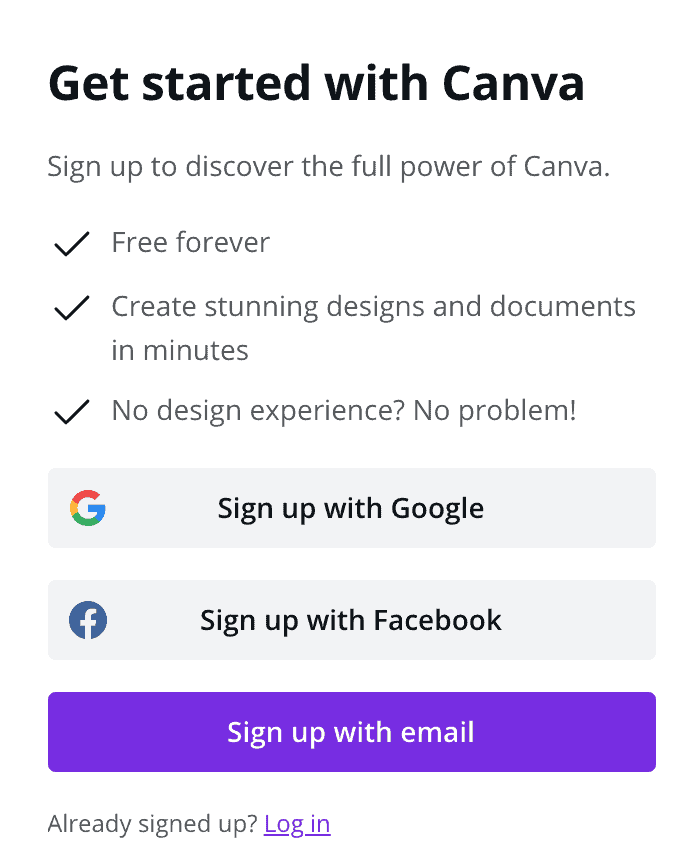
You can sign up via your Google or Facebook account or via email.
Of course, if you are already using Canva, simply log into your account.
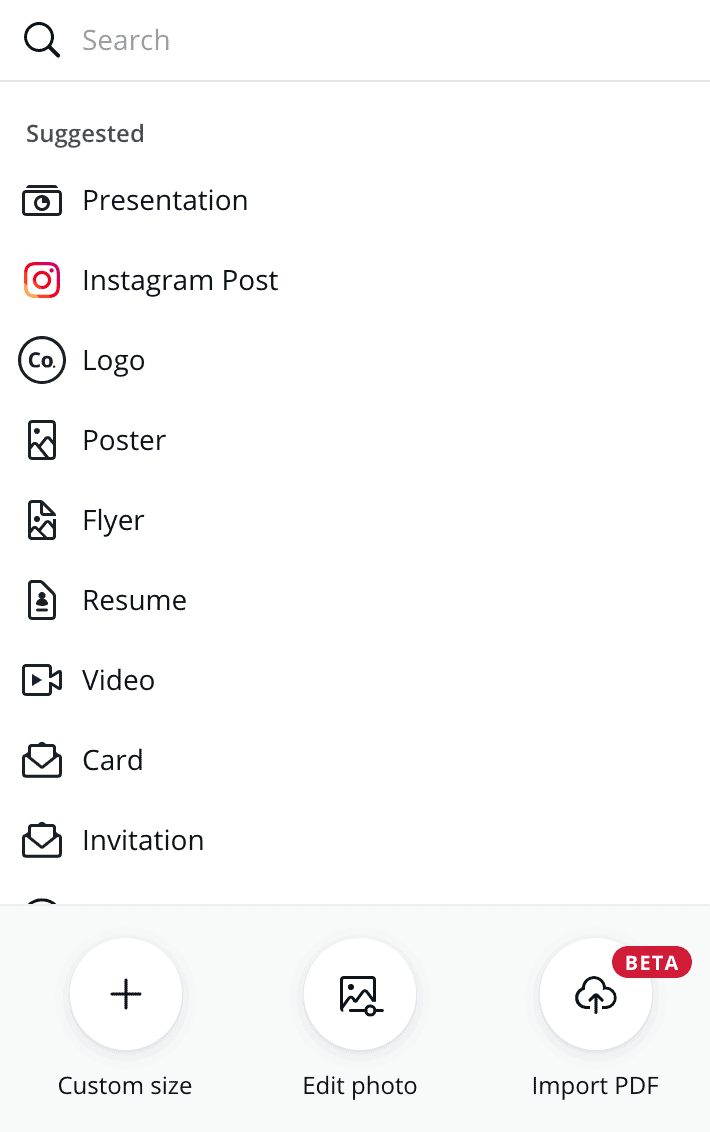
Step 2: Create a new deisgn, select instagram post.
Once you are logged in, click on “Create a design” at the top right corner.

Select “Instagram Post” to start with a square template of 1080 × 1080 pixels.
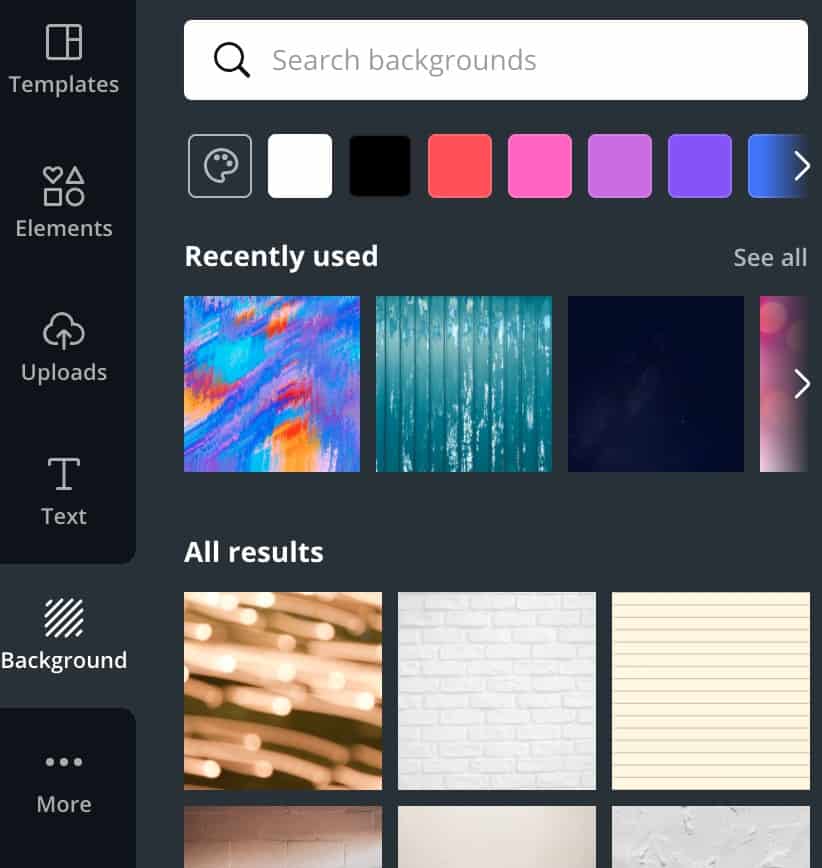
Step 3: Add a background to your slide
Select a background or pattern from the background library in Canva.
You can also upload your own background images.
Consider using one of your company's brand color schemes for the background color.
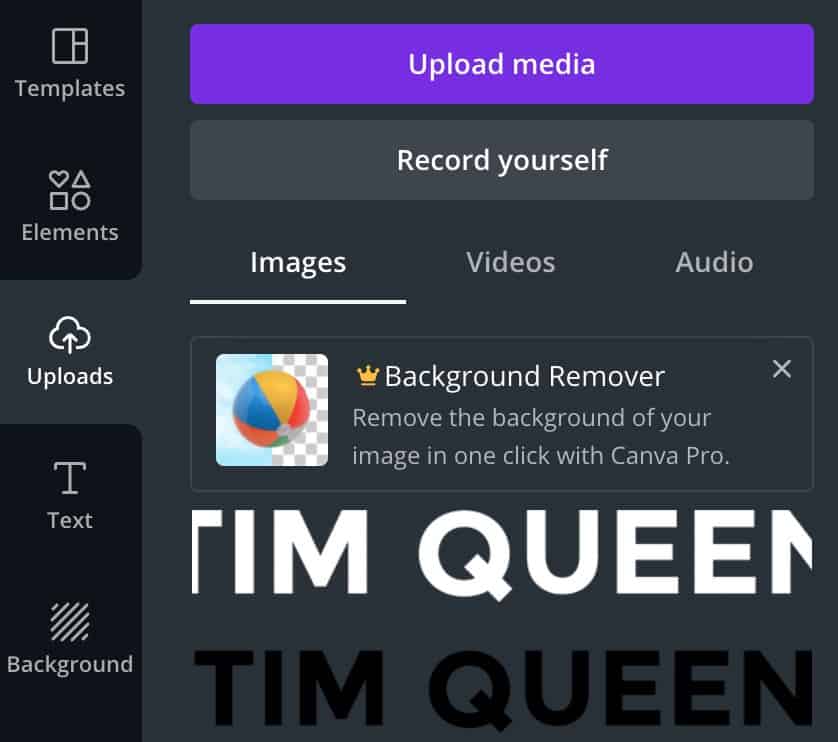
Step 4: Add your logo
Upload your logo as a transparent PNG.
I recommend using a version with white and black text so that you can make your logo work on any background color.
If you don't have your own logo yet, consider finding a professional logo designer on Fiverr or 99Designs.
Alternatively, add a text element instead of an image and type in the name of your brand name as a simple text logo substitute.
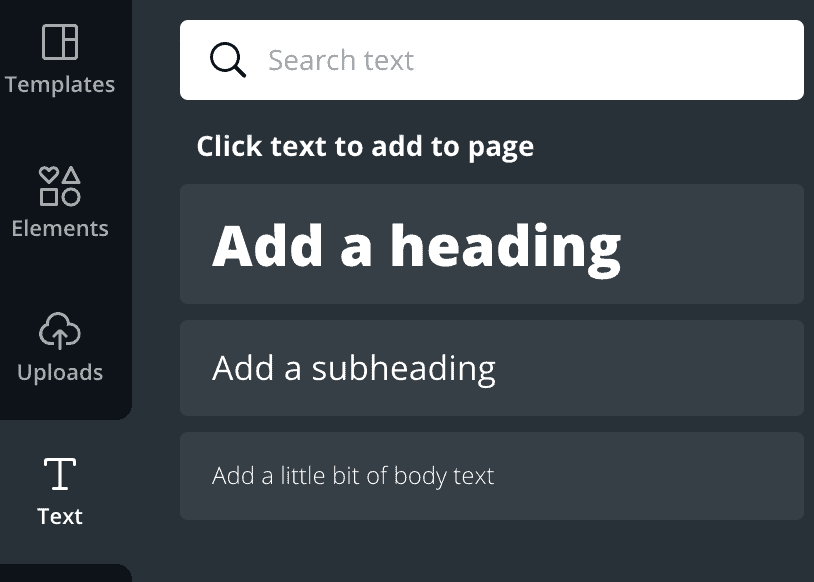
Step 5: Add text placeholders
Drag and drop a heading text element into your document.
I recommend centering your text horizontally and vertically. Simply move your text element around until you see two-line indicators when your text element is both vertically and horizontally centered.
Change the font family, size, and style to your liking.
If you use Canva Pro, you can upload your own brand fonts.
Step 6: Add call to action slide
Add a strong call to action at the end of your presentation.
Remember, your goal is to get people to take action so they can move along your sales funnel.
Here are some call to action ideas:
Ask people to connect with you on LinkedIn or to follow your content.
Or direct people to explorer some of your assets and resources on your website, for example reading one of your articles on your blog, watching your YouTube video, or subscribing to your newsletter.
One of the best tactics is to offer a free downloadable as a lead magnet to get people on your email list. This allows you to build trust with them over longer periods of time via email and allows readers to build confidence in buying from you.

Step 7: Save presentation as a template
Instead of jumping straight into designing your first slideshow, I recommend one additional step that will save you a ton of time and allows you to create many additional LinkedIn carousel posts on autopilot in the future.
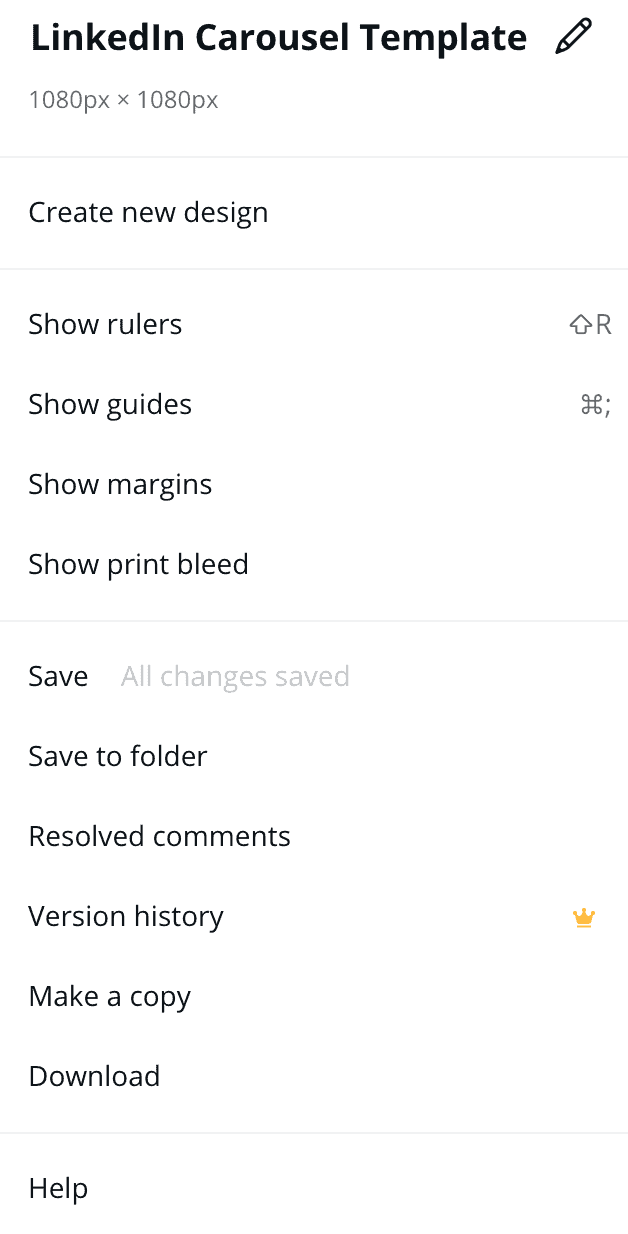
Give your current document a good name, for example, "LinkedIn Carousel Post Template".
Step 8: Duplicate template
Then, whenever you want to create a new post, open your template document, click on the “File” menu and select “Make a copy”.
Step 9: Rename your new document
Change the name of your document so you can find it later if you want to update it.

Step 10: Duplicate as many pages as you need.
Go to your primary content slide and duplicate it as many times as needed by pressing the icon with the + sign in a box.

Step 11: Replace your text and add images
Go from slide to slide and change the text. You can also add images and graphical elements such as arrows to each page.
Canva has a vast library of awesome elements that can greatly enrich your LinkedIn carousel post.
Step 12: Change your CTA slide if necessary
Sometimes it can make sense to adjust your call to action slightly, depending on the topic of your post.
For example, you might recommend reading a different article or YouTube video that is most relevant.
Step 13: Export as PDF
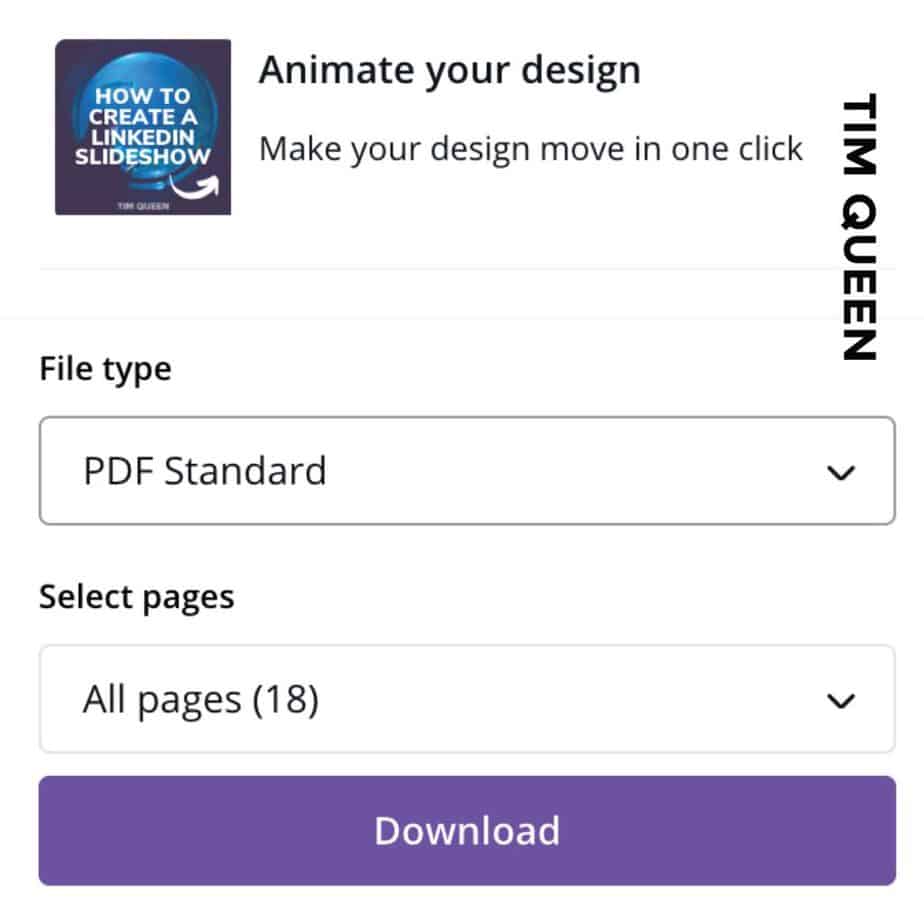
Open the Download menu at the top-right corner to export your LinkedIn carousel post.
Make sure to select "PDF Standard" in the file type dropdown menu.
Then click on Download again to get your presentation.
Outsourcing Your LinkedIn Carousel Posts on Fiverr
It wasn't too bad, wasn't it? 🙂
Of course, if you don't have time or simply want your LinkedIn slideshows to look more epic, you can always outsource your design work on Fiverr.
There are plenty of great artists on Fiverr who can create incredibly-looking LinkedIn carousel posts for you.
Just send them the link to my article and ask them to design a new slideshow with your content and branding.
How to Post Your Carousel Post on LinkedIn
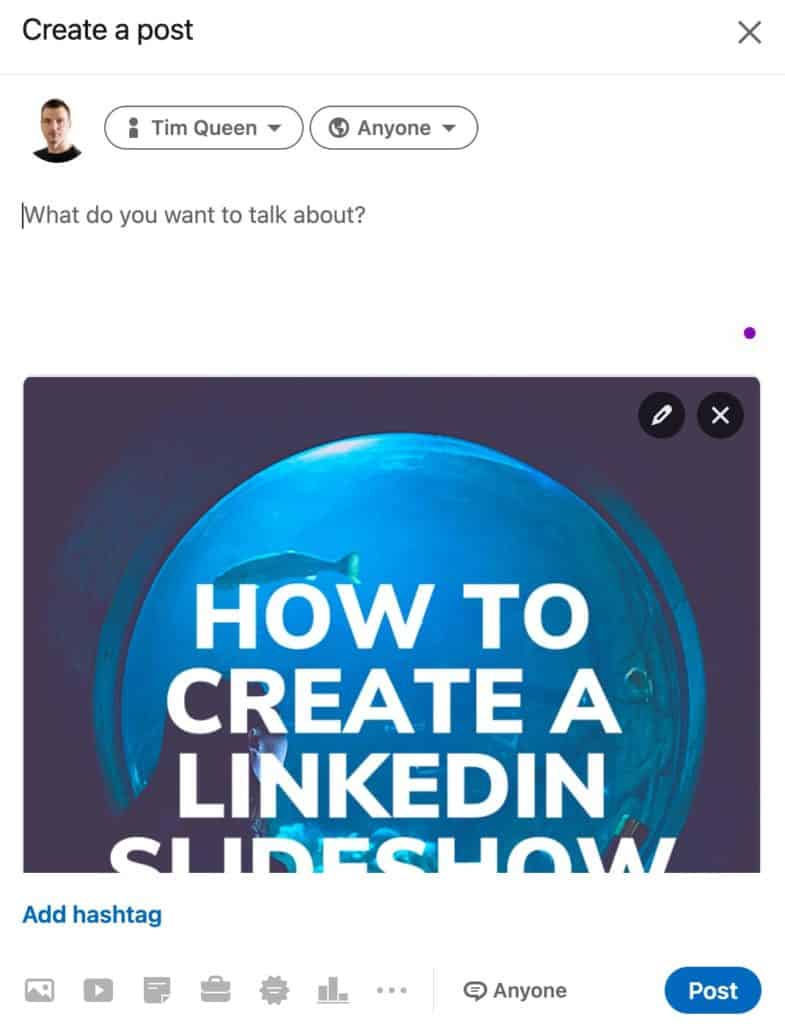
After creating the post using Canva, navigate to your LinkedIn profile and go to the home feed.
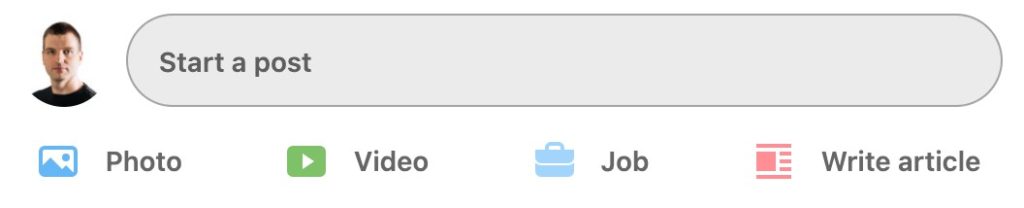
On LinkedIn, start a new post by clicking on “Start a Post.”
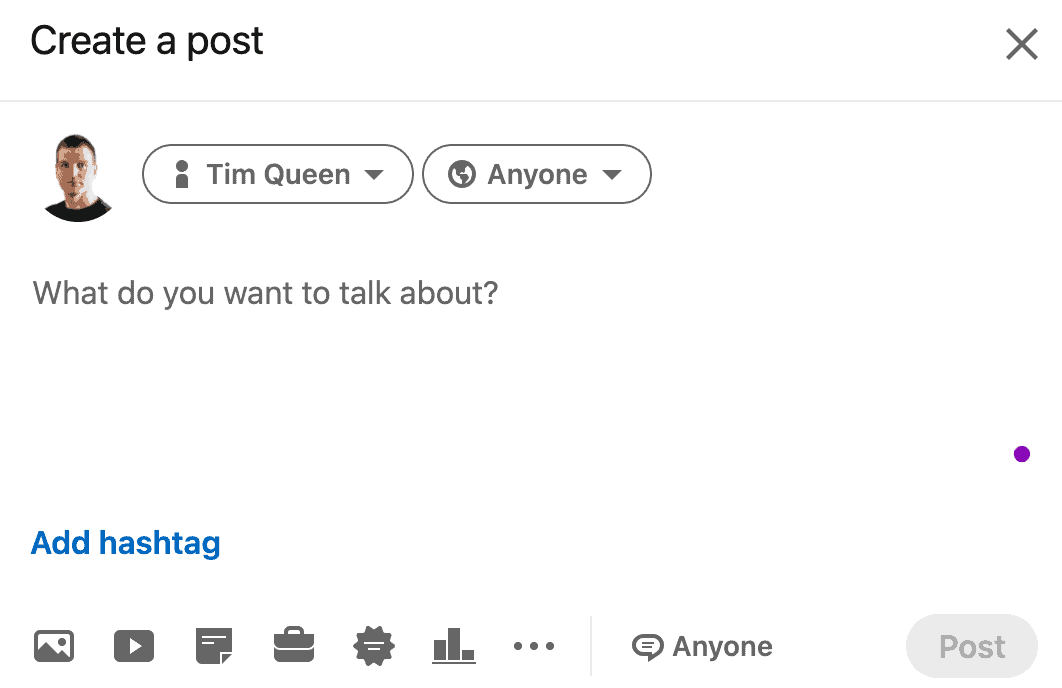
Then click on the “Document” icon that looks like a sheet of paper with dog ears.
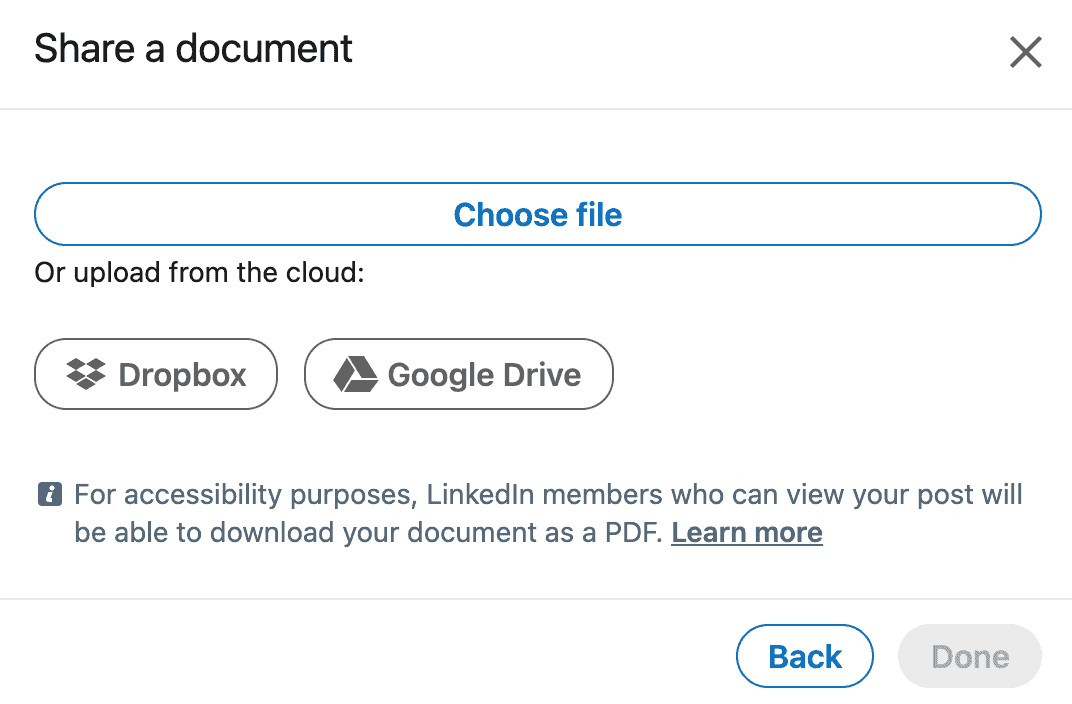
Click on “Choose file” and select the PDF document that you downloaded from Canva.
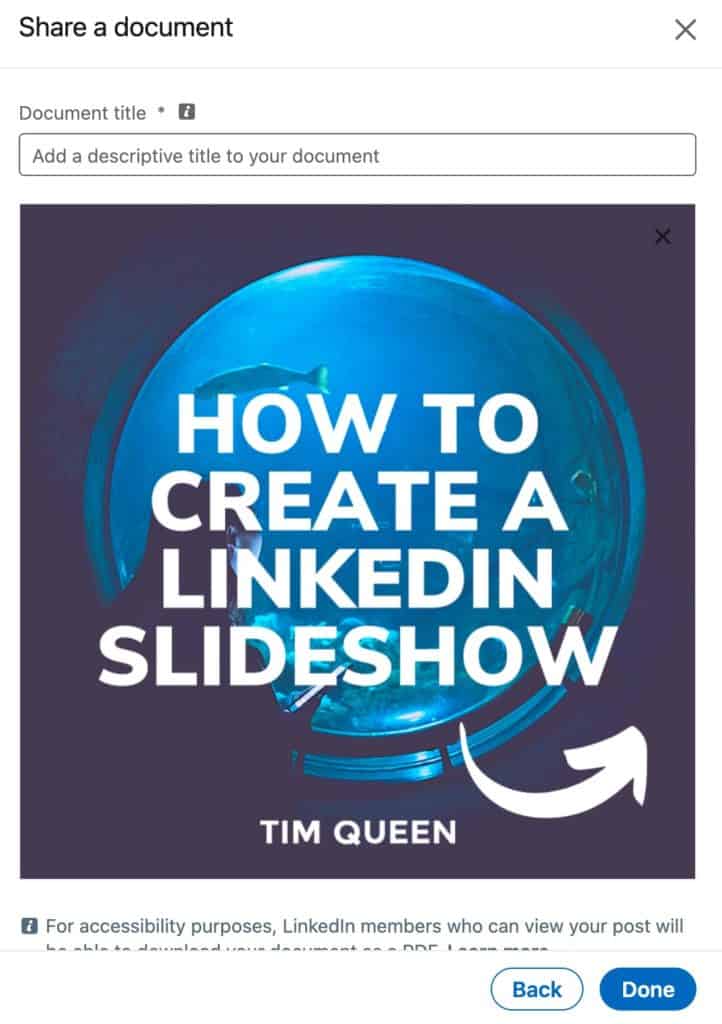
Add a document title
Next, make sure to give your document a properly descriptive title. This will be displayed at the top of your posts in the LinkedIn newsfeed.
Write a description
You can write up to 3,000 characters or about 500-600 words. Here is an example of a good LinkedIn carousel post.
I recommend highlighting 3-5 key lessons that readers can learn from your carousel post.
Make sure to add a question for your audience at the end of your post to encourage comments.
Add appropriate #hashtags and repeat your call to action at the end of your posts.
Adding hashtags will also enhance the distribution of your presentation. So make sure to add three hashtags before posting it.
If you are not satisfied with the knowledge that you have about putting the hashtags, go through my LinkedIn Hashtag Guide. It will help you to find the best hashtags for organic reach on LinkedIn.
Bonus Tips
LinkedIn creator mode
Turn on LinkedIn Creator Mode and pin your most popular carousel posts in the featured section of your profile to make it evergreen.
Thank every person in the comments
To maximize engagement with your LinkedIn posts, make sure to reply and thank everyone who left a comment below your carousel post.
Making the most of LinkedIn with Carousel Posts
LinkedIn carousel posts are incredibly useful.
They are easy to create and give you one of the best organic reach among all native LinkedIn content types.
By adding them to your content mix, you can quickly grow a targeted audience of ideal clients for your business.
If you need a dose of content inspiration, you can also check out my article: Best Content Ideas For LinkedIn to attract your ideal clients.
To learn more about how to get the most out of LinkedIn and how to create an entire LinkedIn sales funnel from scratch using a kickass LinkedIn content strategy, make sure to check out my LinkedIn Accelerator Program with more than 17 modules and 8+ hours of strategies, tactics, and recommendations.