What Is the Tubebuddy Keyword Explorer?
The TubeBuddy Keyword Planner is my all-time favorite tool.
I use it to optimize all of my videos and to plan and identify new topic ideas for future videos.
For a small channel, this is an outstanding feature that helps unearths keyword topics that give you the best chances to rank high on YouTube search and eventually on Google search.
If you're also interested in specific tactics on becoming eligible for YouTube Partner Program by quickly getting to 1000 YouTube subscribers and 4000 public watch hours, check out my article: How to get monetized on YouTube - The YouTube Monetization Blueprint.
How to Access the Keyword Explorer Tool
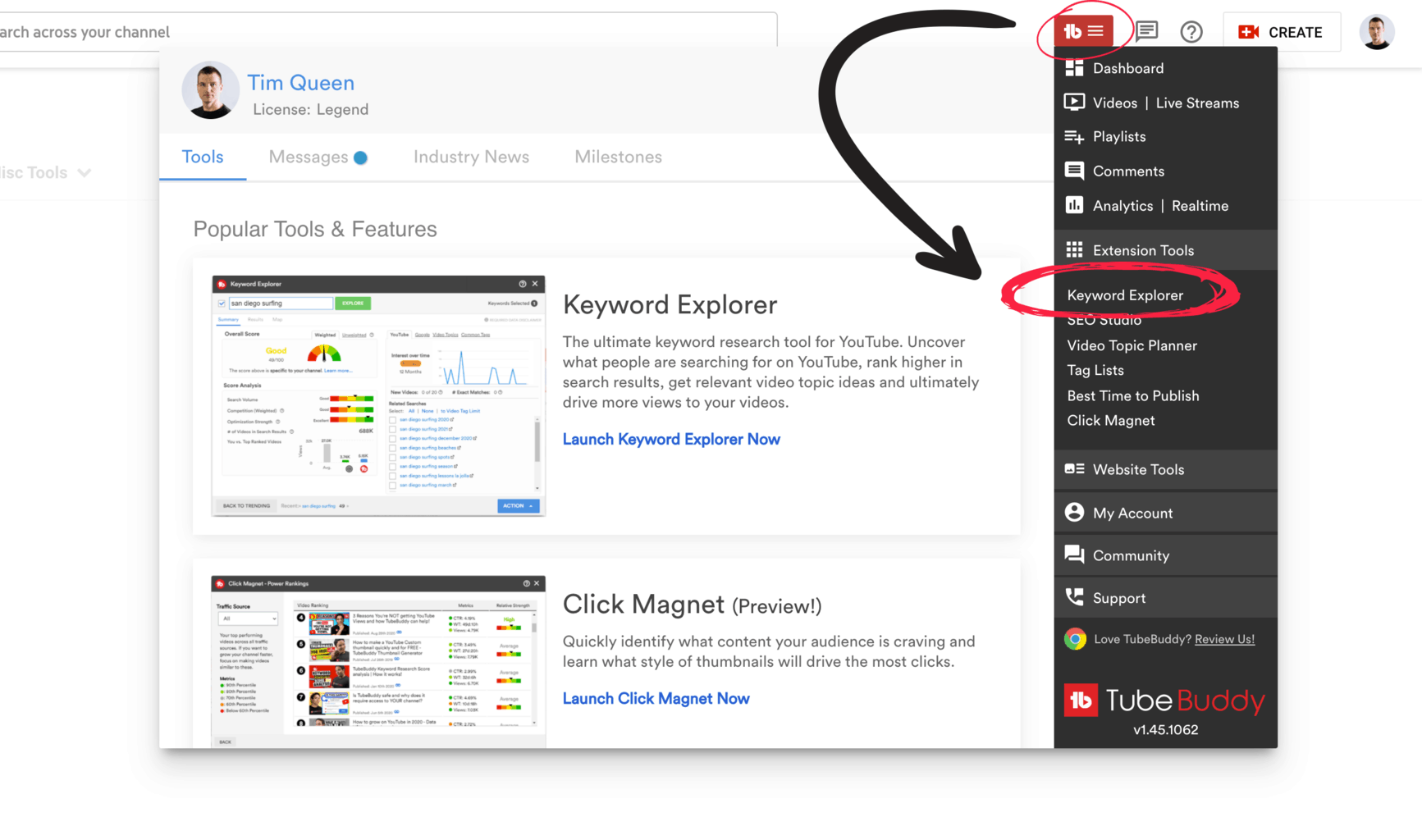
You can access it from the TubeBuddy icon at the top bar.
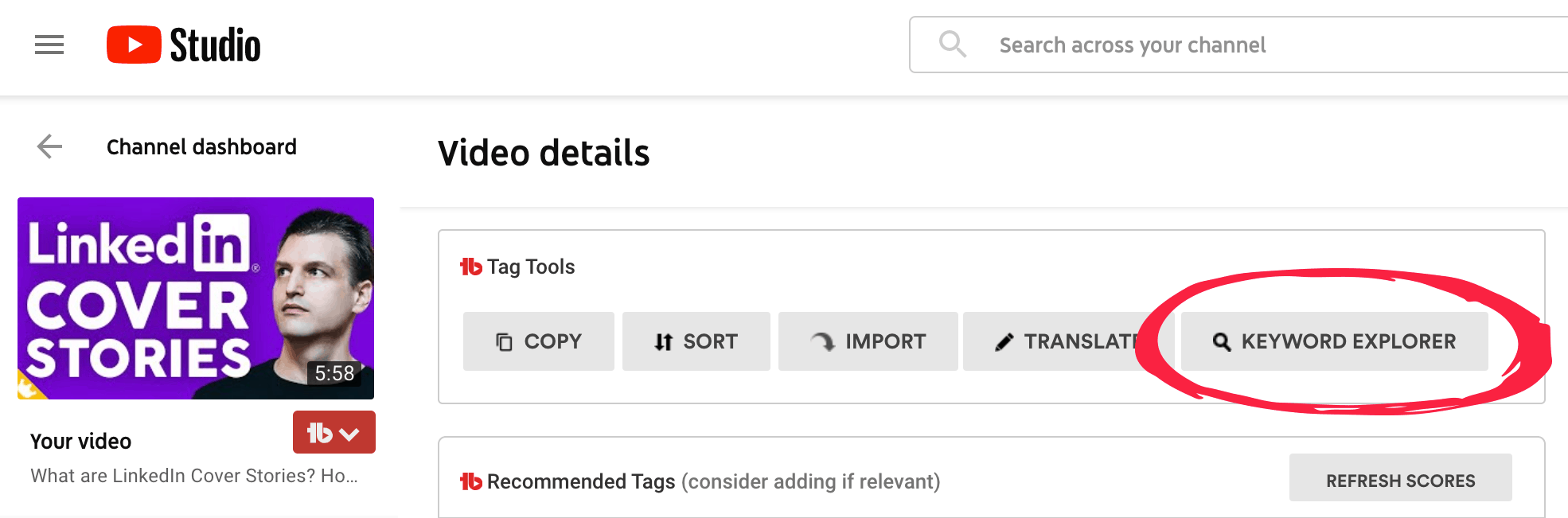
Or from when you edit a YouTube video inside TubeBuddy's Tag Tools menu.
How to Use Tubebuddy's Keyword Explorer Tool to Find High-Demand and Low-Competition Keywords
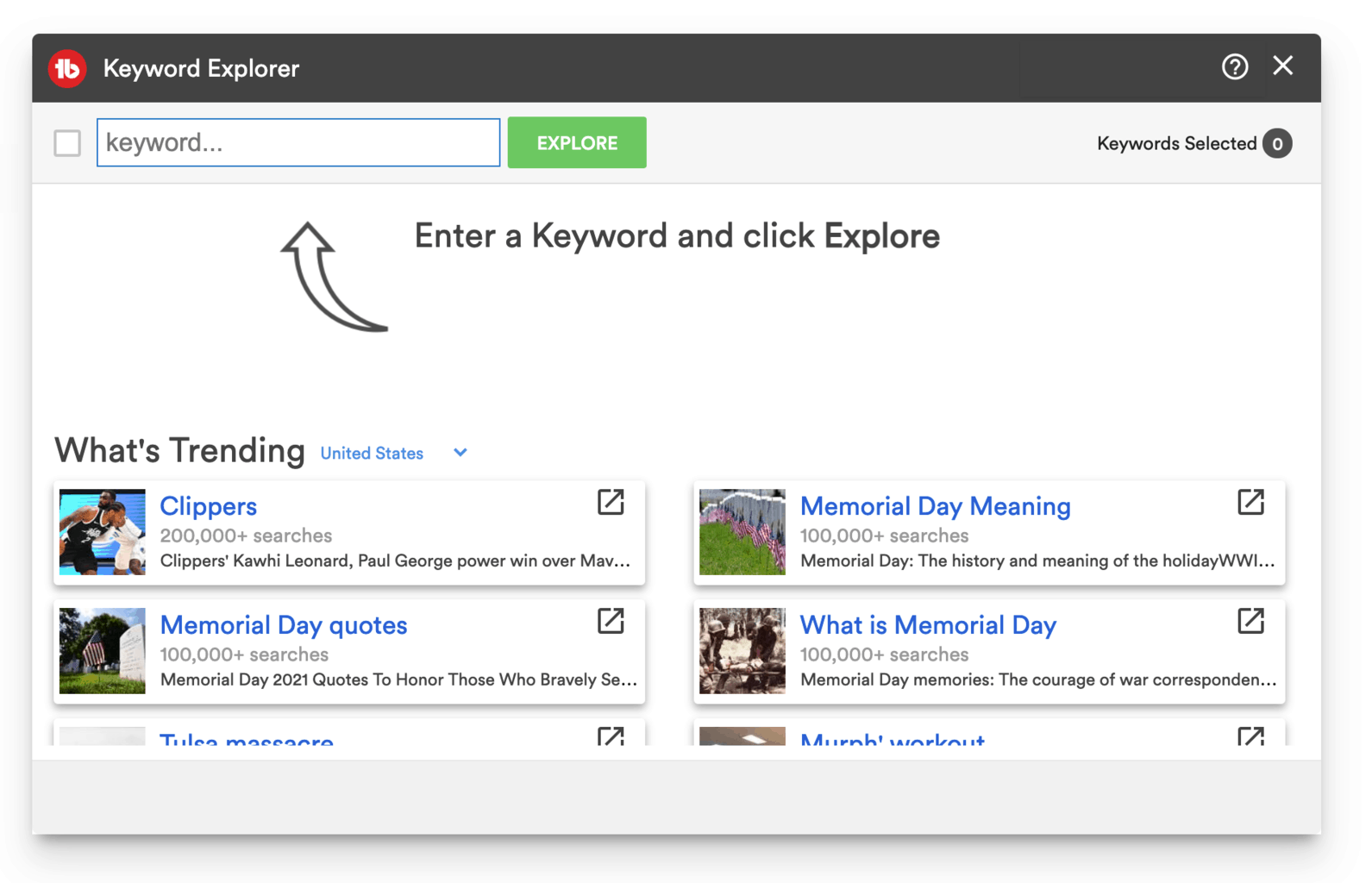
When you open the Keyword Explorer, TubeBuddy will ask you to enter a keyword to get started, but you can also check out the What's Trending section at the bottom.
TubeBuddy identifies new topics in real-time and allows you to filter the results by country.
Tubebuddy's Keyword Score Explained
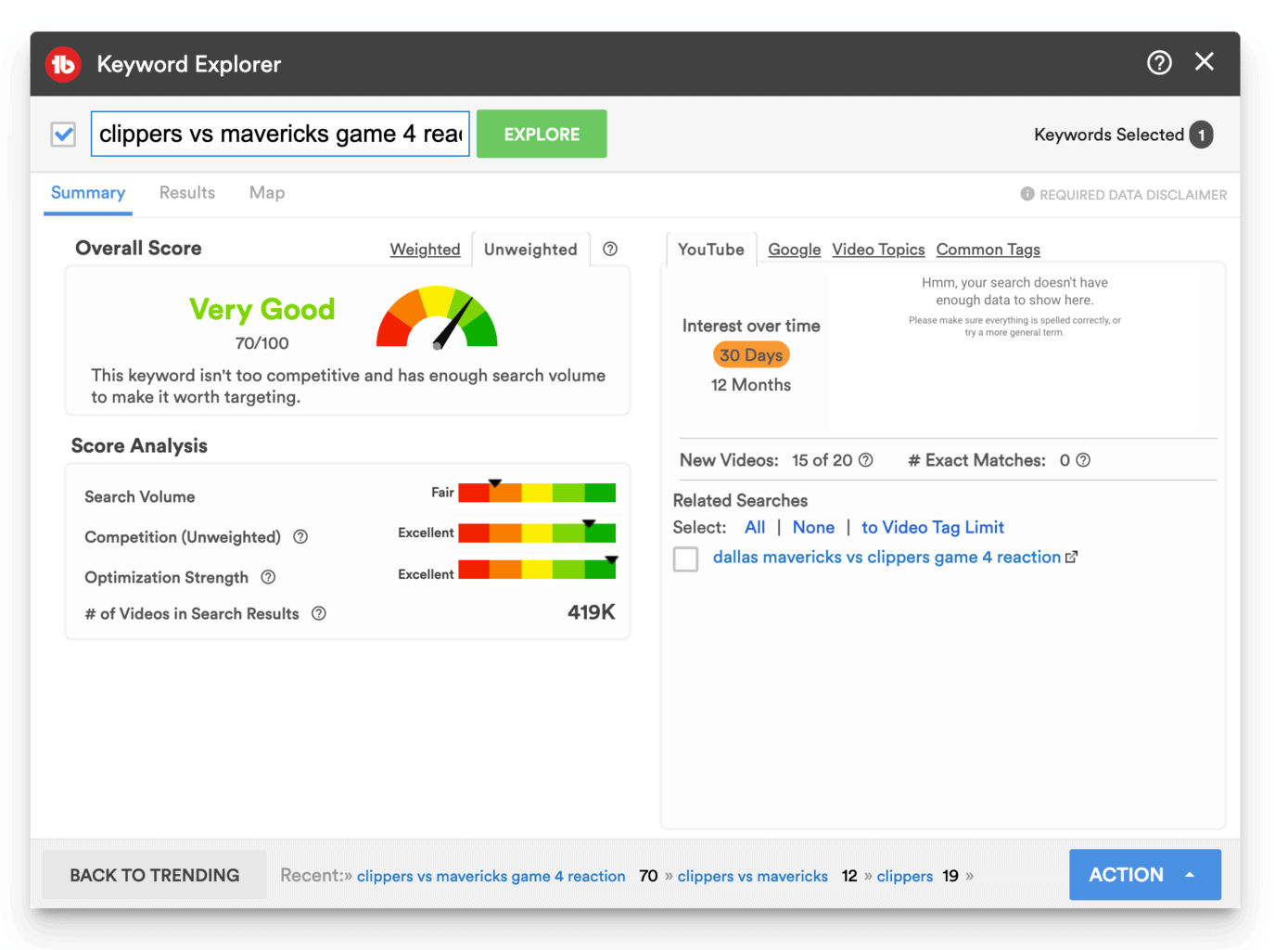
Once you enter a keyword, TubeBuddy will give you an overall score at the top left. This score is divided into a weighted and unweighted value.
Weighted means, that TubeBuddy considers the performance of all of your existing videos and factors it into the result.
Unweighted, is purely evaluating the topic by itself.
I highly recommend always use the weighted view as it is a far more realistic view of how well your video will perform.
In my example, I only got 19 out of 100 points. If you look a little bit further down on the left side you can see why.
There is a high search volume for this keyword, but the competition is very strong and has highly optimized their videos for YouTube SEO.
TubeBuddy will automatically recommend related long-tail keywords on the right side.
How to Find Related YouTube Videos
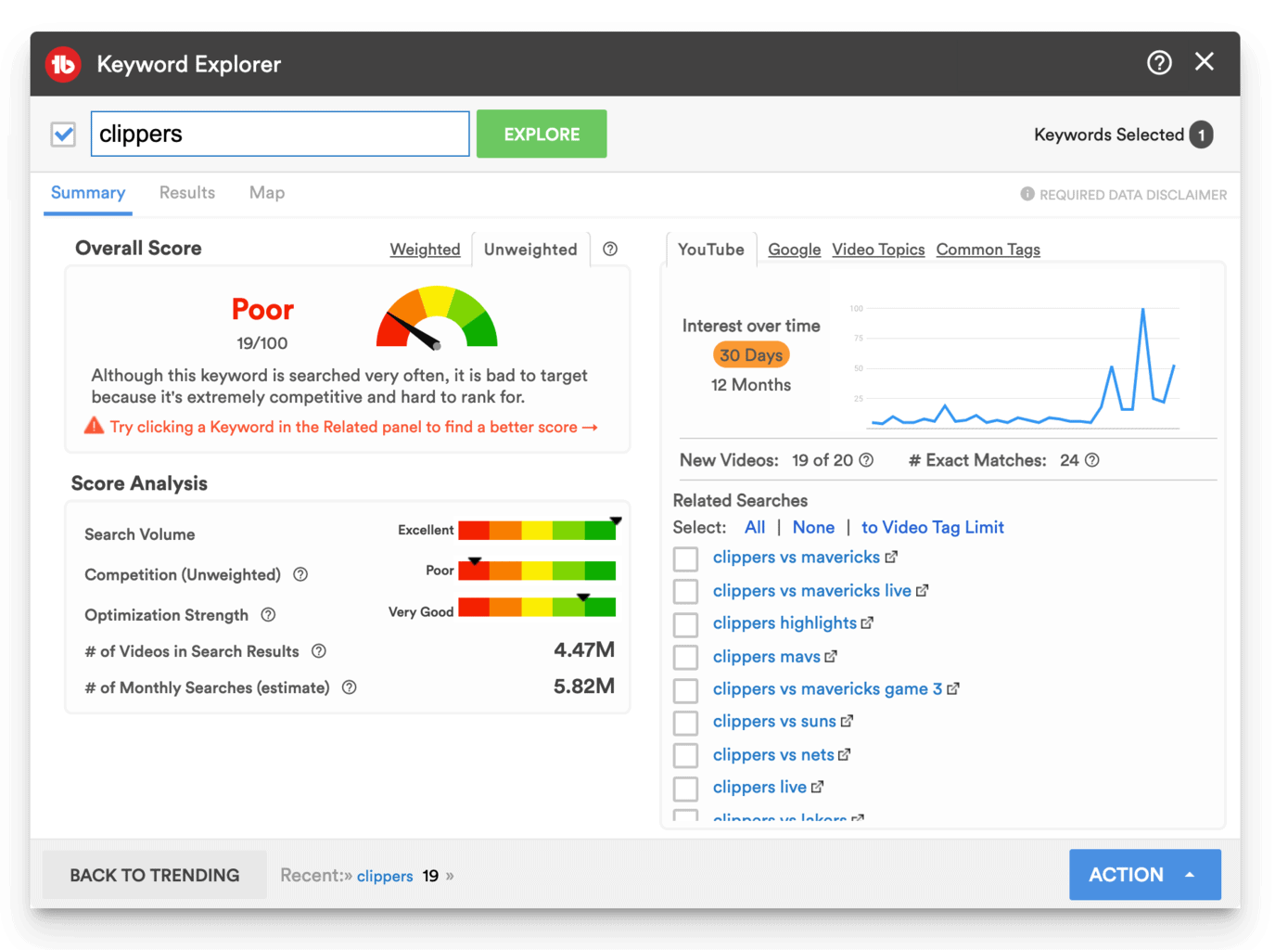
The first suggested tab is based on YouTube search results.
For more popular keywords, TubeBuddy will display your interest over a time graph that allows you to see how the search volume for your keyword has changed over the last 30 days or 12 months.
Right below the graph, you can see an info box about New Videos. This tells you how many videos on page one of YouTube search are brand new. With our keyword 19 out of 20 videos are new, indicating a very hot, trending topic.
How to Find Popular Google Search Keywords
In the Google tab, you find suggested keywords based on Google search results. The results between YouTube and Google are often very different and it's always worth it to explore both tabs to find popular search terms.
Google video carousels
A unique feature on the Google tab is the Vid Carousel indicator, which tells you if TubeBuddy found a video carousel on Google page one.
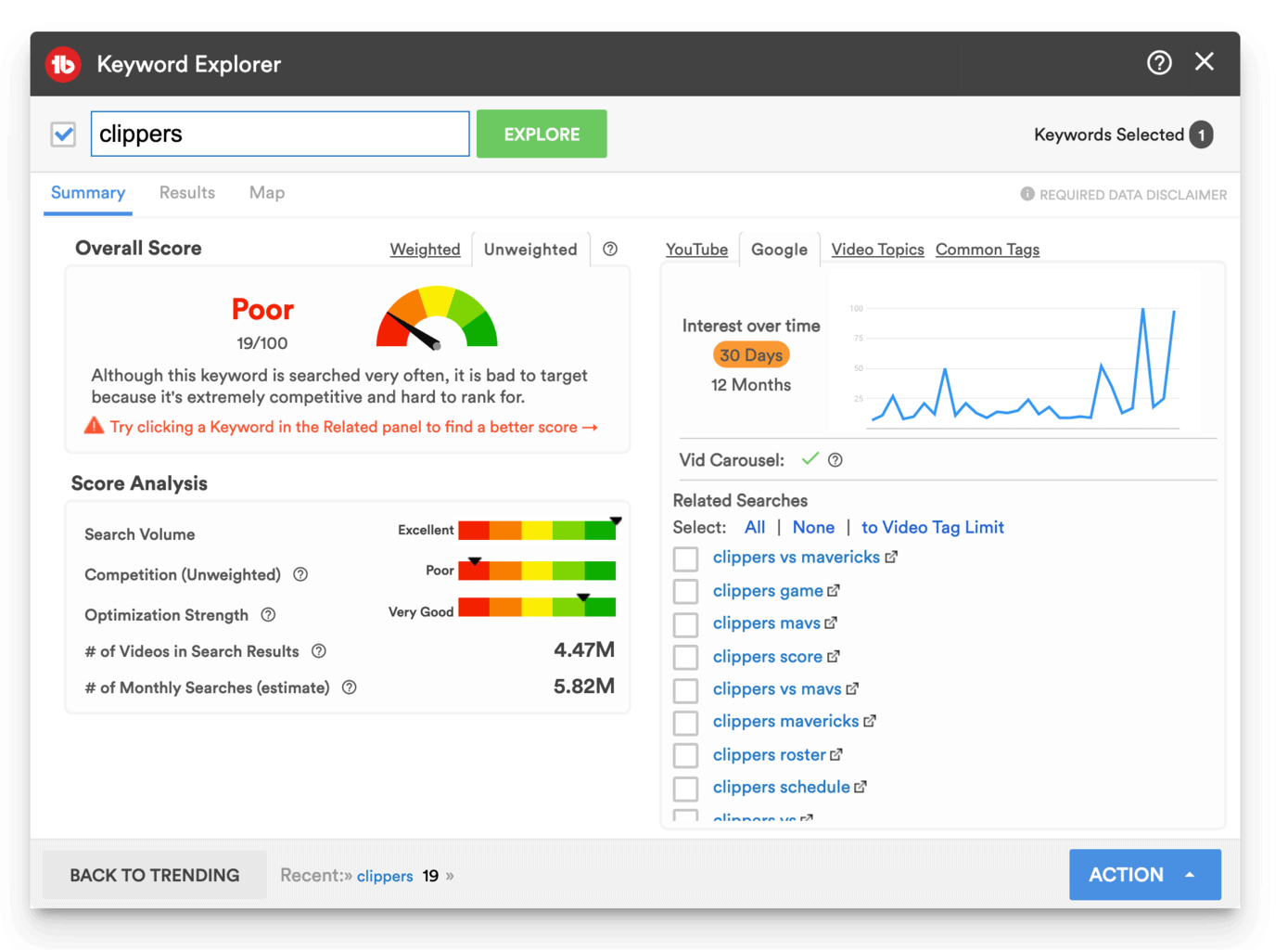
Video carousel on Google directly link to selected YouTube videos:
How to find relevant questions related to your target keyword
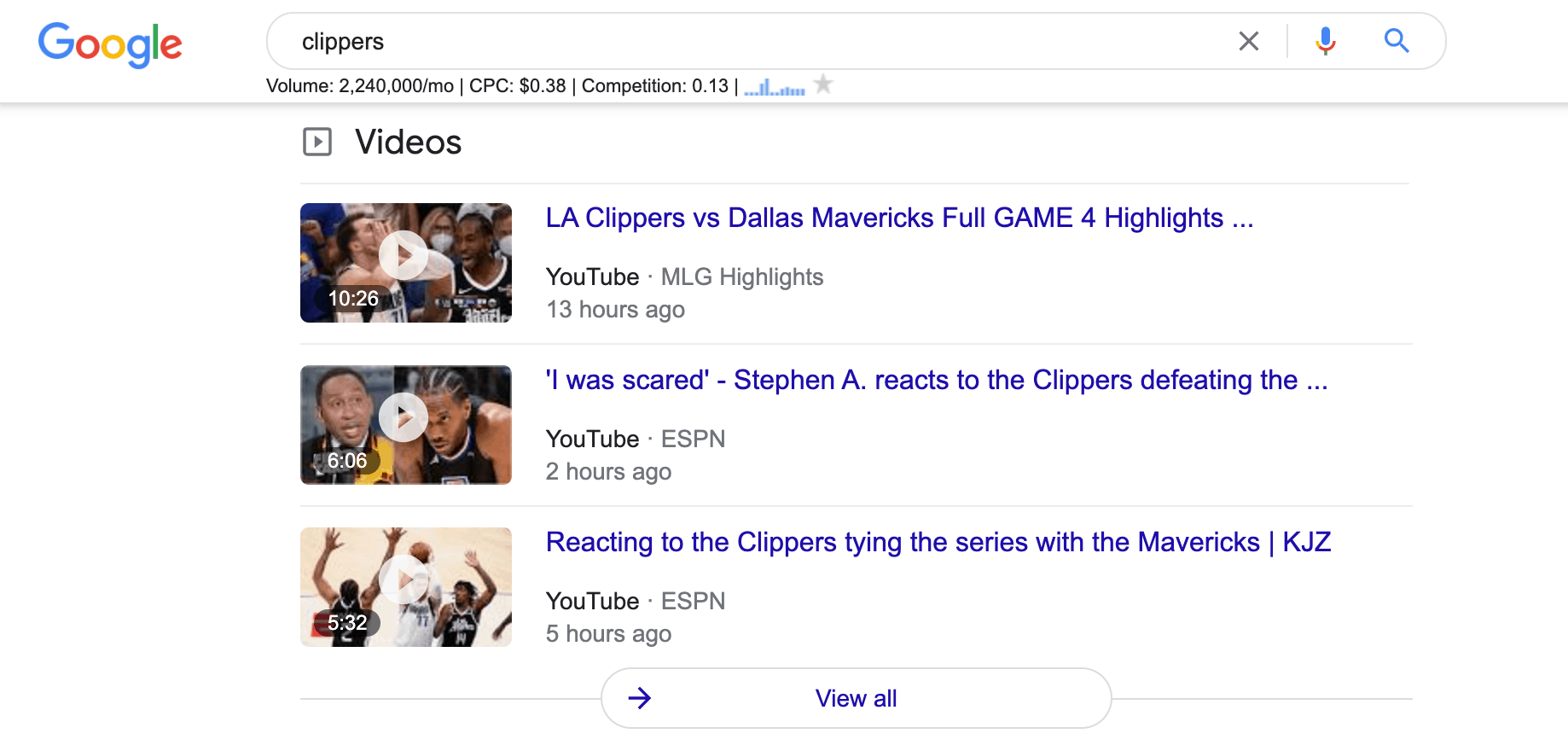
The Video Topics tab focuses on common questions related to your keyword and often offers great suggestions for new video topics.

How to Find Keyword Cluster Ideas
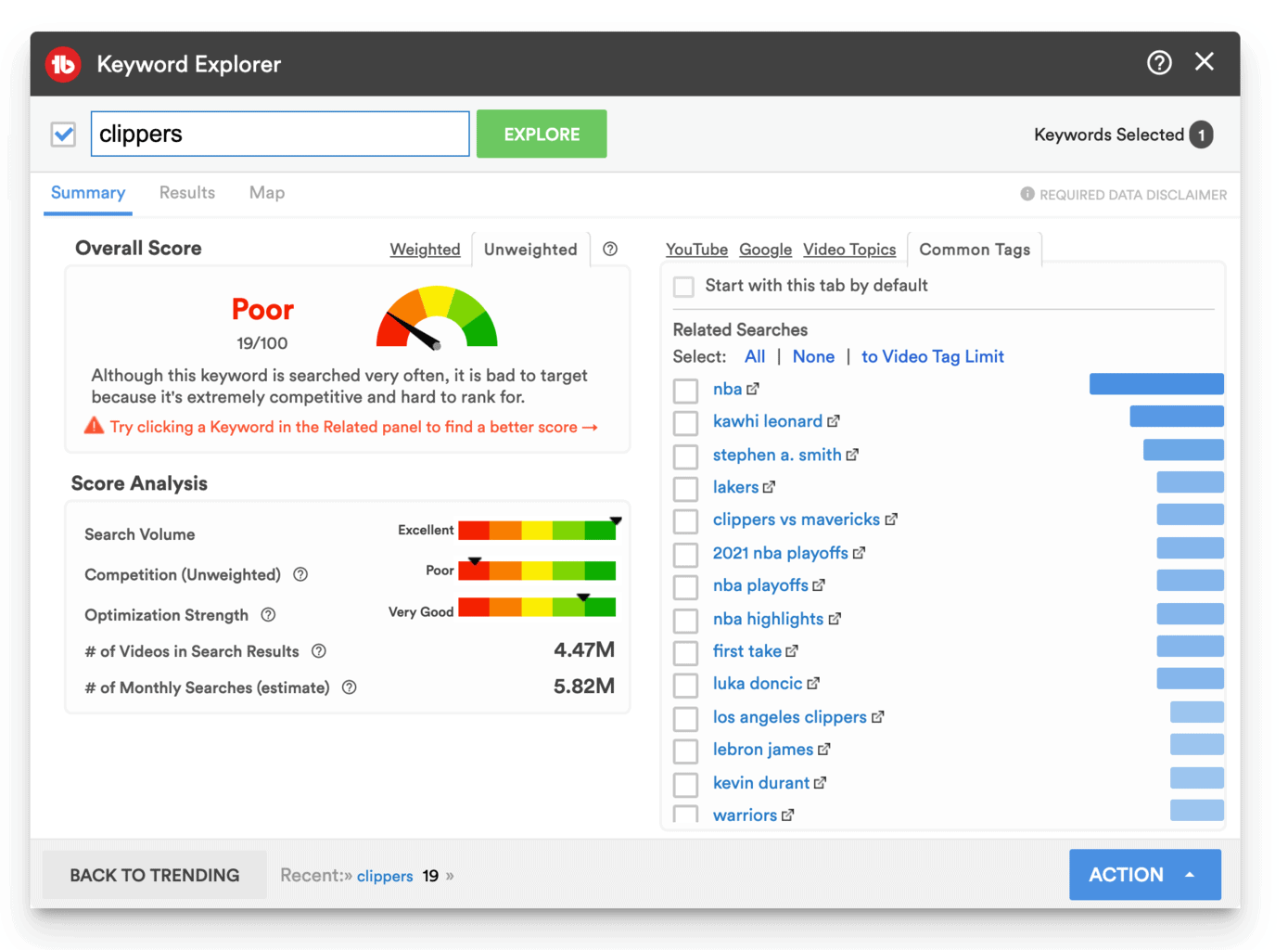
The Common Tags tab looks at the most popular videos that are ranking for your target keyword and shows you which other keywords are often combined with your target keyword phrase.
In YouTube's AI, these "keyword combinations" form a content cluster - that means the topics are often associated together or in instances synonyms of each other. You can learn more about cracking the algorithm with a YouTube Content Cluster Strategy.
How to Improve Your Keyword Score
If you click on any keyword, TubeBuddy will evaluate it based on search volume, competition, and optimization strength.
Your goal is to find as many good, very good, and excellent keywords as possible and add them to your video.
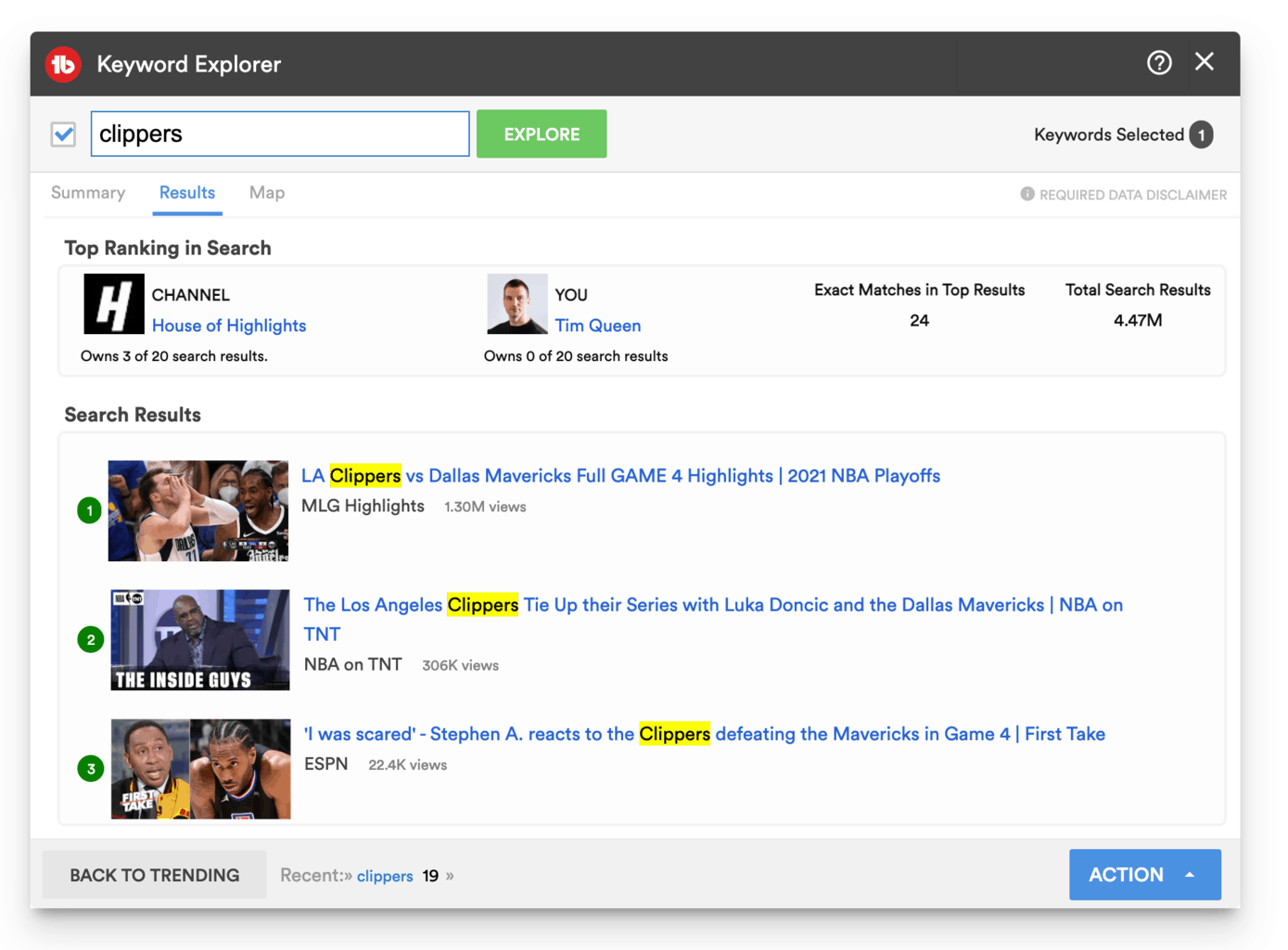
How to See the Top Ranking Videos for Your Keyword
The Results tab at the top left shows you the top YouTube search results for your keyword. Look at the top video titles for further keyword ideas.
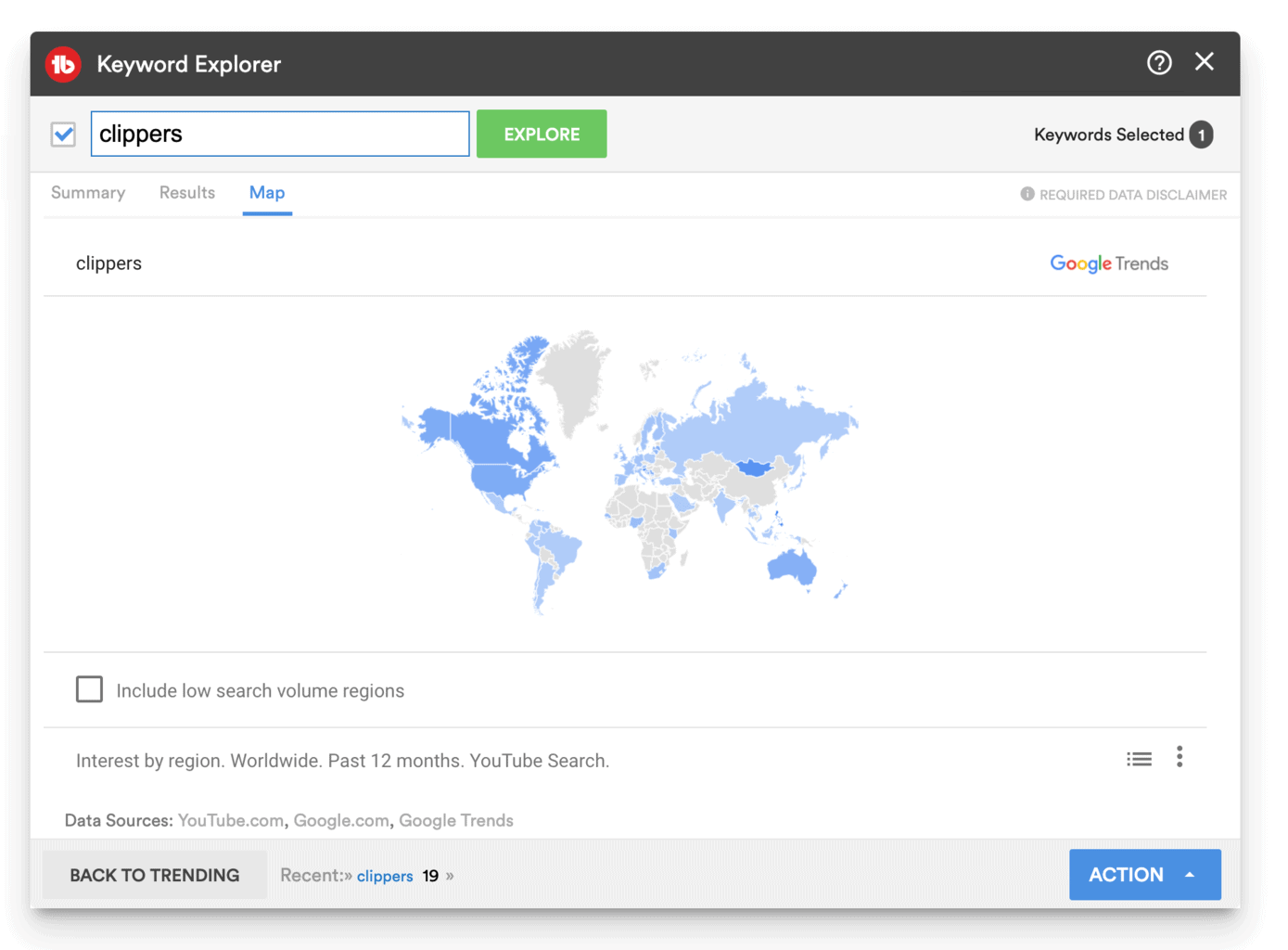
How to Explore the Global Search Volume for Your Keyword by Country
In the Map tab, you can see the search distribution across the world.
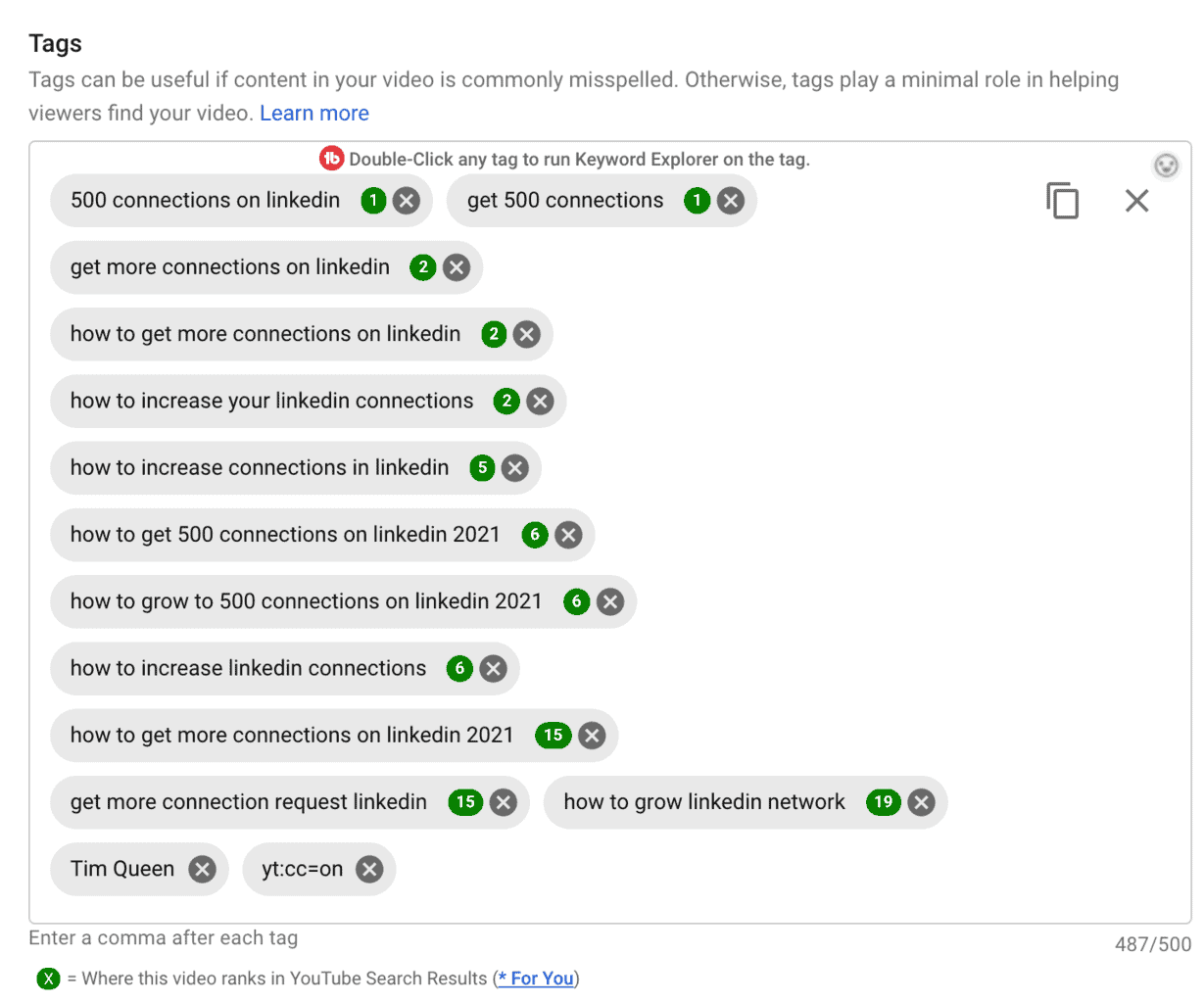
How YouTube Video Tags Work
You can add up to 500 characters of tags to each video, so make sure to add more tags.
Once your video has been published TubeBuddy will automatically measure how well you rank for each keyword in your list and display it in a green circle. A 1 for example, would mean that your video is at the very top.
In this view, just double-click on any keyword to open up the Keyword Explorer again.
Next Steps
As you can see, TubeBuddy's Keyword Explorer tool is incredibly powerful and useful for optimizing your videos for YouTube SEO, for finding new video ideas, and even outlining and structuring your video scripts.
If you're serious about doing YouTube full time, you definitely want to install the TubeBuddy browser extension.
Just click here and follow the instructions to get started with TubeBuddy. You can also check out my step-by-step guide on how to sign up for TubeBuddy here if you get stuck in the process.
Not 100% sure if TubeBuddy is right for you? Then read my full TubeBuddy review first.