LinkedIn is an excellent place for businesses to promote themselves and connect with future customers.
One of the best ways to turn profile visitors into qualified leads is to get them to visit your website, where you can share detailed information about your products and services, as well as offer contact forms and downloadable lead magnets to bribe people to subscribe to your email newsletter, where you can build trust on autopilot over time with email automation.
LinkedIn recently introduced a new and exciting feature, the ability to add a website URL to your LinkedIn profile.
In this article, I will show you how to add your bio URL to your LinkedIn profile and a couple of hacks to add additional links to your profile.
Step-by-step guide to adding a URL to your profile
Visit LinkedIn.com and log in to your personal LinkedIn profile.
On the homepage newsfeed, locate your profile photo icon with the word "Me" below it on the top right, and click on it.

A menu will open; click on your name to visit your LinkedIn profile.
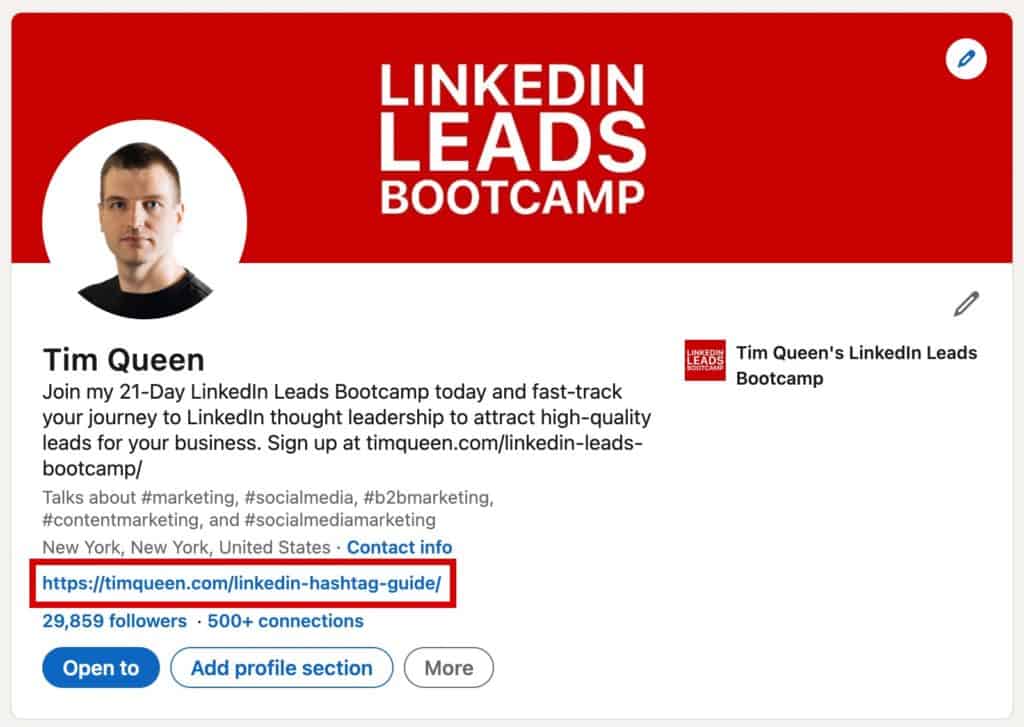
To add a clickable website URL below your headline, press the pencil icon at the top right, just below your header image.
Scroll down until you see the Website section.
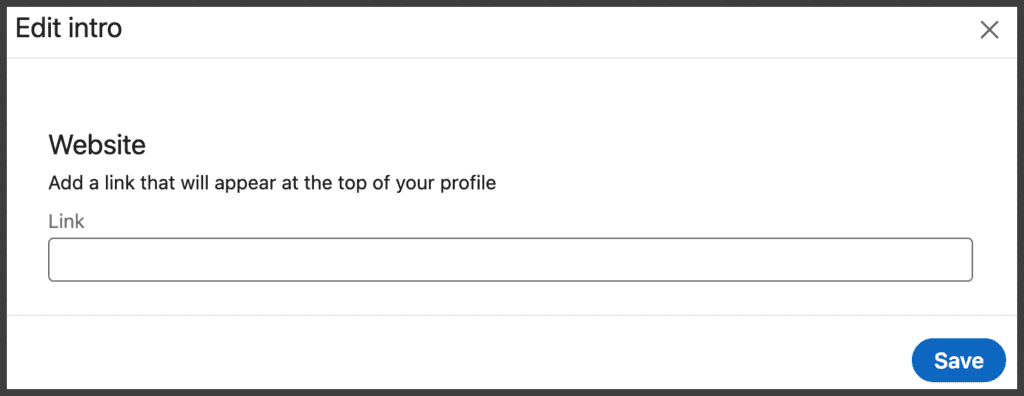
Add your desired URL starting with http:// or https:// in the Link field to add it to your profile. This will display the naked URL on your profile.
If you prefer a descriptive link, type any text in the Link Text field up to 30 characters long.
Example: Instead of displaying something like "https://linktomybookingform.com/myname", you could have a clickable link with the words "Book a 10-minute call".
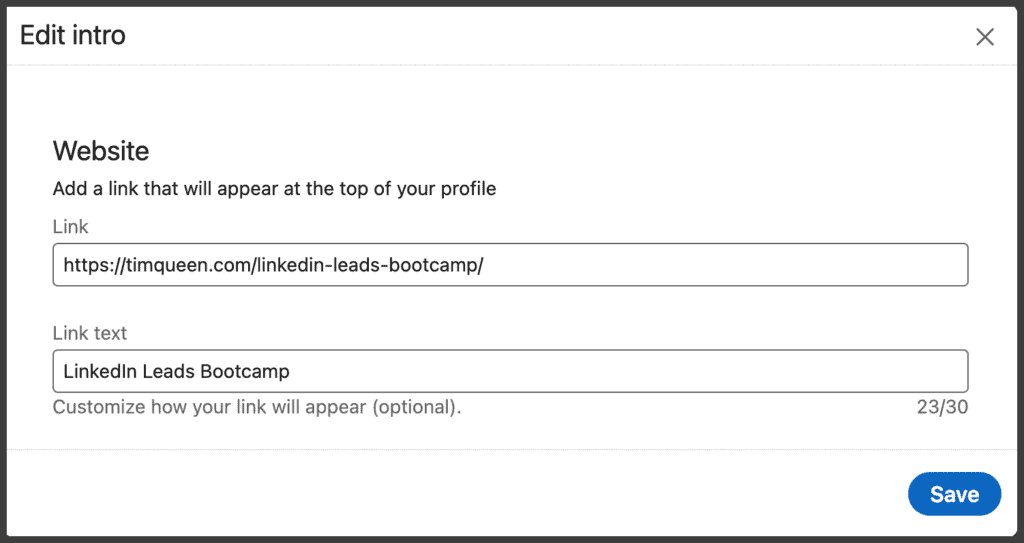
This is way more descriptive and will dramatically increase the number of website visits if you have a long, non-self-explanatory URL.
Once you are satisfied with your link, press the blue Save button in the bottom right corner.
Reload your profile and click on your newly added profile link to test if it works correctly.
If it does, congratulations, you have successfully added a URL to your LinkedIn profile.
How to add a URL to your contact section
There are a couple of other places that allow you to add URLs to your LinkedIn profile.
Let us start with your Contact section.
Locate the Contact Info link on the right of your current location and click on it.
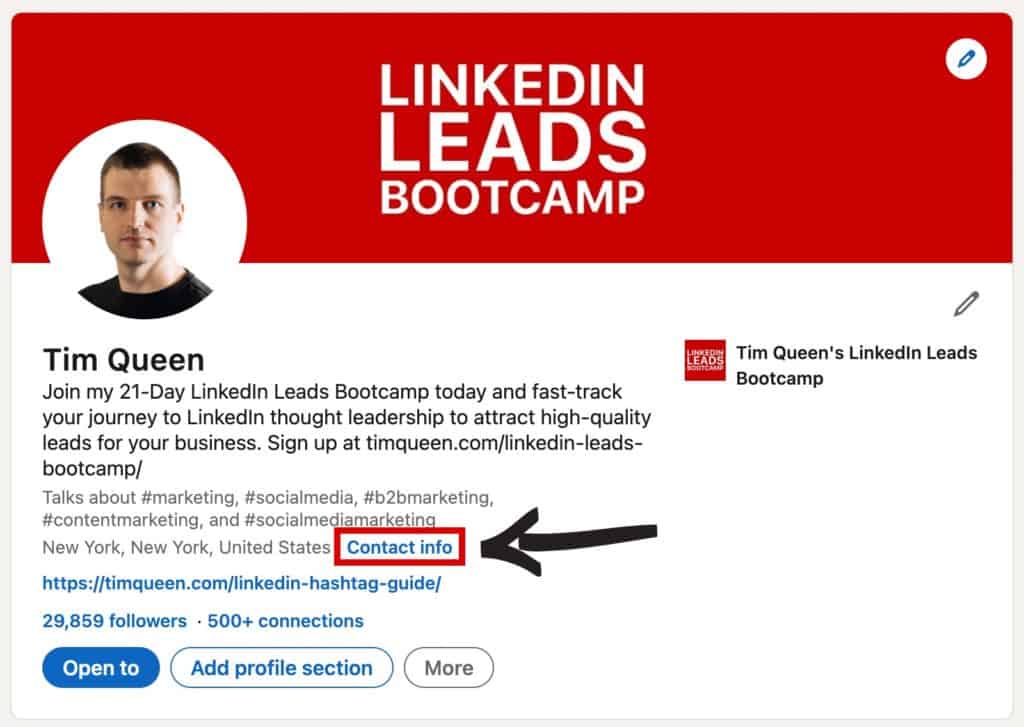
Click on the pencil icon to edit your contact information.
Scroll down to the Website section and click on +Add Website.
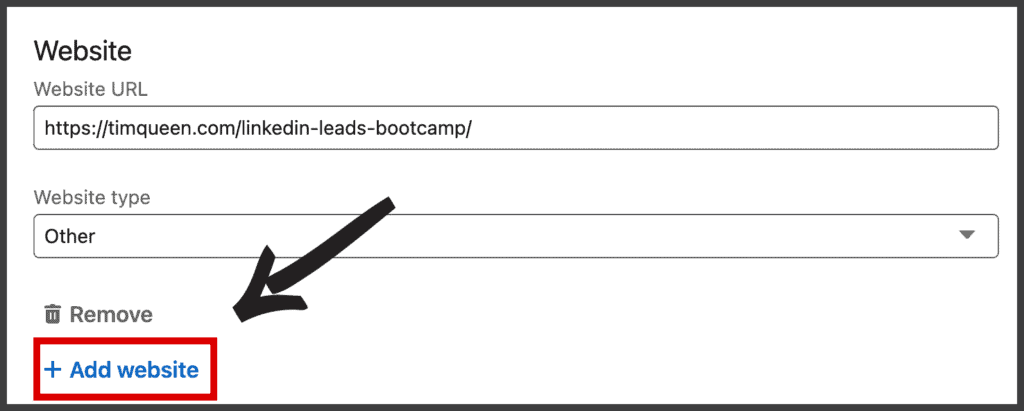
Type in the URL of your choice and select a suitable label such as Personal, Company, Blog, RSS Feed, Portfolio, or Other. The name of your link label does not do anything other than display next to your URL. In doubt, select Other.
You can add up to three website links in your contact section.
When you are done, click on the blue Save icon at the bottom of the popup.
How to add a link to your featured section?
One of the best ways to add clickable links to your LinkedIn profile is to use the Featured section.
To use the Featured section, you must have already published at least one post or article on the LinkedIn platform.
I also highly recommend turning on LinkedIn Creator Mode, which rearranges your profile and moves the featured section to the top, right below your header section, to boost visibility.
To add a URL to your featured section, visit your LinkedIn profile and find the Featured section.
Click on the + button on the top right.
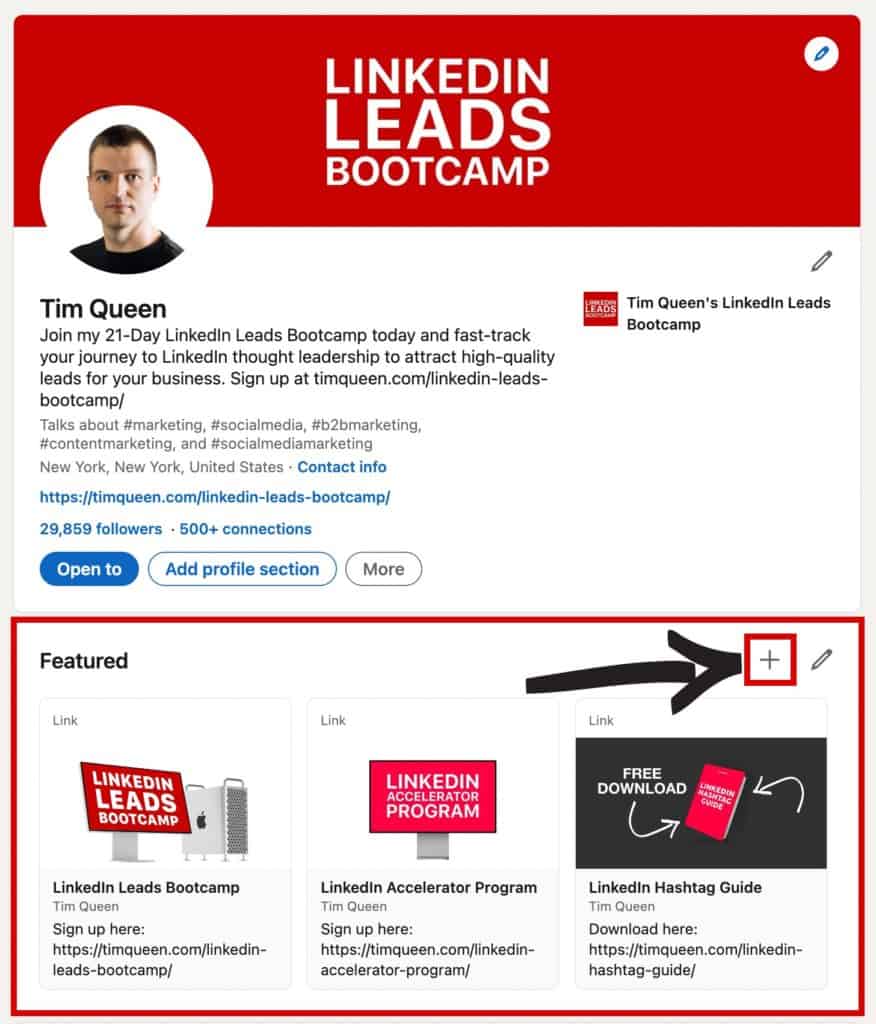
LinkedIn offers you a variety of options, including:
- Add a post
- Add a newsletter
- Add an article
- Add a link <-- This is what you are looking for.
- Add media
Choose Add a Link.
Then type or paste a URL of your choice.
Hit the Add button and wait until LinkedIn generates a preview of your link.
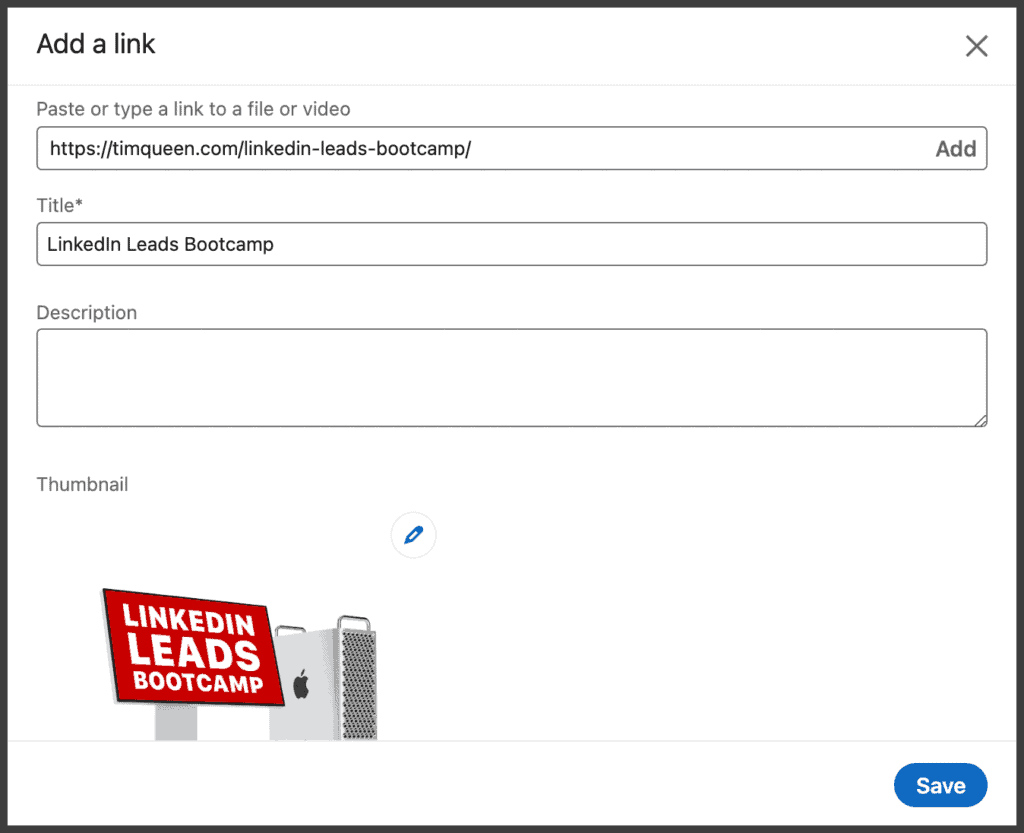
If your URL contains an image for social media, you will see a preview of the picture together with the extracted title and meta description.
If your link does not contain a photo or LinkedIn couldn't load it, you can manually add an image by pressing the pencil icon.
Select a photo from your local drive and upload it.
Once you are happy with your URL, title, description, and image, click on the blue Save button.
You can add any number of links. However, the URLs preview images will be displayed in different sizes on LinkedIn.
- 1 link gives you the largest full-width preview image.
- 2 links also look great with slightly smaller previews.
- 3 links is the maximum number of items that can be displayed in one row without scrolling.
- 4 or more links will turn your featured section into a carousel post with arrows to navigate between individual items.
How to add a web link to your experience section
To add a link to your Experience section, you must add at least one experience to your profile.
Scroll down to the Experience section, click on the + button, then on Add Position to add an experience to your profile, and follow the instructions.
If you have already added at least one experience, click on the pencil icon instead.
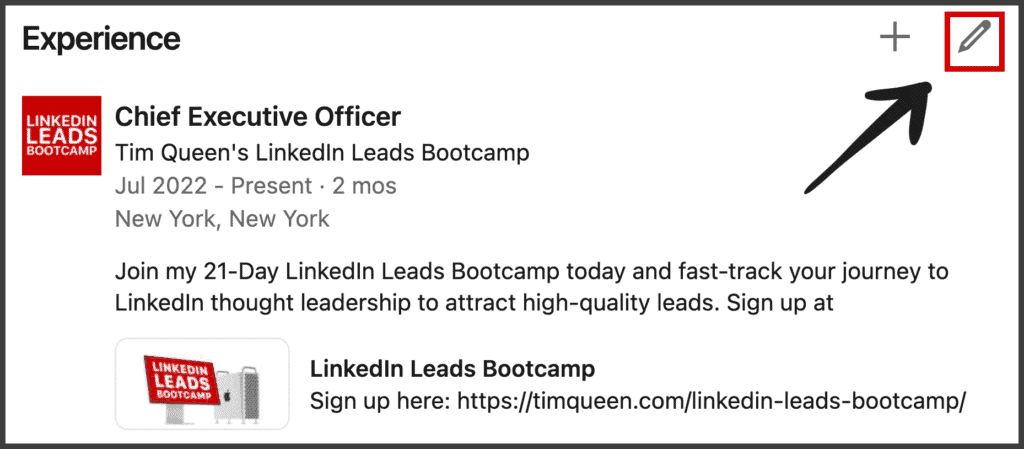
Hit the pencil icon to the right of the experience you wish to edit.
Scroll down to Media, and press Add Media, then Add a Link.
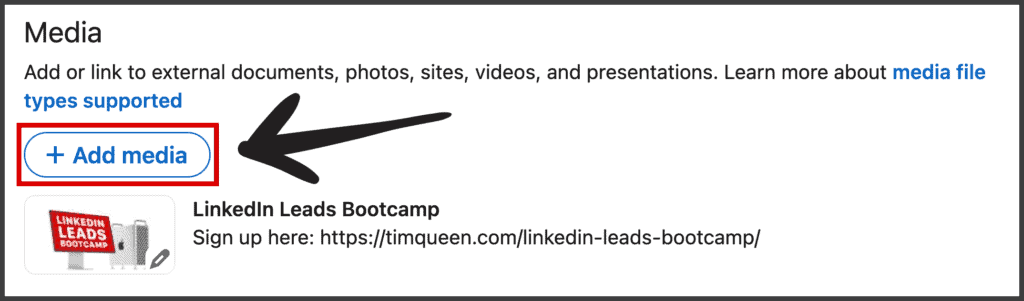
Type in a URL and hit Add to load a preview.
Adjust your title, description, and thumbnail, and hit Save once everything is completed.
You can add multiple media items for each experience section.
Repeat this process for as many experiences as you wish.
How to add a URL to your company page
If you run a business, you must create a LinkedIn page and add it to your experience section. Read a step-by-step guide on creating a LinkedIn company page for more details.
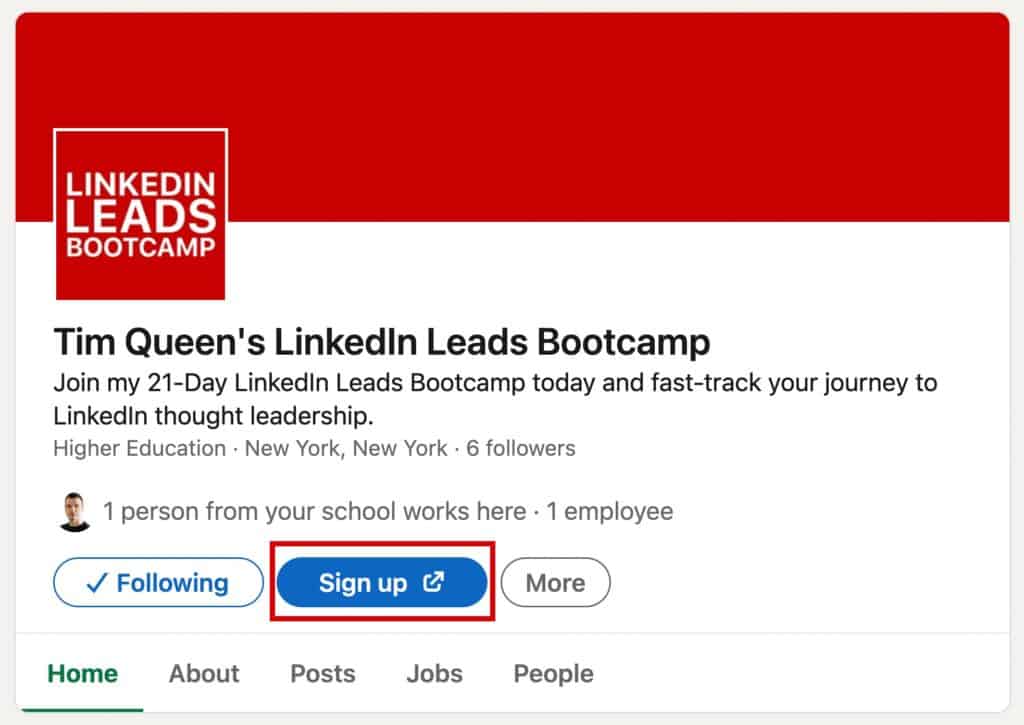
On your company page, you can add a clickable link as well.
Click on your profile photo in the menu bar and open your company page from the submenu.
This opens the Admin view of your business page.
Find the pencil icon on the right with the words "Edit Page" and click on it.
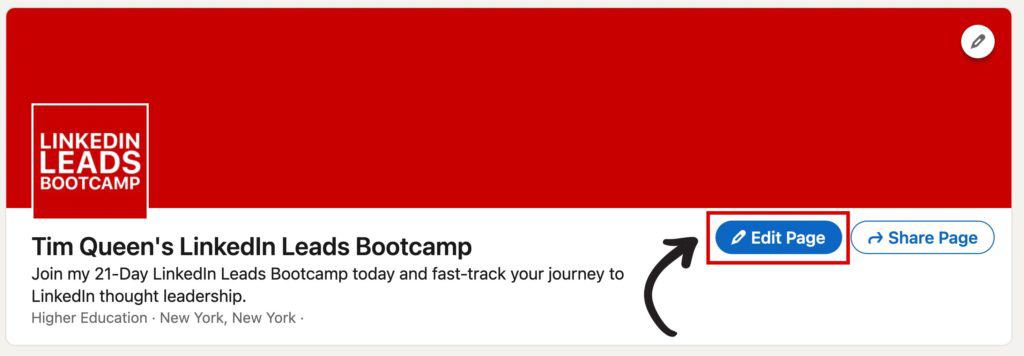
In the left sidebar, locate the Buttons item and open it.
Enable the Custom Button feature and select one of the pre-defined button descriptions.
- Contact us
- Learn more
- Register
- Sign up
- Visit website
Next, enter the URL of your desired link.
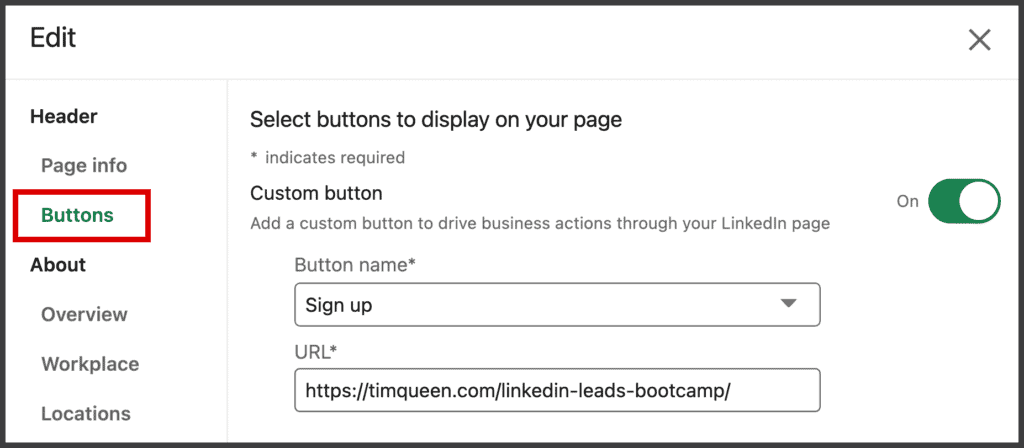
You will see a preview of your button below.
If you are happy, click the Save button at the top to finalize your changes.
How to get future customers to click on your profile links?
Congratulations, your LinkedIn profile now has multiple clickable buttons. Having more than one link dramatically increases the chances that someone will discover one of your URLs and click on it.
The trick is to get people interested enough in you to click on your profile.
One of the best ways to accomplish this is by becoming a thought leader on LinkedIn and sharing valuable content on the LinkedIn publishing platform.
You can learn more about how to do this in my LinkedIn Leads Bootcamp. It is a 21-day program that teaches you how to build a complete LinkedIn content strategy from scratch to attract an audience of ideal customers.