In this article, I'll show you on how to schedule LinkedIn posts on your company or personal page using LinkedIn's native scheduling tool and third-party alternatives.
If you want to build a strong personal brand on LinkedIn, regularly posting on LinkedIn is a non-negotiable.
It establishes your expertise, boosts audience engagement, expands your network, and allows you to get LinkedIn followers fast.
And scheduling allows you to do this more consistently and frees up time for higher-impact work.
By creating your content ahead of time in bulk, you can schedule posts when your target audience is most active, even if you are still asleep. (I show you how to find the best time for your audience in chapter 2 of this article).
I compare three of the most popular LinkedIn scheduling tools and show you how each of them works.
You will learn how to schedule LinkedIn posts, how to reschedule posts for a different date and time, how to edit the content of your scheduled posts, and how to delete scheduled posts.
I will also show you the differences between scheduling posts for profiles and pages, the most common scheduling mistakes, and advanced scheduling features, and explain how a very effective manual scheduling strategy that works for even more content types.
Content Types and Scheduling on LinkedIn
Some content types are more easily schedulable than others. Some can be only scheduled with LinkedIn's built-in scheduling feature, others only work with a specific third-party tool.
Here is a comparison of all LinkedIn content types grouped by how easy it is to schedule them.
Basic LinkedIn Scheduling
All social media scheduling tools, including LinkedIn's built-in scheduling tool, can schedule three types of content: link posts, text-only posts, and photo posts.
- Text posts:
- A text-only post without any attachments.
- Link posts:
- A text post with a clickable link attachment.
- Photo posts:
- A text post with a photo attachment.
Intermediate LinkedIn Scheduling Tools
These tools support all previous content types and allow you to schedule video posts.
Tools such as SocialBee, Buffer, Hootsuite, HubSpot, or Taplio fall into this category.
- Video posts:
- A text post with a video attachment.
Advanced LinkedIn Scheduling Tools
- Document posts:
- PDF documents can only be scheduled within LinkedIn's native scheduling feature and the third-party tool Taplio.
- LinkedIn does not provide an official API to attach PDFs to LinkedIn carousel posts to third-party scheduling tools, meaning that tools like SocialBee, Buffer, and Hootsuite must wait for this to change before they implement it.
- Taplio figured out a workaround by hijacking LinkedIn's unofficial API.
- They ask users to install a Google Chrome Extension and log into their LinkedIn account.
- This allows Taplio to extract the user's LinkedIn session cookie.
- Taplio doesn't use any official LinkedIn API to publish PDFs.
- It uses your session cookie to pretend to be you as if you logged into your run-of-the-mill internet browser.
- It then hijacks LinkedIn's own post creator tool (the one you see when you click on Start A Post) to create a document post, which uploads it to LinkedIn's secret documents API.
- Multi-Image Posts:
- Adding more than one photo to a post will automatically become a Multi-Image Post.
- LinkedIn allows you to add up to 9 photo attachments to this content type.
- This format is great for telling a story, for example, by sharing the highlights of an in-person event or a factory tour.
- Unfortunately, you cannot schedule this content type with most scheduling tools, not even with LinkedIn's native scheduler.
- However, you can schedule LinkedIn multi-image posts with Canva.
- Create a new multi-page document if you want to schedule multiple images via Canva (LinkedIn support 1-9 images per post).
- The document can have more than 9 pages.
- Click the Share button at the top-right, then on Share On Social.
- Select either "LinkedIn Profile" or "LinkedIn Page", then authorize Canva by linking it to your LinkedIn account.
- Canva's LinkedIn Share dialog has four elements.
- At the top, you select your destination, either your personal profile or a specific company page.
- Below you select which pages to share. If your document contains more than 9 pages, you will be asked to select 9 specific pages that you want to share.
- You can use the textarea to write a regular LinkedIn post accompanying your multi-image attachment.
- At the bottom left, you can schedule your post on a specific date and time.
- Or you can use the Publish Now button to share your post immediately.
- If you won't want to use Canva, a workaround is to create a special photo album on another platform, then only attach the top photo and include a link to the full album in the post.
LinkedIn Scheduler only:
Currently, only two types of content can be scheduled using LinkedIn's own scheduler: articles and newsletters.
This is likely because the articles platform, on which newsletters are based, was separated from the so-called "Posts" feature.
Because writing articles and newsletters requires a more complicated editor, I do not foresee any third-party support being added in the near future.
- Articles:
- A text post with an attached article.
- Newsletters:
- A LinkedIn article that is emailed to your newsletter subscribers.
- Services:
- LinkedIn allows you to add up to 10 services to your LinkedIn profile.
- These will be prominently highlighted at the top of your profile.
- When you add services to your profile for the first time, LinkedIn will allow you to create a services announcement post, which can be scheduled.
- If you visit your services page at a later time and click the "Share Page" button, LinkedIn won't display the schedule button anymore.
- However, if you copy the URL of your services page and paste it into a regular text post, you will get the same attachment, which makes it schedulable again.
- Hopefully, LinkedIn will make this more consistent in the future.
Cannot be scheduled
Currently, scheduling posts is not supported for the following types of posts:
- Events:
- Events such as LinkedIn LIVE streaming, LinkedIn audio events, and other online and offline events are super powerful marketing and branding tools.
- They can be promoted by creating a LinkedIn Event promo page.
- The publication of this promo page cannot be scheduled.
- However, since events are scheduled for a specific date and time, you can get around this by manually publishing your event landing page and then announcing the event in a regular text, photo, video, or document post that can be scheduled, including a link to your event promo page.
- Jobs:
- Job listings cannot be scheduled on LinkedIn.
- However, this is not a major issue for most users, as they typically do not need to post job listings on a daily basis.
- It is more common to create a job posting ad hoc to fill an urgent vacancy or to post multiple job postings within a short period of time during a hiring spree.
- Polls:
- These are regular text posts with an attached poll question and up to four answers.
- At the time of writing, LinkedIn doesn't allow you to share these.
- Reposts:
- When you click on the "Repost" button, previously labeled "Share", you can share someone else's post on your timeline or bump one of your older posts.
- This act of resharing posts can only be done in real-time and cannot be scheduled, whether you repost the post with or without commentary.
- Posts to groups:
- As the name suggests, these are posts of any content type that are shared in LinkedIn groups.
- LinkedIn does not allow these posts to be scheduled within groups as LinkedIn Groups traditionally suffered from a huge spam problem, where groups could have hundreds of thousands of members, in which thousands would post random links, but no one would comment or engage.
Best Times to Schedule Your Post
Although many people claim to know the ideal weekdays and times of day to post on LinkedIn for maximum views, some using anecdotal evidence and others relying on average statistics from social media scheduling tools, there is no universally true answer to this question.
Finding the perfect time to post on LinkedIn is nearly impossible due to several factors.
There is no universally true best time to schedule your posts
When you post on LinkedIn, your content is only shown to a small portion of your audience who are online at that moment.
So the time you post depends entirely on who your target audience is and when they are most active.
The audience time zones matters
If most of your audience is in a specific time zone, you must post when they are awake and active.
For example, posting at 10 PM EST won't lead to much engagement if your audience is primarily in Europe. You need to post during their peak hours.
Cultural differences influence post engagement
People from different cultures engage differently on social media.
Some audiences are more likely to like or comment on posts.
The number of engagements you get can vary based on these cultural differences.
Different types of engagements are weighted differently
LinkedIn evaluates different engagement behaviors differently.
Getting a lot of likes on one post may not help you as much as getting shares or comments on another post. Engagement depends on the topic and your audience.
Your LinkedIn goals matter
If your goal is sales or leads, you must target your ideal customers.
Getting a lot of engagement from people outside your target market won't generate sales.
Focus on the time zones and regions with the most potential customers.
Posting on Weekdays vs. Weekends
Weekday mornings between 8 to 10 am tend to see high levels of engagement for most audiences.
Monday mornings are less ideal as people are catching up from the weekend.
Friday evenings also typically see less engagement as people start their weekends.
But some cultures have weekends on other days, so you need to know your specific audience.
Daily routines and rhythms differ
To find the best times to post, you need to understand your target audience's daily routines, work hours, and rhythms.
People's activity levels fluctuate throughout the day based on these factors.
Without this understanding, you won't reach them effectively.
Experimentation is key
The only way to find the perfect time for your unique audience is to experiment. Interview your followers, analyze their common patterns, and test posting at different times.
Then track which posts get the most views, likes, comments, shares, and leads to determine the best time. It takes work, but it's the most accurate approach.
Ultimately, it all comes down to understanding your unique audience and having clarity on your goals.
Experiment with different weekday times based on your educated guess.
Track your results and note what worked and what didn't work to find the perfect time that suits your goals and your unique audience.
LinkedIn Scheduling Tools
LinkedIn Scheduler
LinkedIn's built-in scheduling feature is free to use and is the only option that supports almost all LinkedIn types, including text, photo, video, poll, document posts, articles, newsletters, and service posts.
Since it uses the original LinkedIn posts editor, you can do all the same things that you can do when you publish a regular post, including tagging individual LinkedIn users and company pages.
The only downside is that it is not particularly user-friendly.
Finding a list of scheduled posts and making any changes, such as changing the scheduled date are a real pain.
Editing the content of scheduled posts is completely impossible and requires you to copy over the original text to a new post and then delete the scheduled post to avoid double posting.
But since it's free, it's the best option for anyone on a limited budget, and if you want to schedule PDF documents, articles, newsletters, or services post, it's the only tool available with official support.
SocialBee
SocialBee is a paid, all-in-one scheduling tool that supports various social media platforms, including LinkedIn.
It stands out with its unique "content buckets" system, making it the ideal tool for implementing an in-depth LinkedIn content strategy focusing on repurposing evergreen content later.
SocialBee allows you to schedule text-only posts, links, photos, and videos for any number of personal LinkedIn profiles and pages.
You can also schedule the first comment under each LinkedIn post, which is a great option for sharing external links without getting penalized by the LinkedIn algorithm.
SocialBee also has other advanced features such as Canva integration, a unified social inbox to reply to comments and messages from various platforms under one dashboard, advanced analytics, and, probably most importantly for content creators, a built-in AI writing assistant that can give you content ideas or write entire social media posts for you.
Where it falls short is the inability to tag people or companies within LinkedIn posts and the inability to schedule PDF documents, although this will definitely change once LinkedIn offers an official API for it.
Overall, SocialBee is ideal for businesses or marketers who operate across multiple platforms and require a centralized tool to manage complex content strategies based on topical content maps.
You can learn more about SocialBee here.
Taplio
Taplio is a paid tool designed for advanced LinkedIn content creators.
It offers many features beyond scheduling that can help build strong personal branding on LinkedIn.
For instance, you can create lists of people you want to engage with.
Taplio also has built-in GPT-4 functionality that can generate post ideas, rewrite posts, and even pre-generate possible comments to post under your own or other people's posts.
Its detailed analytics is even more comprehensive than LinkedIn's built-in creator analytics.
In terms of scheduling LinkedIn content, Taplio is the most user-friendly option. It supports all important content types, including text-only, photos, videos, and documents, via a special hack using an undocumented LinkedIn API.
The only unsupported content types are polls, articles, and newsletters.
Content is created with an intuitive editor that displays exactly how your post will look on LinkedIn, including details such as where the "read more" button will appear.
You can predefine specific time slots when you want to publish content, and when you create a new post, it will automatically fill the next available slot. Alternatively, you can also select a specific time.
Changing the time slot is as easy as dragging and dropping it from one slot to another. Editing content is similarly easy.
The only downside of Taplio is its relatively high price point, which can be totally worth it if you take advantage of its other creator tools for finding content ideas, engagement management, and GPT-4.
It doesn't support other platforms outside of LinkedIn, but you can link it to your TweetHunter account (another paid tool) if you want to cross-post on LinkedIn and Twitter.
This tool is ideal for serious LinkedIn content creators who want to create and schedule LinkedIn Carousel Posts on a regular basis.
It is also useful for those who need advanced scheduling and engagement features to build their personal brand on LinkedIn.
If that sounds like you, and you want to save a ton of time on necessary but boring and repetitive tasks, I suggest to check out Taplio here.
Feature Comparison
| LinkedIn Scheduler | SocialBee | Taplio | |
|---|---|---|---|
| Cost | Free | $29/month | $55/month |
| Platform Support | LinkedIn TikTok YouTube Google My Business. | LinkedIn Twitter (Can be linked with TweetHunter) | |
| Supported LinkedIn Content Types | Links Text Photos Videos PDF Documents Polls Articles Newsletters Services | Links Text Photos Videos | Links Text Photos Videos PDF Documents |
| Unsupported LinkedIn Content Types | Events Jobs Polls Reposts Group Posts Multi-Image Posts | PDF Documents Polls Articles Newsletters Newsletters Events Jobs Polls Reposts Group Posts Multi-Image Posts | Polls Articles Newsletters Newsletters Events Jobs Polls Reposts Group Posts Multi-Image Posts |
| Schedule in advance | 60 Days | Not limited | Not limited |
| Additional Features | Tagging specific people or companies | Content buckets for repurposing Multi-platform support AI Assistant Canva Integration Unified Social Inbox Advanced Analytics | Tagging specific people or companies Engagement management Content ideas and inspiration GPT-4 powered posts and comments Creator analytics |
| Ideal User | Individual users or companies focusing on LinkedIn only. Either a limited budget. Or a need to schedule PDF documents, articles, newsletters, or services | Users who need multiple platforms. Want to repurpose content with evergreen content cluster strategies. | Best for serious LinkedIn content creators who want to build a strong personal brand and attract LinkedIn followers fast. |
| Drawbacks | Not very user-friendly. Only works for LinkedIn. Can't edit content. Date changes are difficult. Can only schedule in half-hour intervals. | Users who need multiple platforms. Want to repurpose content with evergreen content cluster strategiu. | No support for articles and newsletters. Only available for LinkedIn |
| Rating | 3 stars | 4.5 stars | 5 stars |
| Final Verdict | Start with this option based on my step-by-step tutorial in this article. | If you want to be active on multiple platforms and you want to implement a content cluster content strategy, choose SocialBee. | If you only want to be active on LinkedIn and you want to grow followers the fastest way, go for Taplio. |
| Sign up | NA | Click here. | Click here. |
How to Use LinkedIn's Scheduling Feature
How to schedule a post on LinkedIn
Using LinkedIn's internal scheduling tool is simple.
Just head over to the LinkedIn homepage and open the "Start a Post" button at the top.
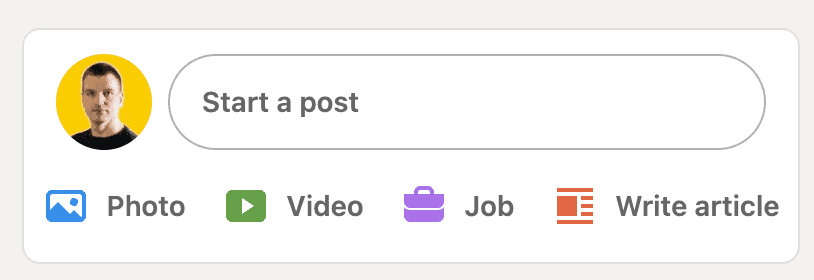
Next, create your LinkedIn post as usual. Write your text, attach a photo, video, or PDF document, but instead of clicking on the "Post" button, click the little clock icon next to it on the left.
When you hover your mouse cursor over it, a popover will appear with the words "Schedule for later".
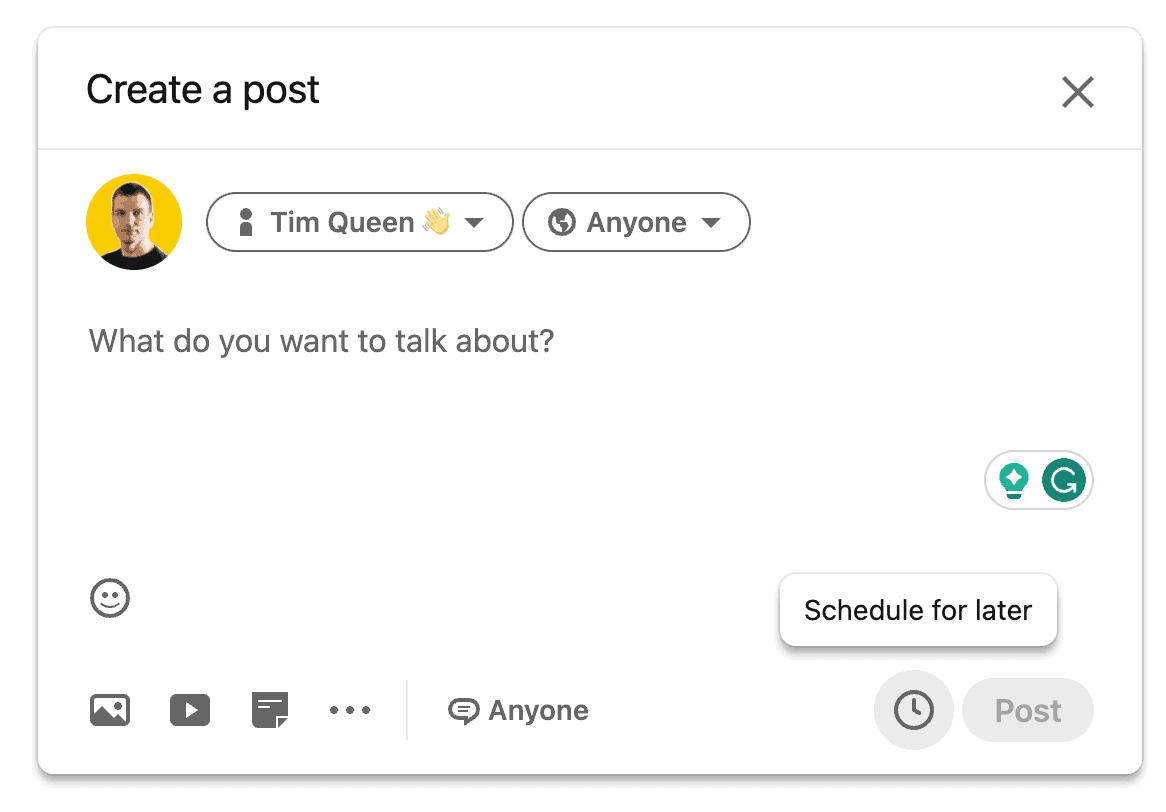
Click on the clock icon to summon the "Schedule post" dialog.
Posts are always scheduled in your local time, no matter where you are currently visiting.
Unfortunately, changing the timezone on a post-by-post basis is impossible. To change your timezone, visit your LinkedIn profile and update your current location. Then, return to your post and reopen the scheduling dialog.
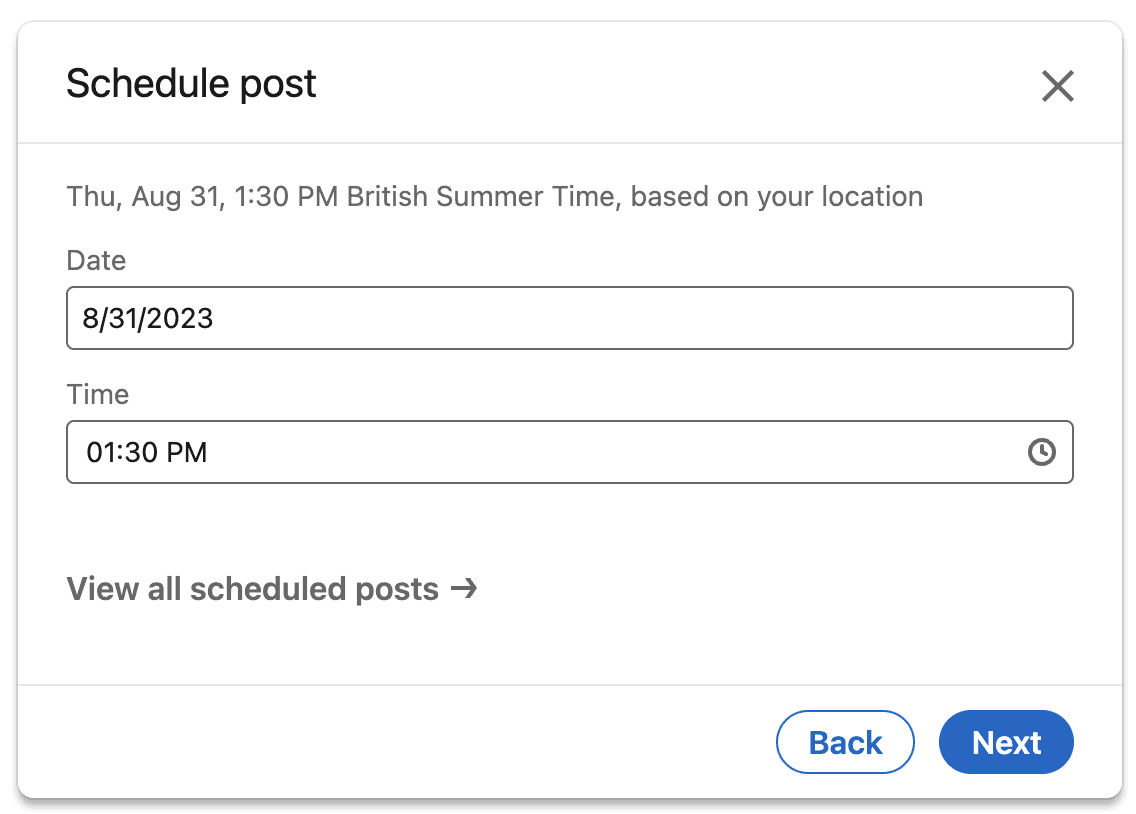
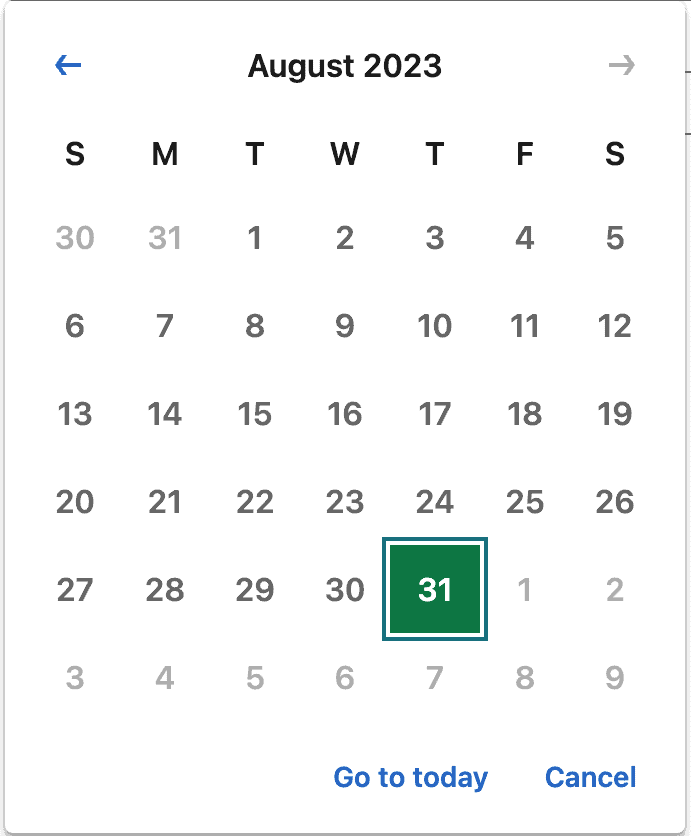
When you open the scheduling dialog, the date field is always set to your today's date.
Click on it to open the date selection dialog.
The left and right arrows allow you to jump back and forth between months. You can only schedule between today up to two months in the future.
At the top of the scheduler, you can see the first letter of each weekday to help you decide when to schedule your post.
Click on any day number to insert that date back into the scheduler.
Next, let's select the time when your post is supposed to go LIVE.
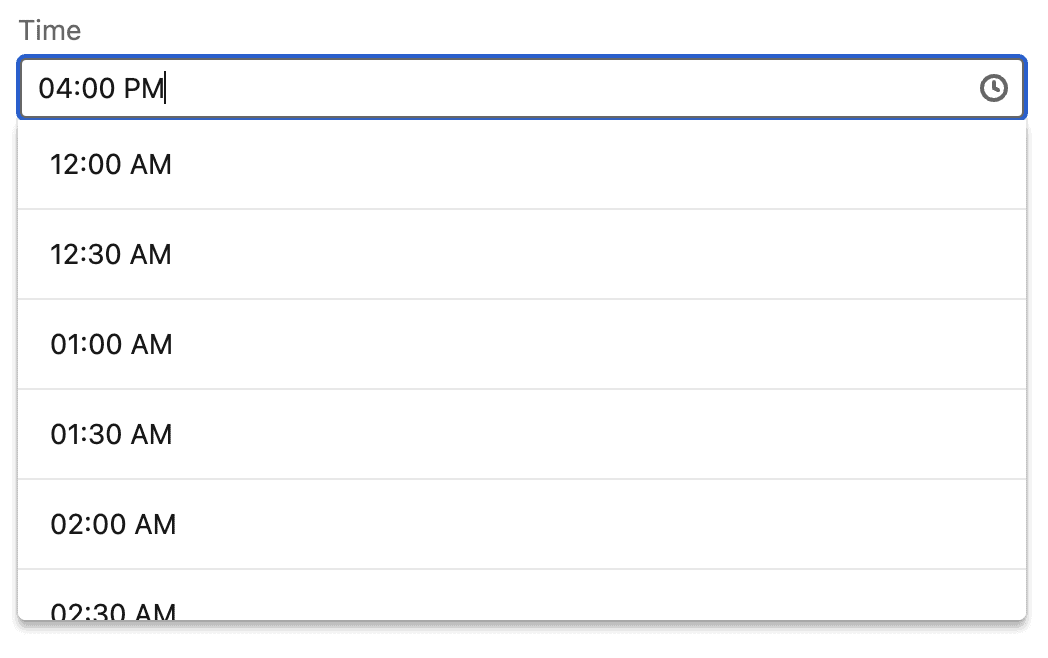
This dialog is very unintuitive as it gives you a full list of all full and half-hour slots within a 24-hour period, even though for most creators, typical business hours are most relevant.
Another drawback is that you are limited to scheduling appointments either at the beginning of a full hour (4:00 PM) or at the half-hour mark (4:30 PM).
However, let's proceed by selecting the desired time based on the timezone of your profile location.
Click the "Next" button to get back to your post.
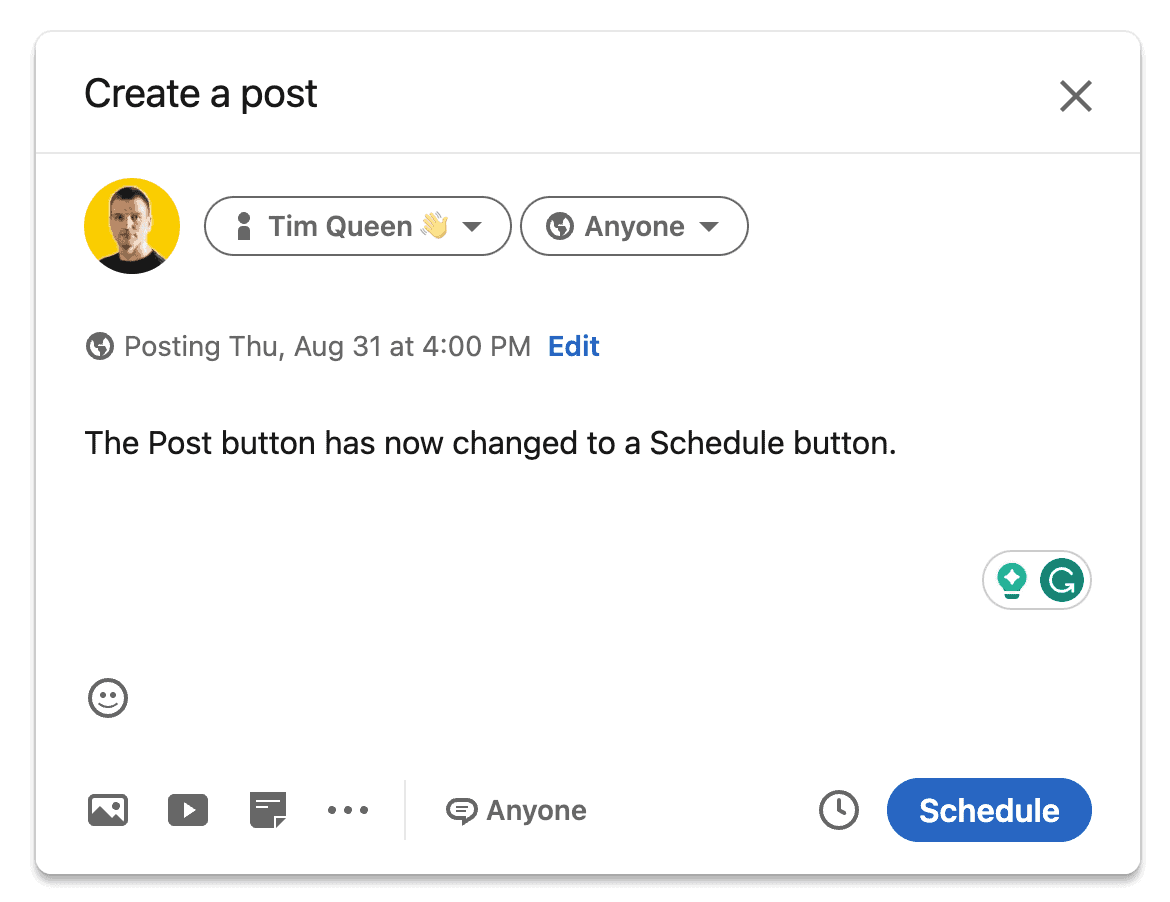
As you can see, the original "Post" button has now been replaced with a "Schedule" button.
Click on it to schedule your post.
How to Find a List of All Scheduled Posts
Seeing a list of your scheduled posts is the most unintuitive part of LinedIn's internal scheduler.
You can either memorize this secret Scheduled LinkedIn Posts link or follow the step-by-step guide below.
First, go back to the LinkedIn homepage, and click on "Start a Post" to open the post editor.
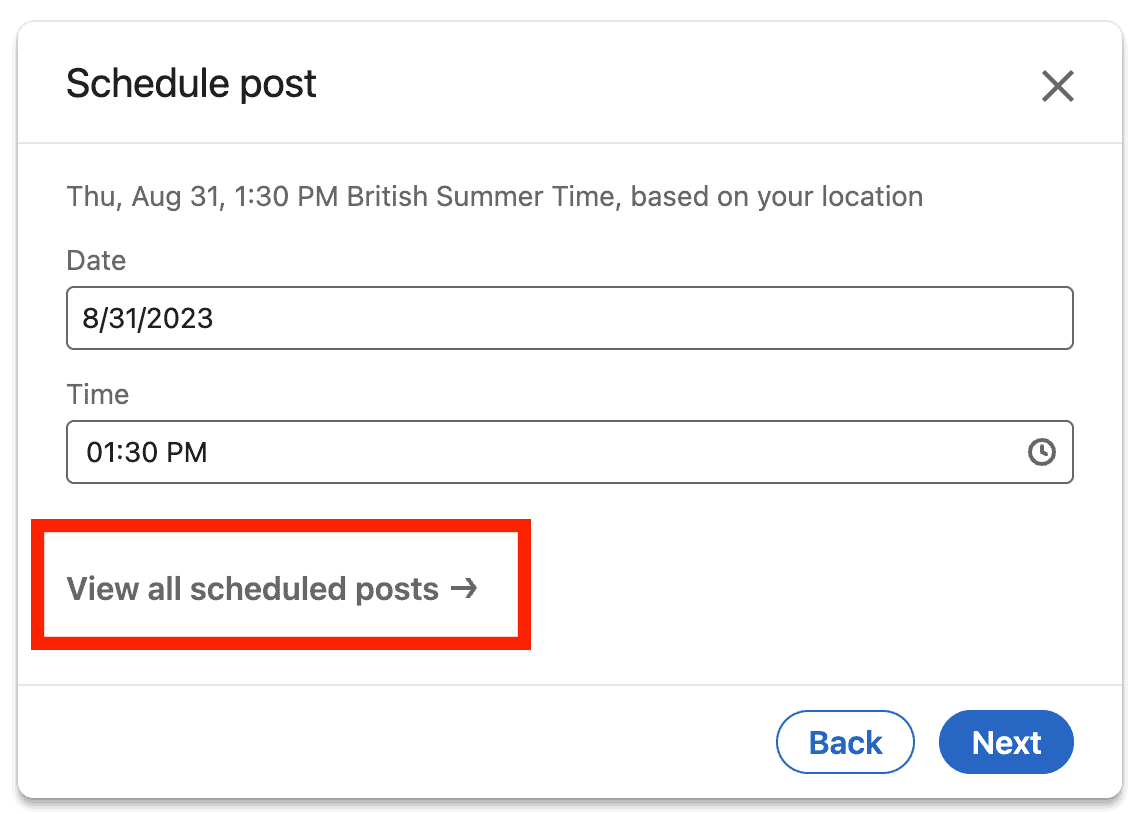
Instead of creating a new post, instantly click on the clock icon to open the scheduler.
Do not set a date or time.
Instead, locate the "View all scheduled posts" button below the time field and click on it.
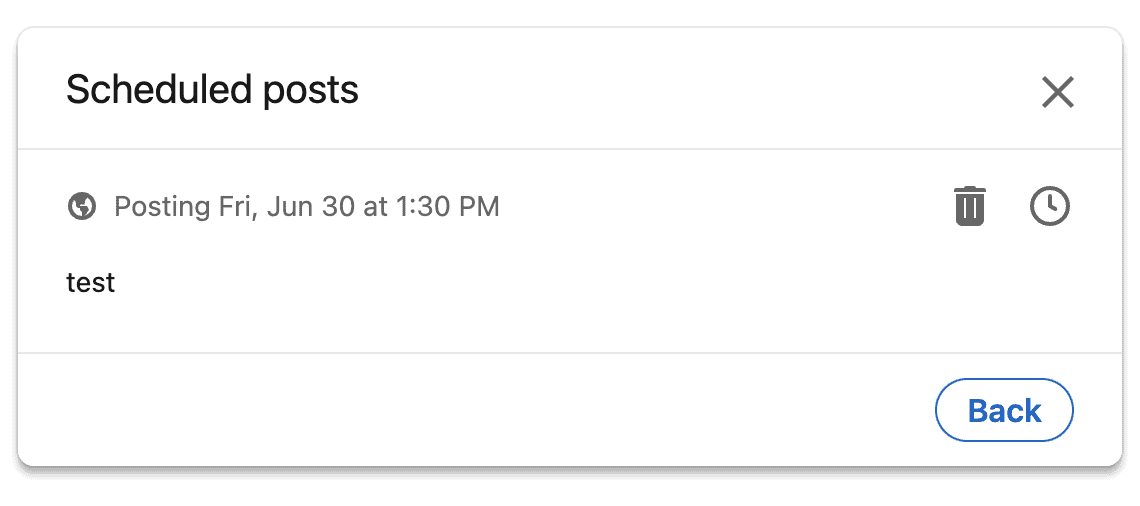
A new dialog will appear, giving you a chronologically sorted list of your scheduled posts.
Each post has the date at the top and a preview of your content below.
In the right column, you will find two icons.
If you click the trashcan icon, the scheduled post will be deleted. Be careful not to accidentally delete it. LinkedIn doesn't have the option to recover any deleted posts.
The clock icon allows you to change the date and time of when the post is supposed to go live.
Noticeably missing is an edit button.
How to reschedule a scheduled LinkedIn post
If you click the clock icon, you can reschedule your post for a different date and time.
The dialog options are identical to scheduling a post.
First, switch the date, then the time.
Click on Next to update the scheduled date and time.
How to edit a scheduled post
Once a post has been scheduled with LinkedIn's built-in scheduling feature, you cannot edit it or change its content.
The post can only be edited once it has been published.
That's very annoying and is one of the main reasons why the LinkedIn scheduler only got a rating of 3 out of 5 stars.
Here is how to edit your post correctly.
- Content database:
- Use an external tool to write and organize your LinkedIn post ideas and content.
- For example, you can use Notion and ClickUp to keep the original text and attachments if you ever want to reschedule your post.
- If you need to reschedule a post, you can delete the scheduled post, create a new post, copy and paste the original text and attachments, and post or reschedule it.
- Copy and paste:
- If you don't have a content database, you can copy and paste the post text from your scheduled post into a new post.
- Click the "Read more" button if your post is longer than a few lines of text, copy it, then open a new tab, start a new post, and paste the content.
- Once you're ready, post or schedule your new post, then go back to the previous tab and delete the scheduled post.
- Why so complicated? It's just a precaution. In case you didn't copy it correctly (we've all been there), you can still go back to the previous tab and copy it again.
- If you have an attachment, things get complicated.
- If you have a PDF attachment, click on your document, hover your mouse over the large preview of the cover image, and click on the full-screen icon at the bottom right.
- Then in full-screen mode, move your mouse to the top-right corner and click on the download link.
- If you have an image, you can left-click on it to open a preview, right-click on it, and "Save image as" to save it to your drive.
- Conversely, videos cannot be downloaded without a deep understanding of HTML source code.
- Post and delete:
- If you don't have a backup of your scheduled video, only one option is left: you must reschedule your post to the nearest timeslot and be on standby the moment your post goes live. Here are the steps to follow:
- Open your Activity feed
- Find your post
- Click the three dots icon at the top-right of your post
- Click "Copy link of this post"
- Use a LinkedIn video downloader of your choice to download your own video
- Recreate a new video post and delete the recently published one
- If you are fast, you can finish this in less than 5 minutes, so most people probably wouldn't notice.
How to schedule a LinkedIn post with SocialBee
SocialBee's social media scheduler is a powerful tool that allows you to create one post for multiple social platforms simultaneously.
Here is a typical workflow to create posts for LinkedIn and other platforms at the same time.
First, write your "main" post.
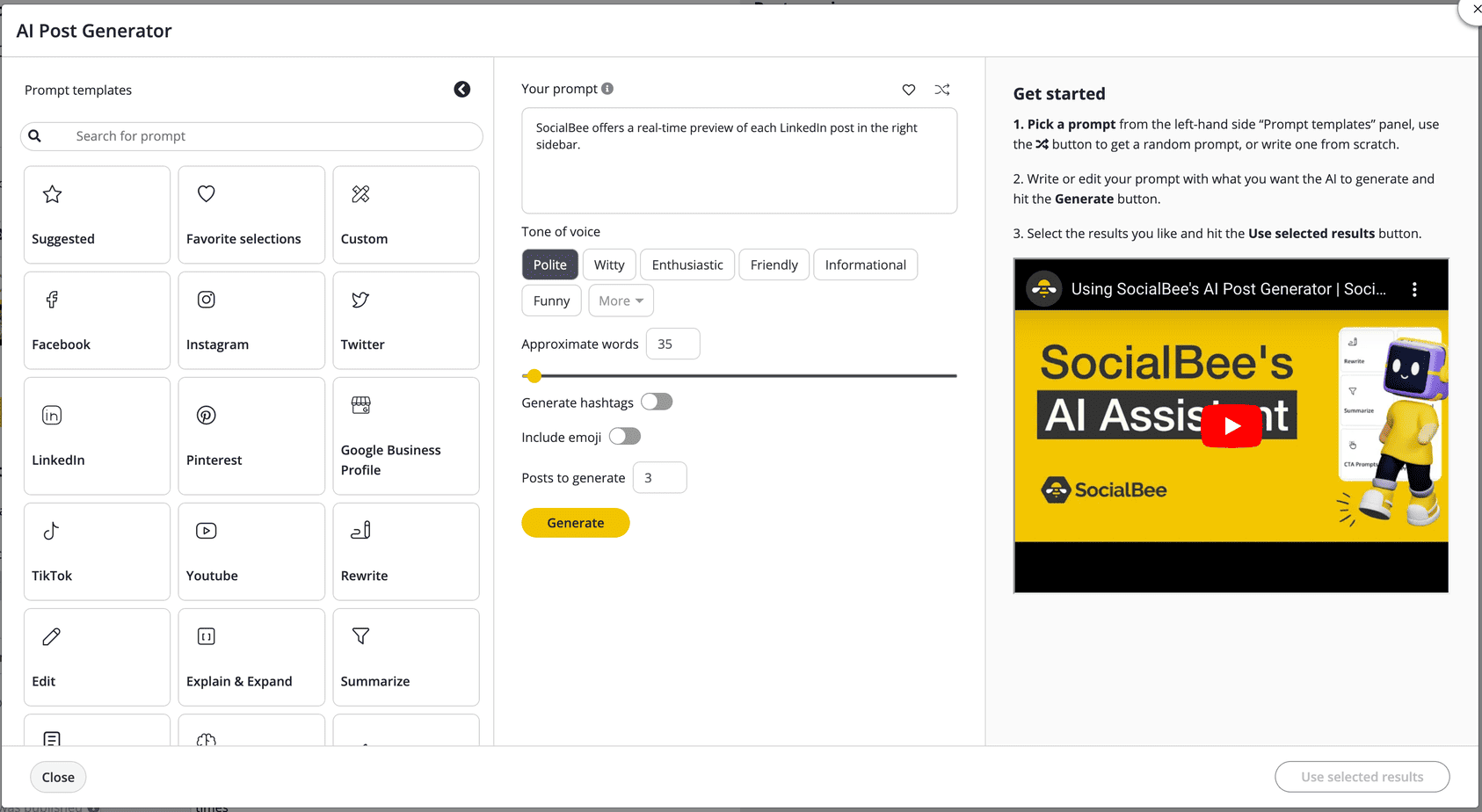
You can use SocialBee's AI Post Generator to write posts for you using a wide variety of prompt templates.
Select a starter template on the left, adjust the prompt in the "Your prompt" field, or type in your prompt from scratch if you know what you are doing.
You can adjust the tone of voice, select the desired content length in words, and choose if you want SocialBee to include emojis and generate hashtags for you.
Once you are happy with your section, click "Generate" to create three alternative post ideas.
You can choose one, two, or three results. (If you choose two or three, SocialBee will generate additional variations that will be added to your content buckets.)
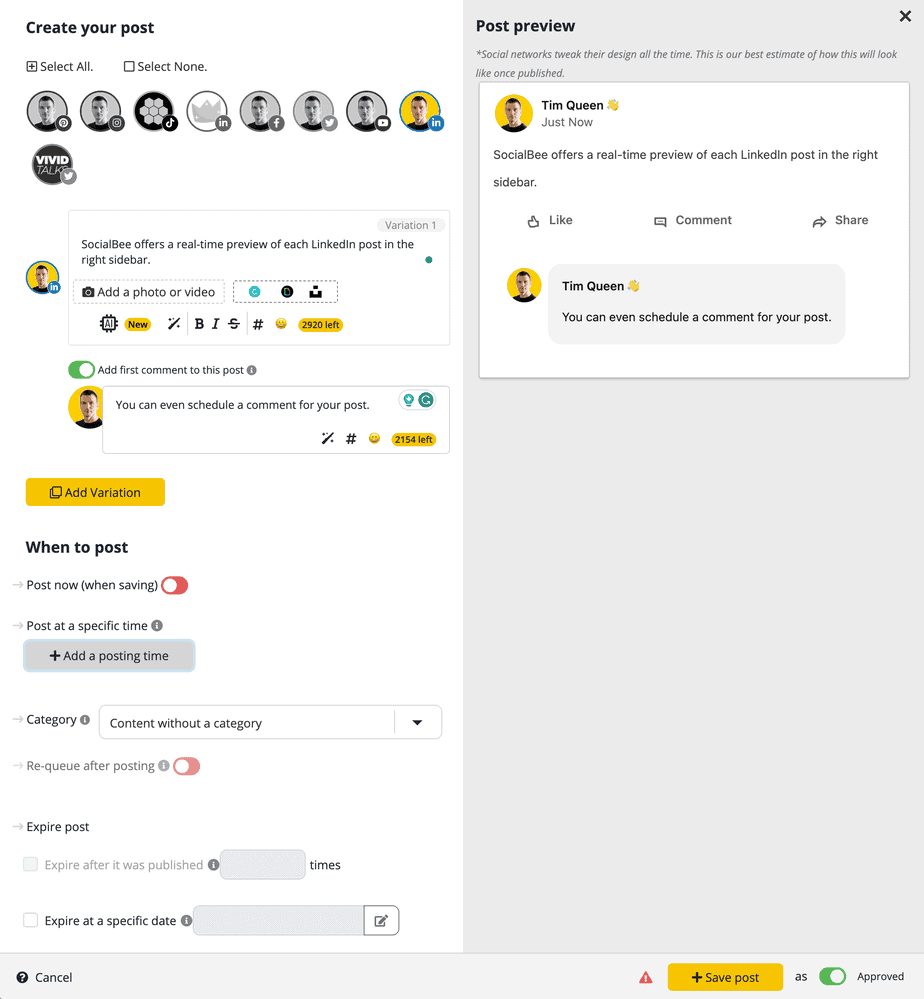
Edit your primary post until you are perfectly happy, then click the "Customize for each platform" button to shorten your post for platforms with shorter character limits such as Twitter and Pinterest.
In your LinkedIn variation, you can now activate a LinkedIn-specific feature to schedule your first comment. Writing a great comment can be an awesome conversation starter and help you execute a successful LinkedIn Commenting Strategy.
In terms of date and time, you have three options.
- You can share your LinkedIn post right now.
- You can schedule it for a specific date and time.
- You can add it to a specific content bucket (front or end of the queue). In this case, you would schedule a content bucket on specific weekdays and times, for example, "every weekday at 9 AM" or "Tuesday at 2 PM and Friday at 8 AM." The possibilities are endless.
Deleting and editing scheduled posts, including changing the content and date and time, is super easy.
First, visit the "View Your Next Posts" page.
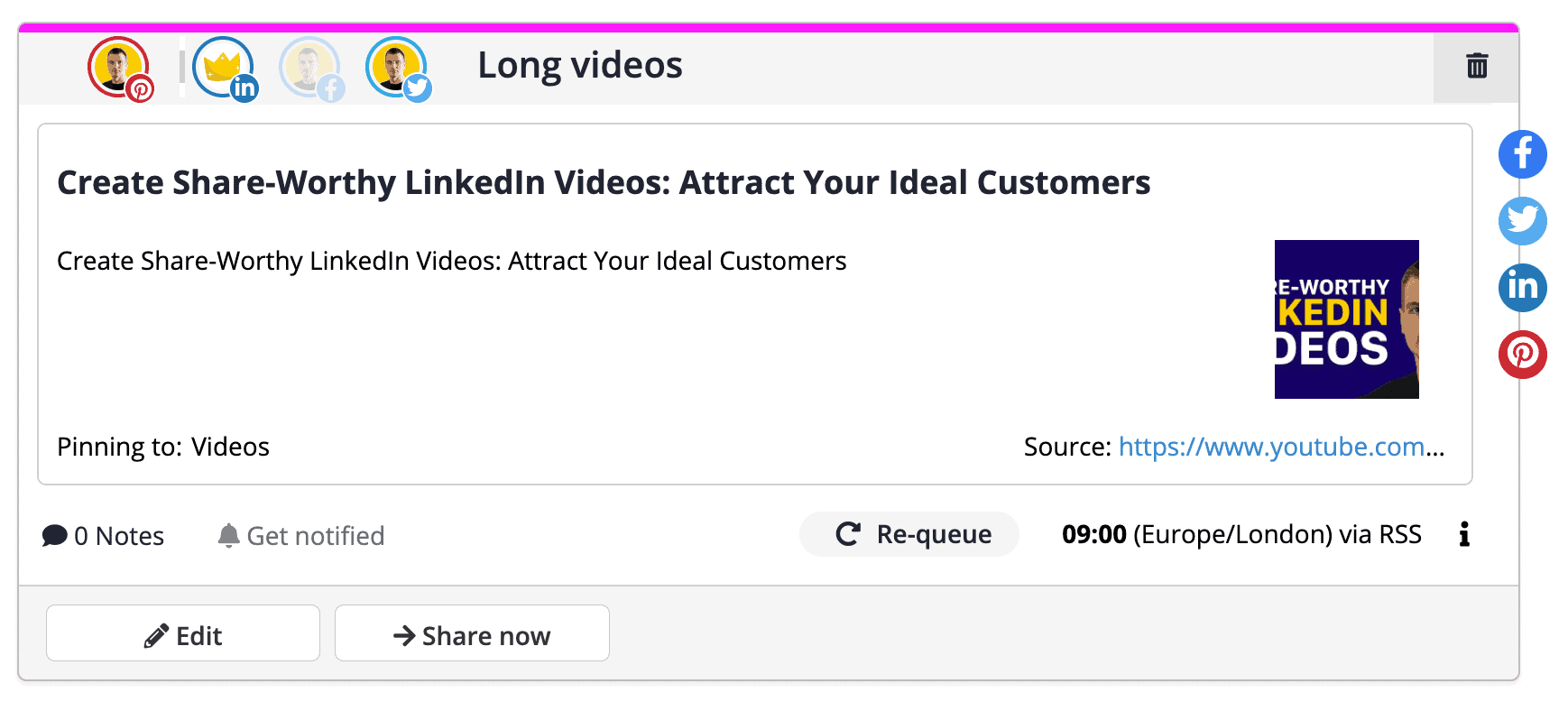
Click the "Edit" button to make any desired changes, or click the trashcan icon to delete a post.
Accidentally schedule a post that was supposed to go live now? No problem!
Click the "Share now" button, and it will go live instantly.
Scheduling Posts: Personal Profile vs. Company Page
When it comes to scheduling posts on LinkedIn
Talk about the ability of third-party tools to schedule posts for both personal profiles and company pages, but certain content type limitations?!??!
Native Post Scheduling on LinkedIn
LinkedIn's built-in scheduling tools are available for both personal profiles and company pages.
Features and limitations are identical for both destinations.
The only difference is that you have to visit the admin dashboard of your LinkedIn page first and press the "Start a post" button to access the scheduler.
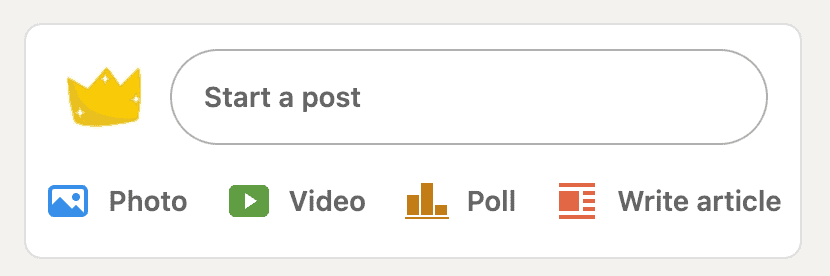
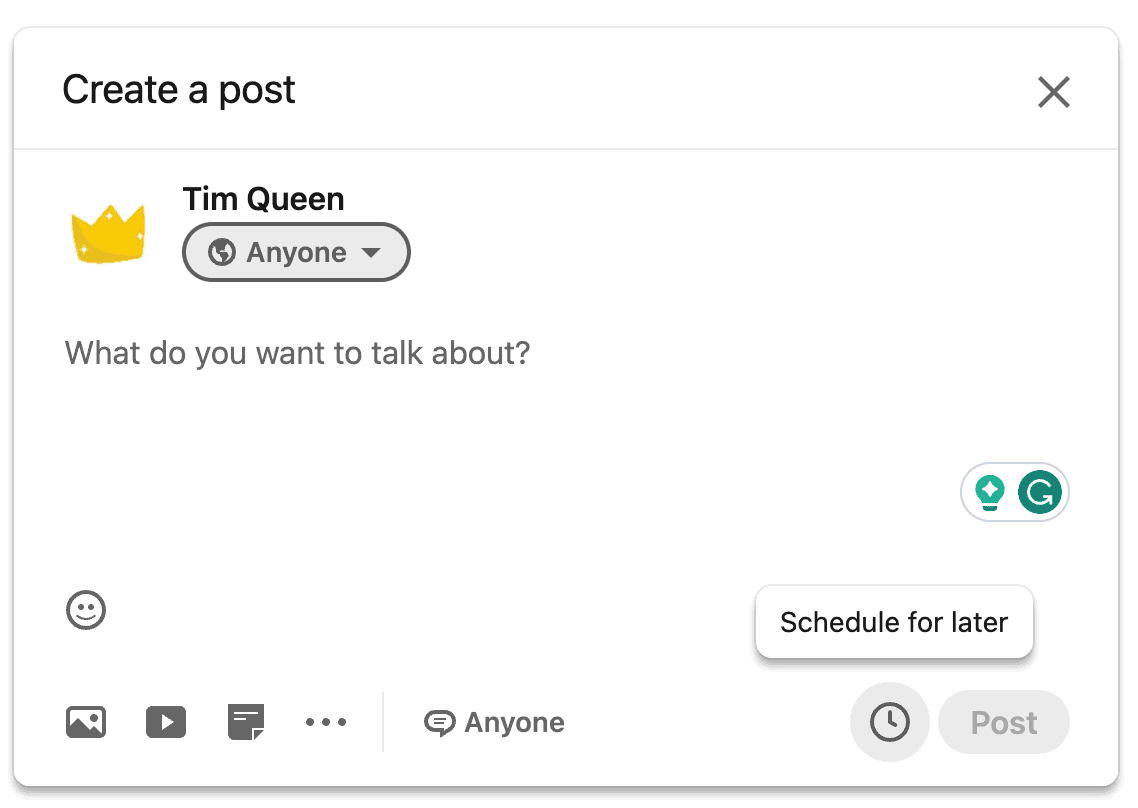
The company post editor is identical to the one you use for your profile.
All features, including scheduling, viewing scheduled posts, changing scheduled posts' dates and times, and deleting scheduled posts, are similarly accessible via the clock icon at the bottom right.
Scheduling posts for your page using SocialBee
Scheduling posts for LinkedIn profiles and pages is the same in SocialBee.
However, other social media scheduling tools may not support all content types on both platforms due to LinkedIn's constantly updating API. Less frequently updated tools may be affected by this.
For instance, SocialBee was one of the first tools to support LinkedIn's extended character limit of 3000 characters using the updated API.
Meanwhile, several other tools continued to use the old limit of 1300 characters for several months.
Common Mistakes When Scheduling Posts
There are three challenges when it comes to scheduling posts on LinkedIn.
Timezone issues
Many social media scheduling applications experience timezone issues at some point.
- This can happen because the user was not asked for their preferred timezone during account creation.
- Summer and winter time transitions were not handled properly.
- The user accidentally switched to the wrong timezone, among other reasons.
- To avoid these issues, I recommend double-checking your timezone on your profile and on your posts if your app allows for this on a post-by-post basis.
- If you are traveling to different timezones, check if your scheduling app automatically adjusts to your local timezone, or if it sticks with your profile timezone.
- To convert dates and times from one timezone to another, use a website such as Time and Date.
Expired Authorization
- When using third-party scheduling tools such as SocialBee, you have to grant the tool access to your LinkedIn account to send posts on your behalf to your personal LinkedIn profile or pages you manage.
- For security reasons, these access tokens will expire every 60 days, meaning you have to reauthorize your keys before that duration to avoid interruptions.
- By default, most scheduling apps will send you an email notification when you must reauthorize your token, so you can quickly resolve this.
- The only real problem is if you are on a long holiday without internet access.
- In this case, my recommendation is to manually reauthorize your LinkedIn access token before your travel date to reset the duration back to 60 days.
- If you intend to travel for more than 60 days without internet – Good on you, enjoy the digital detox – it might be best to entrust someone you can trust with your LinkedIn password to reauthorize you on your behalf.
File format, size, and resolutions
- Another very common issue has to do with file attachments, namely videos, photos, and PDFs.
- LinkedIn has restrictions on specific formats, file sizes, resolutions, max video duration in minutes, and page numbers.
- The restrictions are usually only an issue with edge cases, for example if your video uses the max video duration allowed by LinkedIn.
- Video encoding can cause issues. While LinkedIn supports several video encodings such as MP4 or QuickTime, it does not support less common encodings that use the same file extensions.
- The best way to avoid this is to stick with the most common encodings
Advanced LinkedIn Scheduling Options
Here are three advanced features that are not supported by all scheduling solutions.
Tagging companies and individuals
- In LinkedIn posts, you can embed a link to a specific person or company by typing the @ key followed by the name of whoever you want to tag. Click on the name from the autosuggestions, and you will notice that a blue link with the name has been added.
- Readers of your post can click on the name to visit the profile or page, and the person or company tagged will receive a notification asking them to check out your profile.
- This is an awesome feature, and unfortunately, not all social media scheduling applications support it yet.
- If this is a must-have, schedule posts that require tagging with LinkedIn native scheduling tool or use an advanced tool such as Taplio.
Scheduling comments
- LinkedIn's native scheduling tool does not allow you to schedule comments. This is only possible with third-party tools. Both SocialBee and Taplio support scheduled comments.
- SocialBee will post your comment instantly after your post has been published.
- While Taplio gives you a bit more control by allowing you to choose whether you want to comment instantly or at a specific duration after publication.
- If you are wondering why it might be best to comment a few hours later, some people believe that the LinkedIn algorithm punishes the organic reach of posts if you comment on them first. However, there is compelling evidence that this perceived effect is not related to the algorithm and can be explained in a different way.
Cross-posting on LinkedIn pages and profiles:
- If you want to share the same post simultaneously on both your personal profile and company page (there are good reasons why this might not be the best strategy), you can only do so with a third-party tool such as SocialBee or Taplio.
- I recommend having a unique LinkedIn content strategy for your profile and page and only occasionally cross-post.
Manual Scheduling with Calendar Reminders
Besides using LinkedIn's free internal scheduling tool and third-party social media scheduling tools, there is also another third approach. Scheduling manual posting and post engagement.
Here is how it works.
- You set an alarm clock every morning or add a posting and engagement time slot to your calendar.
- When the time is right, you visit your content database, where you create all of your content ahead of time in bulk.
- You copy the post of the day and paste it into the LinkedIn posts editor, make any final tweaks, tag relevant companies and people, and then manually post it.
- For the first hour after posting, you start your day but keep an eye on your notifications.
- This is the most important time after posting, as early engagement in the form of reactions, comments, and reposts can give your post an early boost by the LinkedIn algorithm.
- After the first hour, watching your notifications becomes less important.
- Check-in every hour for the first three hours, then only at the end of the day and the morning after.
This manual message allows you to schedule EVERY possible content type, even polls, events, jobs, reposts, group posts, and multi-image posts.
And because you are using a good system for creating, posting, and engaging with your content, it only requires minimally more time.
Another benefit of this approach is that it leads to naturally more engaging comments.
By re-reading your own post before publishing it and watching your notifications, your comment replies will naturally be much faster and more engaging because you are fully immersed in the topic.
This encourages other people to join the conversation once they see that there is a large discussion in your post's comment threads.
Best approach for scheduling posts on LinkedIn
Scheduling LinkedIn posts consistently and strategically can help build a strong personal brand.
Understanding which content types can be scheduled natively and experimenting with different scheduling strategies based on audience activity patterns and time zones can optimize results.
Choosing the right scheduling tool is crucial. If budget is a concern, use LinkedIn's internal scheduler.
If you manage multiple social media profiles across different platforms or if you want to implement a content cluster strategy, go with SocialBee.
If you want the most user-friendly scheduling tool with the biggest investment, consider Taplio.
Remember, even a manual scheduling approach can yield higher-quality engagement if done strategically.
Implementing testing, optimization, and the right mix of automation and human interaction can maintain consistency, audience engagement, and network growth over time to build professional success on LinkedIn.
Frequently Asked Questions
Can content be scheduled on LinkedIn?
Yes. LinkedIn has a built-in scheduling feature that allows you to schedule posts up to 60 days in advance.
How do you schedule posts on LinkedIn?
There are a few ways to schedule posts on LinkedIn. The easiest method is to use LinkedIn's native scheduling feature. When creating a new post, select the option to schedule it and choose a date and time for it to publish. You can also use third-party social media scheduling tools like SocialBee, Buffer, Hootsuite, Taplio, or Canva. These tools allow you to draft posts, add images or links, schedule multiple posts at once, and analyze your results.
What are the best tools for scheduling posts on LinkedIn?
The best tools for scheduling posts on LinkedIn are its built-in scheduling feature or third-party apps like SocialBee, Buffer, Hootsuite, Taplio, and Canva. LinkedIn allows you to schedule posts up to 60 days in advance for free, while third-party tools like Buffer, Hootsuite, and SocialBee offer comprehensive social media management features. Taplio is tailored for optimizing your LinkedIn presence, and Canva offers basic scheduling functionality for visual content.
Does scheduling LinkedIn posts affect engagement?
No, scheduling your LinkedIn posts in advance does not negatively impact engagement or views. Your connections and followers will see the posts at the scheduled time as if you had just posted them. Scheduling just allows you to draft and plan your posts ahead of time for convenience.
Do scheduled LinkedIn posts get less views?
No, scheduled posts do not inherently get fewer views. Your connections and followers will see the posts in their feeds at the scheduled time as if you had just posted them. The timing, content, and engagement potential of your posts ultimately determines views and engagement, not whether the posts were scheduled or published immediately.
How often should I post content on LinkedIn?
For business owners looking to attract new clients, posting daily is ideal, but 3-5 times per week will provide the biggest impact. Posting just once a week will only keep you minimally active and engaged. This higher frequency allows you to share a variety of content to educate, promote discussion, and build your credibility and authority as an expert in your industry.
Is posting once a week on LinkedIn enough?
For business owners, posting just once a week on LinkedIn is typically not enough to properly engage your audience and connections or attract new clients. While it meets the basic threshold for minimal activity, posting 3-5 times a week allows for more robust content sharing to achieve your goals.
Can I schedule posts on LinkedIn for free?
Yes, you can schedule posts on LinkedIn for free using LinkedIn's built-in post scheduling tool. When creating a new post, simply select the option to schedule it and choose a date and time for the post to publish up to 60 days in the future. LinkedIn's scheduler is free to use and part of your standard LinkedIn profile and features.
What is the best LinkedIn posting schedule?
For business owners looking to attract new clients on LinkedIn, 3 to 5 posts per week, or about 1-2 posts per business day is an ideal frequency. Posting daily is best, but 3-5 times a week will provide the most significant impact. The specific days and times you post depend on your target audience and goals.
What is the best time to post on LinkedIn?
The best times for business owners to post on LinkedIn are when the majority of potential new clients are most active and engaged. This is often before work, during lunch breaks, and in the evening after traditional work hours. The timing largely depends on your particular audience and industry.