Why should you change your YouTube video titles?
Video titles on YouTube are super important for any serious YouTube creator working towards building a YouTube business. They help with YouTube SEO and allow your videos to be discovered for popular search terms.
Together with your video thumbnail, the video title determines your video click-through rate, creating the foundation for more views, higher watch time, and more subscribers for your channel.
In this article, I talk about finding the best possible video titles and show you how to update the title of your videos both on your computer and phone.
Enjoy!
How to select a great YouTube video title?
The title of a video should always include the relevant keywords that describe the video's content so that it can be found through YouTube searches.
Your title should also entice viewers to click on your video by creating interest and curiosity, whether they search for it, see it on the homepage feed, or see it in the suggested videos.
I recommend using a good keyword research tool to find keywords that are high in demand (high search volume) and have little competition in terms of competing videos.
- Semrush belongs to the traditional SEO tools. Its Keyword Magic tool has probably the world's largest database of popular keywords and questions, including global search volume for each keyword. It's a treasure trove for any serious YouTube content creator and is the perfect tool to inspire your next video title.
- vidIQ is an amazing YouTube growth tool that integrates directly into YouTube Studio via their excellent browser extension. It adds a new button right below your video title field that allows you to rewrite your video title with their built-in AI.
- TubeBuddy is an awesome app containing many valuable tools for every YouTube content creator. I recommend using their Keyword Explorer tool to find excellent video titles for your videos. You can check out my TubeBuddy review here.
- MorningFame helps you to turn complicated statistics into easy-to-understand insights and actionable recommendations. Its SEO tool is one of the best on the market, as it allows you to optimize both your video title and description at the same time. This will enable you to put a higher emphasis on optimizing your video click-through rate with your title while at the same time including any missing keywords in your video description. Have a look at my MorningFame review here for more details.
You can learn more about how to write the perfect video title and how to optimize the video names of existing videos in these articles.
How to change a YouTube video title on your computer?
Visit the YouTube website in your browser and make sure that you are logged into your Google account linked to your YouTube channel.
Once logged in, click on your channel icon at the top-right corner and select YouTube Studio.
Next, open the "Content" tab on the left sidebar to open a list of all of your videos.
To edit a specific video, hover your mouse over a video of your choice to reveal the action menu. Click on the little pencil icon ✏️ to open the video details page.
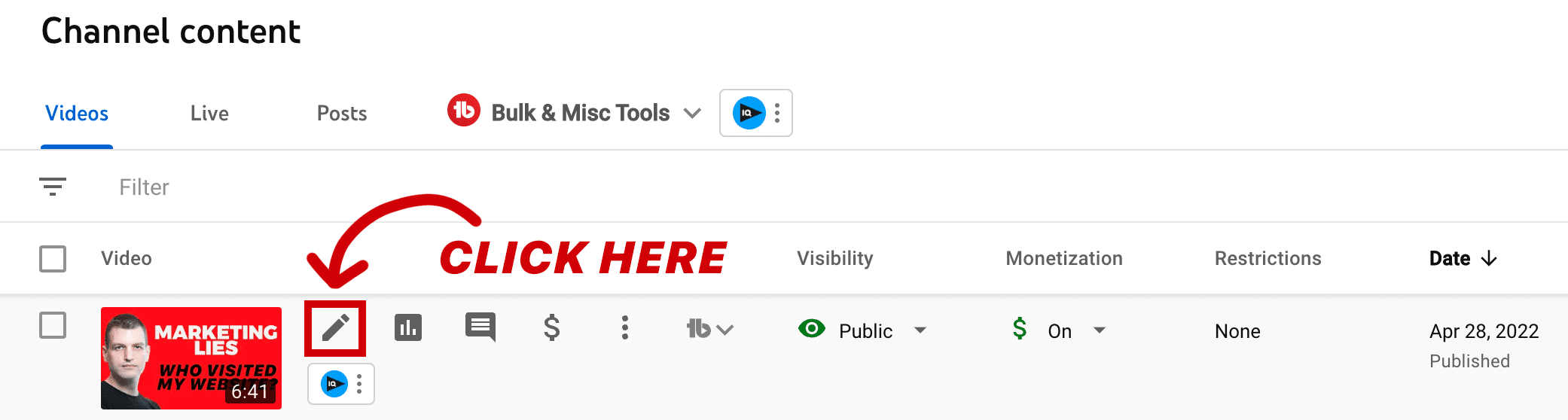
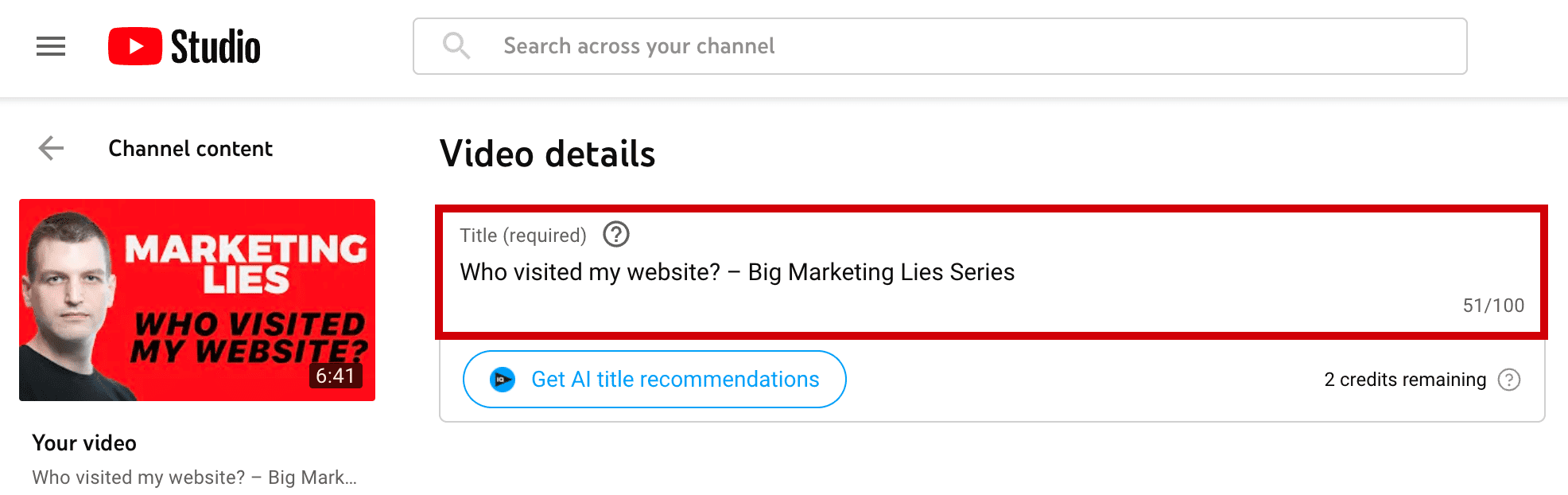
The video title is located at the top, on the right, next to your video thumbnail.
To edit your video title, click into the video title field marked in red below and start editing.
Once you are happy with your new title, click on the blue "Save" button at the top-right.

How to change a YouTube video title on your phone?
To change your YouTube video titles on your phone, you first have to download and install the YouTube Studio app from your mobile app store.
Proceed to open the YouTube Studio app.
From the "Dashboard" screen, locate the "Content" tab at the bottom and open it.
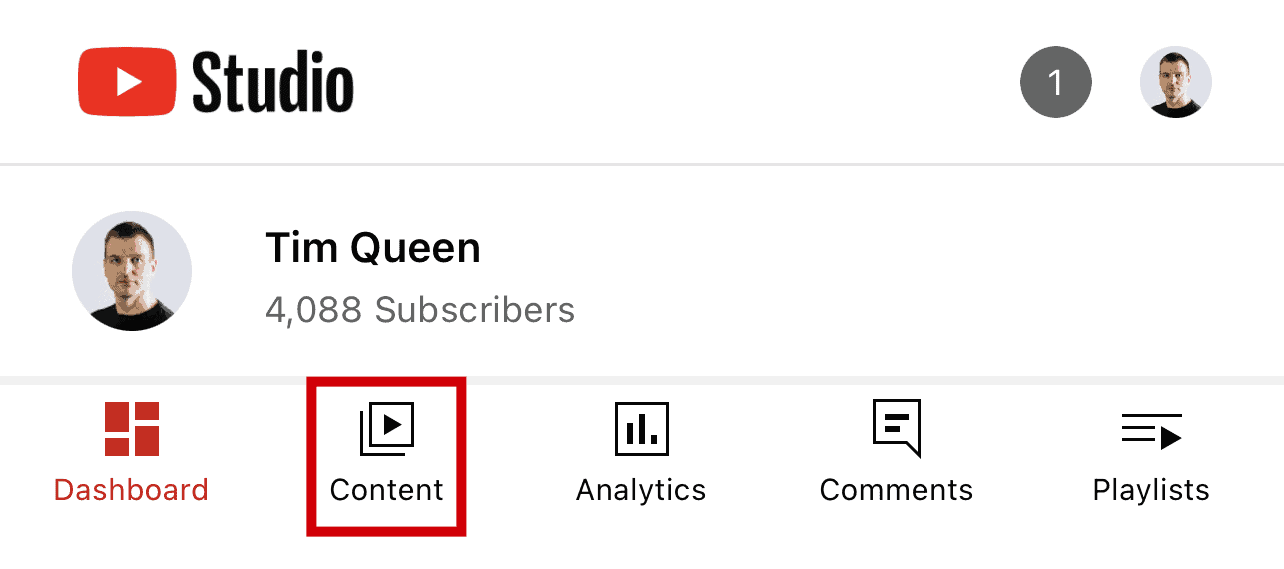
This will open a list of all of your YouTube videos. Select a video of your choice and tap on the video thumbnail to open the video details page.

Locate the pencil icon ✏️ at the top and click on it to make changes to your video.

Tap into the "title" field to open the on-screen keyboard to edit your video title. Once you are happy with your new title, press the "save" button at the top-right to confirm your changes.

Conclusion
As you can see, changing the title of your videos is pretty straightforward. The tricky part is finding a great title that works well for YouTube SEO and is click-worthy at the same time.
Remember: You can change your video title as many times as you like. I recommend monitoring your video click-through rate with the TubeBuddy's Click Magnet tool and AB-test alternative video titles to grow your YouTube channel faster.
You can also check out my YouTube blog, where I share hundreds of valuable tips and tricks that help you grow your YouTube channel.